
Productivity Workflows
How to Set Up Notifications for Assignments in Task it All (Icon Counter, Sound Alerts, and Configurable Rules) for Small Teams
How to Set Up Notifications for Assignments in Task it All
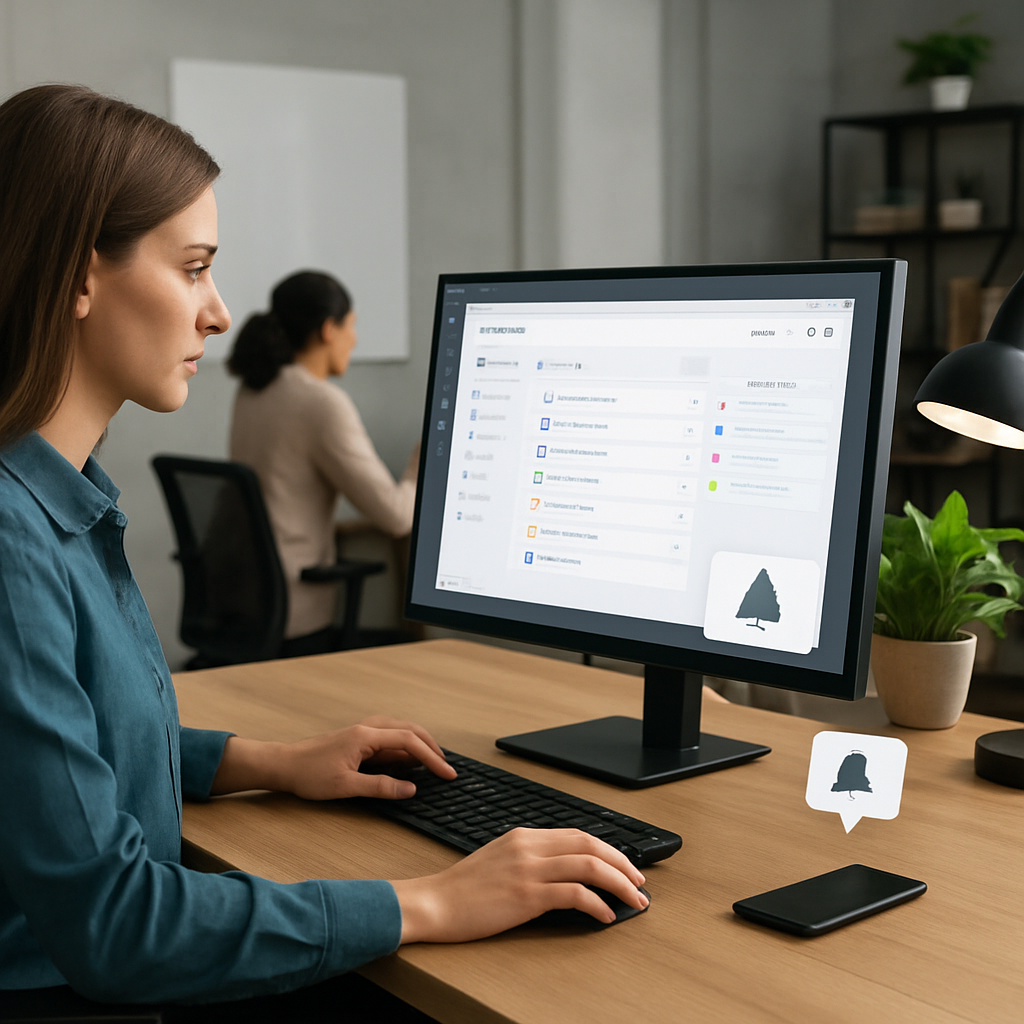
For small teams, missed assignments create friction fast: someone does not see a new task, a follow-up gets delayed, or a handoff sits unnoticed. Task it All helps teams stay aware of assigned work with visible and audible notification behavior, including an icon counter, sound alerts, and on-screen notices for new assignments.
This guide explains how to set up notifications for assignments in Task it All in a practical way, how to decide which alerts matter, and how to combine notifications with comments, due dates, reminders, and team visibility without turning your workspace into noise.
Why assignment notifications matter for small teams
Small teams usually do not have extra layers of project administration. The same people who plan work also execute it, review it, and follow up on it. That makes timely assignment visibility important.
Task it All is designed as a local-first desktop task and project manager that can grow from personal planning into TEAM scope collaboration. When your team uses shared workspaces, assignments, comments, synchronization, and operational visibility, notifications become part of the daily execution system.
A good notification setup can help your team:
- Notice new assignments sooner
- Reduce the need for repeated manual follow-up
- Keep task ownership clearer
- Support faster coordination when comments or direct messages are used
- Make daily reviews easier by showing what needs attention
The goal is not to create alerts for everything. The goal is to make important assignment activity visible enough that work does not disappear.
What Task it All assignment notifications can show
Task it All supports notification behavior that can make new assignments easier to notice. Based on the product experience, assignment notifications may include:
- A badge or icon counter directly on the app icon
- Sound alerts for new assignments
- A visible on-screen notice
- Configurable notification behavior so the experience can match different work styles
For team workflows, these notifications work best when assignments are used consistently. If tasks are created but not assigned, the notification layer has less useful context. If assignments are clear, notifications can become a lightweight signal for ownership and follow-up.
Before you configure notifications: confirm your team workflow
Before changing notification behavior, make sure the team is using Task it All in a way that supports meaningful alerts.
1. Use TEAM scope for shared work
Team collaboration in Task it All is available through TEAM scope. This is where shared visibility, assignments, comments, synchronization, and team execution become relevant.
If you are organizing work across more than one team, keep workspaces separated by function, department, or project group. For a deeper workflow guide, see How to Organize Tasks Across Multiple Teams in Task it All (Without Mixing Workspaces).
2. Assign tasks to the right person
Notifications are only useful when ownership is clear. When creating or updating a task, use assignment fields consistently so the right person receives the signal.
A simple small-team rule works well:
- One directly responsible person per task when possible
- Comments for context and clarification
- Subtasks when the work needs smaller steps
- Due dates or alarms when timing matters
- Status updates when execution changes
3. Keep comments close to the task
Task it All supports comments, notes, links, attachments, and task-link workflows. If a notification brings someone into a task, the next question should be easy to answer: “What do I need to do?”
Use comments to explain the assignment, mention the right people when coordination is needed, and leave a clear record of decisions or follow-up.
How to set up notifications for assignments in Task it All
The exact notification controls can depend on your app version and configuration, so use the in-app guide or contextual help if you need screen-specific instructions. The practical setup process is straightforward:

Step 1: Open Task it All and unlock your local user
Task it All is local-first. On first use, the app creates a local user with username, email, password confirmation, and Recovery Phrase confirmation before the normal main window opens. Existing users unlock from that local security step.
After the main window opens, you can work with personal tasks or move into TEAM scope if your plan and workspace are configured for collaboration.
Step 2: Go to the team workspace where assignments happen
Open the team area where shared tasks are created and assigned. If your company uses multiple teams, choose the correct team space so notifications reflect the right workflow and do not mix unrelated work.
This is especially important for small teams that divide work by client, department, product, or project group.
Step 3: Create or select a task that needs ownership
Choose a real task, not a test item that the team will ignore. Add the essential context:
- Task name
- Status
- Type or category, if used by your team
- Due date or reminder when timing matters
- Priority when the task needs special attention
- Notes, comments, links, or attachments when context is needed
Task it All supports tasks, subtasks, comments, due dates, alarms, notes, priorities, and attachments in one desktop workflow, so the assignment notification can point back to a useful work item.
Step 4: Assign the task to the right team member
Use the assignment flow in the TEAM workspace to assign the task. Once assigned, Task it All can surface new assignment activity through its notification behavior, such as icon badge counters, sound alerts, or visible notices.
For best results, avoid assigning work without context. A short comment can prevent unnecessary follow-up messages.
Example assignment comment:
> “Please review the updated timeline and confirm whether the Friday handoff is realistic. I added the relevant file and due date.”
Step 5: Review notification behavior with the team
Task it All includes configurable notification behavior for different work styles. Review the available notification options inside the app and decide what the team should keep active.
A practical small-team setup may include:
- Icon counter enabled for new assignments
- Sound alert enabled for urgent or active collaboration periods
- Visible on-screen notices enabled for people who need immediate awareness
- A lighter setup for team members who handle deep-focus work
The right setup depends on how quickly assignments need attention. A support-heavy team may want stronger alerts. A planning or design team may prefer fewer sounds and more visual signals.
Step 6: Test with one real assignment
After configuring notification behavior, test it with a real team task. Ask the assigned person to confirm:
- Did the app icon counter update?
- Was a sound alert triggered, if enabled?
- Was a visible notice shown?
- Did the task contain enough context to act on it?
- Was the assignment in the correct team workspace?
This quick test helps confirm that the team is not only receiving alerts but also receiving useful work signals.
Recommended notification rules for small teams
A good notification system is not just technical. It is also a team agreement. Here are simple rules that work well for small teams using Task it All.
Rule 1: Notify for ownership, not every thought
Use assignments when someone is responsible for action. Use comments or notes for context. This keeps assignment notifications meaningful.
Rule 2: Use due dates and alarms for time-sensitive work
If a task has a deadline, add a due date. If it needs a stronger time signal, use an alarm or reminder. Notifications should work together with the task’s time fields, not replace them.
Rule 3: Use subtasks when one assignment contains multiple steps
If the task is too broad, create subtasks. This makes the assigned work clearer and helps the team review progress without long status meetings.
Rule 4: Keep sound alerts intentional
Sound alerts are useful, but too many sounds can become disruptive. For many small teams, sound is best reserved for new assignments or high-attention workflows rather than every minor update.
Rule 5: Review notification behavior after one week
After a few days of real use, ask the team:
- Are we missing assignments?
- Are there too many alerts?
- Are notifications helping or interrupting?
- Are assignments clear enough when they arrive?
Then adjust the configuration and team habits.
How assignment notifications fit into daily execution
Notifications work best when they are part of a larger daily system. Task it All supports a workflow where teams can combine assignments with statuses, comments, subtasks, reminders, priorities, and operational visibility.
A simple daily rhythm might look like this:
- Start the day by checking open items and due signals.
- Review new assignments from the icon counter or visible notices.
- Open assigned tasks and read comments or notes.
- Update status as work moves forward.
- Add subtasks when execution needs structure.
- Use comments for blockers, decisions, or handoffs.
- Review completed and blocked work before the day ends.
This turns notifications into an entry point for action instead of a distraction.
Common setup mistakes to avoid
Mistake 1: Assigning tasks without enough detail
If the assigned person has to ask, “What is this about?” the notification did its job, but the task did not. Add a comment, due date, note, or attachment when needed.
Mistake 2: Mixing workspaces
If your company has multiple teams, avoid placing all tasks in one shared area. Task it All supports multiple teams under the same company context, which helps keep work organized without mixing team spaces.
Mistake 3: Turning on every alert for everyone
Not every role needs the same notification intensity. People coordinating active handoffs may need more visible alerts. People doing focus-heavy execution may prefer fewer sound interruptions.
Mistake 4: Treating notifications as project management by themselves
Notifications are signals. They do not replace task structure. Use statuses, due dates, comments, subtasks, and priorities so the signal leads to clear action.
Troubleshooting: if assignment notifications are not noticeable
If notifications do not seem to appear as expected, start with basic checks before changing your workflow.
- Confirm the task was assigned in the correct TEAM workspace.
- Confirm the assigned person has access to the owning team context.
- Check whether notification behavior is configured in a way that matches the expected alert.
- Ask the recipient to confirm whether the icon counter, sound, or visible notice appeared.
- Use the in-app guide, contextual help, or Ask ChatGPT flow for practical instructions inside Task it All.
- If synchronization, login, or update behavior feels stuck, use the troubleshooting guidance in the app before risky recovery steps.
Task it All also checks for updates in the background after startup. You can manually check from Help / About -> Check updates. Microsoft Store builds let Microsoft Store handle installation while the app keeps version and status guidance.
When to connect notifications with add-ons
For some teams, assignment notifications are enough. Others may want broader planning and review layers. Task it All includes add-ons such as Process Manager, Universal File Viewer, Easy note, Calculator, and Calendar / Timeline to extend the workflow.
If your team wants to connect assignments with process planning, timeline review, or file-heavy execution, read the Task it All Add-ons Guide: How to Choose the Right Tools (Process Manager, Calendar/Timeline, and File Viewer) Without Overcomplicating Your Workflow.
The key is to add tools only when they support the workflow. Notifications should make assignments visible; add-ons should help the team execute with more context when needed.
FAQ
How do I set up notifications for assignments in Task it All?
Start in the TEAM workspace where shared assignments happen. Assign a real task to the right person, then review the available notification behavior inside Task it All, including icon counter, sound alert, and visible notice behavior. Use the in-app guide or contextual help for version-specific controls.
Does Task it All show an icon counter for new assignments?
Yes. Task it All can show a badge counter directly on the icon for new assignments, helping team members notice assigned work more quickly.
Can Task it All play a sound for new assignments?
Yes. Task it All supports sound alerts for new assignments, and notification behavior can be configured to match different work styles.
Can assignment notifications be configured?
Yes. Task it All includes configurable notification behavior so teams can adjust how visible or audible assignment activity should be.
Do I need a team plan for assignment notifications?
Team assignment workflows are part of TEAM scope. The Free plan is built for personal tasks and secure local work, while Teams unlocks team collaboration, assignments, comments, visibility, realtime coordination, and basic audit. Team Plus extends Teams with add-ons, advanced collaboration, governance, and deeper audit coverage.
What should I do if a teammate does not receive an assignment notice?
Check that the task was assigned in the correct team workspace, that the teammate has access to that team context, and that notification behavior is configured as expected. If needed, use the in-app guide, contextual help, Ask ChatGPT, or troubleshooting section.
Are notifications a replacement for due dates or reminders?
No. Notifications help people notice assignment activity. Due dates, alarms, priorities, statuses, comments, and subtasks still provide the structure needed to execute the work clearly.
Can Task it All help teams avoid mixing notifications across different groups?
Task it All supports multiple teams under the same company context. Keeping work in the correct team space helps assignment activity stay organized by function, area, or project group.
Soft CTA
If your small team needs a clearer way to assign work, keep task context together, and make new assignments visible, Task it All gives you a local-first desktop workflow that can grow into team collaboration when you need it.
Organize your team tasks with Task it All, or start by planning your day with personal tasks, subtasks, notes, due dates, and reminders.
Internal-link suggestions
- For multi-team workspace structure: How to Organize Tasks Across Multiple Teams in Task it All (Without Mixing Workspaces)
- For extending workflows with add-ons: Task it All Add-ons Guide: How to Choose the Right Tools (Process Manager, Calendar/Timeline, and File Viewer) Without Overcomplicating Your Workflow