
Add-ons and Automation
Task it All Add-ons Guide: How to Choose the Right Tools (Process Manager, Calendar/Timeline, and File Viewer) Without Overcomplicating Your Workflow

Task it All Add-ons Guide: How to Choose the Right Tools Without Overcomplicating Your Workflow
Add-ons are useful when they solve a real workflow problem. They become noise when a team activates tools before agreeing on how work should move from idea to execution.
This Task it All add-ons guide is designed for productivity users, founders, and small teams that already manage tasks, subtasks, notes, due dates, comments, priorities, and statuses inside Task it All, but want to understand when tools like Process Manager, Calendar / Timeline, Universal File Viewer, Easy note, and Calculator can help.
The goal is not to use every add-on. The goal is to choose the smallest set of tools that makes daily execution clearer.
If your team is still defining shared workspaces, assignments, and team separation, start with this related guide first: How to Organize Tasks Across Multiple Teams in Task it All (Without Mixing Workspaces).
What add-ons should do in a task workflow
In a practical task management system, add-ons should support the main workflow instead of replacing it.
In Task it All, the base workflow already includes daily work elements such as:
- Tasks and subtasks
- Notes and comments
- Due dates and reminders
- Priorities and statuses
- Attachments and links
- Team assignments and shared visibility in TEAM scope
- Audit visibility and governance layers depending on the plan
Add-ons should extend that structure when the team needs more context, planning visibility, or operational control. A good add-on choice should answer one of these questions:
- Do we need a clearer view of process steps?
- Do we need to understand timing, due dates, and sequence better?
- Do we need to review files without breaking task context?
- Do we need quick notes or calculations close to the work?
- Do we need extra planning support without moving into another tool?
If the answer is no, keep the workflow simple.
Start with the workflow before choosing the add-on
Before choosing a tool, map the work in plain language.
For example:
- A request arrives.
- Someone creates a task.
- The task gets a due date, priority, and owner.
- The owner breaks it into subtasks.
- The team discusses details in comments or chat.
- Files or notes are attached when needed.
- Progress is reviewed by status.
- Completed work is closed or used as reference for future tasks.
Once the workflow is visible, choosing add-ons becomes easier. Each add-on should support a specific point in that flow.
A common mistake is to activate planning tools, file tools, notes, and process views all at once. That can make a small team feel more organized for a day, but harder to manage after a week. Instead, add one tool where the current workflow is unclear.
When to use Process Manager
Process Manager is useful when your team needs more structure around repeated work.
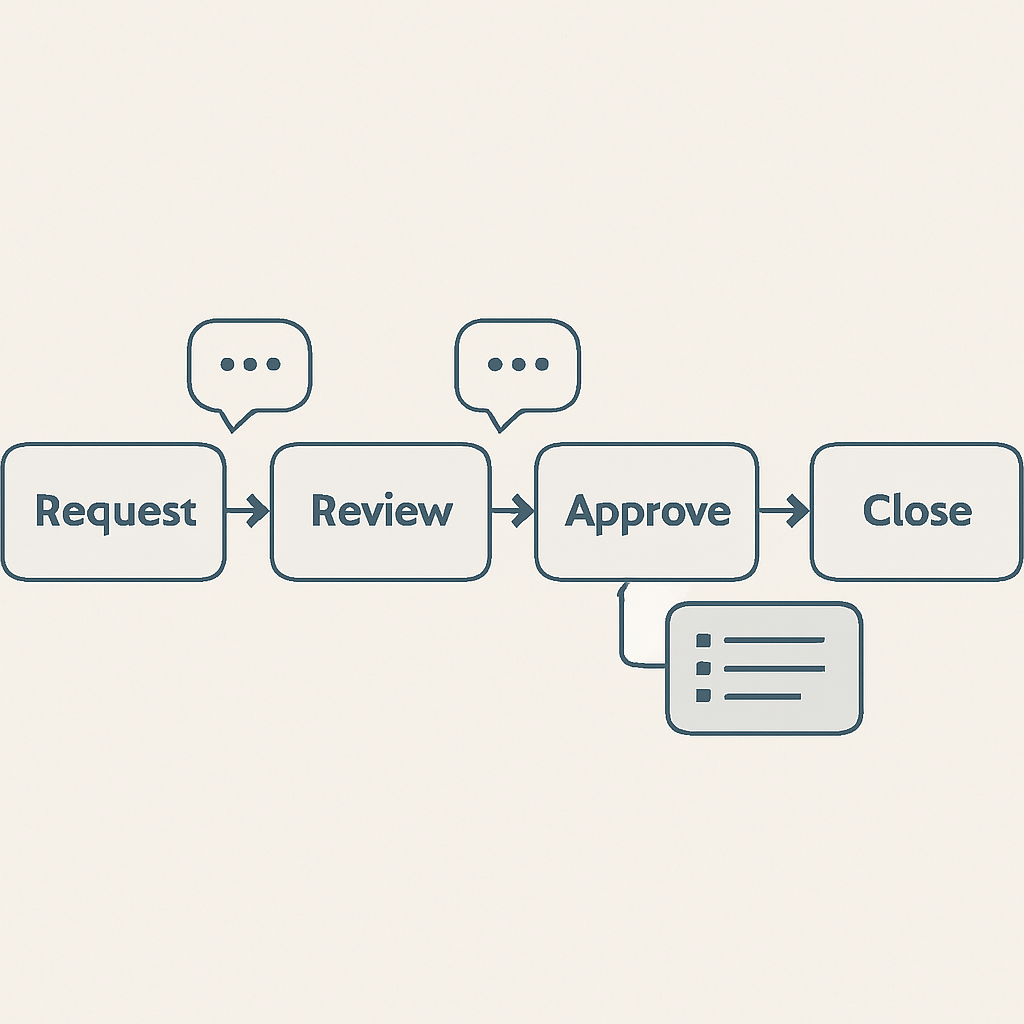
Consider it when tasks are not just individual actions, but part of a repeatable process. Examples include client onboarding, internal approvals, recurring operations, support follow-up, content production, or handoff-heavy workflows.
Process Manager can be a good fit when your team says things like:
- We do this type of work often, but steps are inconsistent.
- People are not always sure what happens next.
- Handoffs between people or teams need to be clearer.
- We need better operational control around a repeated workflow.
- Tasks alone are not enough to explain the full sequence.
A practical way to start is to identify one repeatable workflow and connect it to your task structure. Do not begin with every process in the company. Choose one process that creates delays or confusion, then define the core steps.
Keep Process Manager simple
To avoid overcomplication:
- Start with one process, not ten.
- Use clear names for each step.
- Keep tasks and subtasks as the execution layer.
- Use comments for decisions and follow-up.
- Review the process after real use, not before.
Process Manager should make repeated work easier to understand. If the team spends more time maintaining the process than doing the work, simplify it.
When to use Calendar / Timeline
Calendar / Timeline is useful when timing matters.
Task it All already supports due dates, alarms, reminders, statuses, and daily execution. Calendar / Timeline becomes more valuable when the team needs a broader planning layer around dates, sequences, and upcoming work.
Consider Calendar / Timeline when your team needs to:
- Review what is due soon.
- Understand how tasks are distributed across time.
- Plan around deadlines, reminders, and follow-up.
- Prepare a weekly or monthly execution view.
- Spot potential timing conflicts before they become urgent.
This can be especially helpful for small teams that manage many small deliverables. A task list can show what exists. A timeline-style view can help the team understand when work needs attention.
Best use cases for Calendar / Timeline
Calendar / Timeline is a strong fit for:
- Weekly planning sessions
- Deadline review
- Campaign or project schedules
- Recurring operational work
- Follow-up planning
- Workload visibility by date
It should not replace the task itself. The task remains the place for status, comments, notes, assignments, and execution details. Calendar / Timeline should help the team see time more clearly.
When to use Universal File Viewer
Universal File Viewer is useful when files are part of the workflow and the team wants to keep review closer to the task context.
Many small teams lose time because files, task instructions, comments, and decisions live in separate places. A file viewer can help reduce context switching when files are connected to work.
Consider Universal File Viewer when:
- Tasks often include attachments or file references.
- Review work depends on documents or supporting files.
- Team members need to inspect files while staying close to task details.
- Comments and file context should stay connected.
- Handoffs depend on clear supporting material.
Avoid treating a file viewer as a replacement for a clean task structure. The task should still explain what needs to happen, who owns it, what the due date is, and what status it is in. The file viewer supports review; it should not become the only source of instructions.
A simple file-review workflow
A practical workflow can look like this:
- Create the task.
- Add a clear title and short description.
- Attach or link the relevant material.
- Use comments to explain what needs review.
- Assign the right person in TEAM scope when collaboration is needed.
- Use status updates to show progress.
- Keep final decisions in comments or notes.
This keeps file activity tied to task execution.
When to use Easy note
Easy note is useful when the team needs quick supporting notes without turning every idea into a separate task.
Not every thought is an action. Some information is context, research, meeting detail, or a reminder for later. Notes help preserve that context close to the work.
Use Easy note when:
- A task needs background information.
- A meeting produces context but not immediate action.
- You want to capture ideas before converting them into tasks.
- A team member needs to document reasoning or next steps.
- You want to reduce scattered external notes.
The key is to separate notes from execution. If something requires ownership, status, and a due date, it should probably become a task or subtask. If it supports understanding, it can remain a note.
When to use Calculator
Calculator is useful for quick calculations that support planning or review.
This may sound simple, but small workflow tools often matter because they reduce context switching. If a task requires quick estimates, totals, comparisons, or operational numbers, having a calculator available inside the workspace can keep the user focused.
Use Calculator when calculations are part of the task context, but avoid overbuilding around it. If the work requires a dedicated financial system, reporting platform, or specialized spreadsheet model, use the right tool for that larger need. The Calculator add-on is best treated as a convenient support tool inside daily execution.
A practical decision framework for Task it All add-ons
Use this simple framework before adding a tool to your workflow.
1. Identify the friction
Ask: What is slowing us down?
Examples:
- We forget deadlines.
- We lose file context.
- We repeat the same process inconsistently.
- We create too many disconnected notes.
- We do quick calculations outside the task and lose the result.
2. Match the friction to one add-on
Choose one primary tool:
- Repeated workflow confusion: Process Manager
- Date and sequence visibility: Calendar / Timeline
- File review near task context: Universal File Viewer
- Supporting context and quick capture: Easy note
- Quick operational calculations: Calculator
3. Define how the team will use it
Write one short rule. For example:
- Use Calendar / Timeline during weekly planning only.
- Use Process Manager only for recurring client workflows.
- Use Universal File Viewer only when a task includes review material.
- Use Easy note for context, not assigned work.
4. Review after one week
After real use, ask:
- Did this reduce confusion?
- Did it create extra maintenance?
- Did people actually use it?
- Should we keep it, simplify it, or remove it from the workflow?
This keeps add-ons practical.
Recommended add-on combinations by team type
Different teams need different levels of structure. Here are practical starting points.
Solo productivity user
Start with the base Task it All workflow: tasks, subtasks, notes, due dates, reminders, priorities, and comments. Add Easy note if you capture a lot of context. Add Calendar / Timeline if deadlines and planning views matter.
Suggested starting set:
- Easy note
- Calendar / Timeline only if date planning is a recurring need
Founder or small operator
Founders often switch between planning, delivery, review, and follow-up. The best add-ons are the ones that reduce context switching.
Suggested starting set:
- Calendar / Timeline for planning the week
- Easy note for ideas and meeting context
- Universal File Viewer when work depends on files or attachments
Small team with recurring operations
If your team repeats similar workflows, Process Manager may become useful. Use it only after the team agrees on the core steps.
Suggested starting set:
- Process Manager for repeated workflows
- Calendar / Timeline for deadline visibility
- Universal File Viewer if review files are common
Team with stronger governance needs
Teams that need broader collaboration, governance, add-ons, and deeper audit coverage may evaluate Team Plus. Task it All plans currently include Free, Teams, and Team Plus, with Team Plus extending Teams with productivity add-ons, advanced collaboration, premium governance, and deeper audit coverage.
If security and access control are part of your evaluation, read this related resource: Task it All Local-First Security Explained: PBKDF2, AES-GCM, and Team Access Control for Small Teams.
How to avoid add-on overload
Add-on overload happens when the team adds tools faster than it defines habits.
To avoid it:
- Keep the task as the center of execution.
- Add only one new tool at a time.
- Give each add-on a clear purpose.
- Avoid duplicating the same information in multiple places.
- Use comments for discussion and decisions.
- Use subtasks for actionable breakdowns.
- Use notes for context.
- Use date views for planning, not as a replacement for ownership.
- Review whether the tool is actually helping.
A simple workflow that people use is better than a complex workflow that people avoid.
Where add-ons fit in the Task it All plan structure
Task it All is designed to start with personal organization and scale into team collaboration when needed.
The current plan structure includes:
- Free: for personal tasks, secure local work, notes, comments, attachments, reminders, priorities, and daily planning.
- Teams: for TEAM scope, collaboration, assignments, comments, visibility, realtime coordination, and basic operational audit.
- Team Plus: for add-ons, advanced collaboration, premium governance, and deeper audit coverage.
This means a small team does not need to begin with the most advanced workflow. You can start with the base task system, move into TEAM scope when collaboration matters, and use Team Plus when add-ons and stronger control layers are needed.
A simple rollout plan for small teams
If you are introducing Task it All add-ons to a team, use a staged rollout.
Week 1: Stabilize task habits
Focus on:
- Clear task names
- Owners or responsible people
- Due dates when needed
- Status updates
- Comments for decisions
- Subtasks for execution details
Week 2: Add one support tool
Choose the add-on that solves the clearest pain point. For example, choose Calendar / Timeline if the team misses due dates, or Universal File Viewer if file review is scattered.
Week 3: Review and adjust
Ask the team what changed. Keep the add-on if it reduced friction. Simplify usage if it added confusion.
Week 4: Consider a second add-on
Only add another tool if the first one is stable. For example, a team might add Process Manager after Calendar / Timeline if deadline planning is now clearer but repeated workflows still need structure.
FAQ
What is the best first add-on in Task it All?
The best first add-on depends on your workflow problem. If deadlines are the issue, consider Calendar / Timeline. If repeated processes are unclear, consider Process Manager. If file review creates context switching, consider Universal File Viewer. If you need quick context capture, consider Easy note.
Should every team use Process Manager?
No. Process Manager is most useful when work follows repeatable steps or needs clearer handoffs. If your team mostly manages simple one-off tasks, the standard task and subtask workflow may be enough.
Does Calendar / Timeline replace due dates and reminders?
No. Due dates, alarms, reminders, priorities, and statuses remain part of the task workflow. Calendar / Timeline is better understood as an additional planning view for understanding timing and sequence.
Is Universal File Viewer a replacement for task comments?
No. File review and task discussion should work together. Use the file viewer to support file context, and use comments or notes to capture instructions, decisions, and follow-up.
How do I keep add-ons from making work more complicated?
Add one tool at a time, define one clear rule for how the team will use it, and review after real work. If the add-on creates more maintenance than clarity, simplify the workflow.
Which plan includes add-ons?
Task it All has Free, Teams, and Team Plus plans. Team Plus extends Teams with productivity add-ons, advanced collaboration, premium governance, and deeper audit coverage.
Can I use Task it All without add-ons?
Yes. Task it All supports personal tasks, subtasks, notes, comments, attachments, due dates, reminders, priorities, and secure local work without requiring a complex add-on setup.
Soft CTA: choose the smallest workflow that helps
Task it All is built to support personal productivity first, then grow into team collaboration, add-ons, audit visibility, and governance when the work requires it.
If your team wants a desktop task manager that can start simple and scale into shared execution, you can Organize your team tasks with Task it All.