Team Collaboration
How to Organize Tasks Across Multiple Teams in Task it All (Without Mixing Workspaces)
How to Organize Tasks Across Multiple Teams in Task it All (Without Mixing Workspaces)
When a small company grows beyond one shared to-do list, the real challenge is not only creating more tasks. The challenge is keeping each team’s work clear, visible, and separate enough that people do not lose context.
That is where Task it All’s team structure is useful. Instead of forcing every department, project group, or operating unit into one crowded workspace, Task it All supports multiple teams inside the same company context. Each team can keep its own shared tasks, assignments, comments, and follow-up without mixing unrelated workspaces.
This guide explains a practical way to organize tasks across multiple teams in Task it All while keeping coordination simple.
Why multiple team spaces matter
A single workspace can work when a company is very small. But as soon as different groups start managing different priorities, one combined task list can become noisy.
For example:
- Operations needs recurring execution tasks and blockers.
- Product needs planning cards, subtasks, notes, and status review.
- Admin or finance needs private follow-up and due dates.
- Founders need visibility without interrupting every workflow.
If all of that lives in the same space, people may see tasks that are not relevant to them, comments can become harder to follow, and assignments can lose meaning. Organizing by team helps create clearer boundaries.
In Task it All, TEAM scope is designed for shared visibility, assignments, collaboration flows, synchronization, and operational audit coverage. That means a team workspace is not just a label; it becomes the context where shared work is assigned, discussed, reviewed, and tracked.
A simple structure for organizing multiple teams
Before creating or reorganizing team spaces, decide what each team should represent. A good team structure usually follows how people actually work, not just the formal org chart.
You can structure teams by:
- Department: Operations, Sales, Support, Administration.
- Project group: Website redesign, launch team, internal tools.
- Function: Planning, execution, review, client delivery.
- Operating unit: Location, branch, or business line.
The goal is to avoid mixing task contexts that require different owners, cadences, or visibility rules.
A practical rule: if two groups rarely need to comment on the same tasks, review the same statuses, or share the same assignments, they may deserve separate team spaces.
Step 1: Start from personal work, then move shared work into TEAM scope
Task it All is local-first desktop software, so users can begin with personal tasks, subtasks, notes, due dates, reminders, priorities, and comments before collaboration becomes necessary.
That matters because not every task should become a team task. Personal planning, draft ideas, and private follow-up can stay in personal work. When a task needs shared visibility, assignment, or collaboration, move it into the right TEAM scope.
Use this distinction:
- Personal task: owned by one person, not ready for team visibility, or mainly used for private planning.
- Team task: requires shared visibility, assignment, comments, follow-up, or operational review.
This keeps team spaces cleaner and prevents them from becoming dumping grounds for every small personal reminder.
Step 2: Create team spaces around real workflows
Task it All supports creating and managing more than one team under the same company context. Use that to keep workflows separated by area, project group, or department.
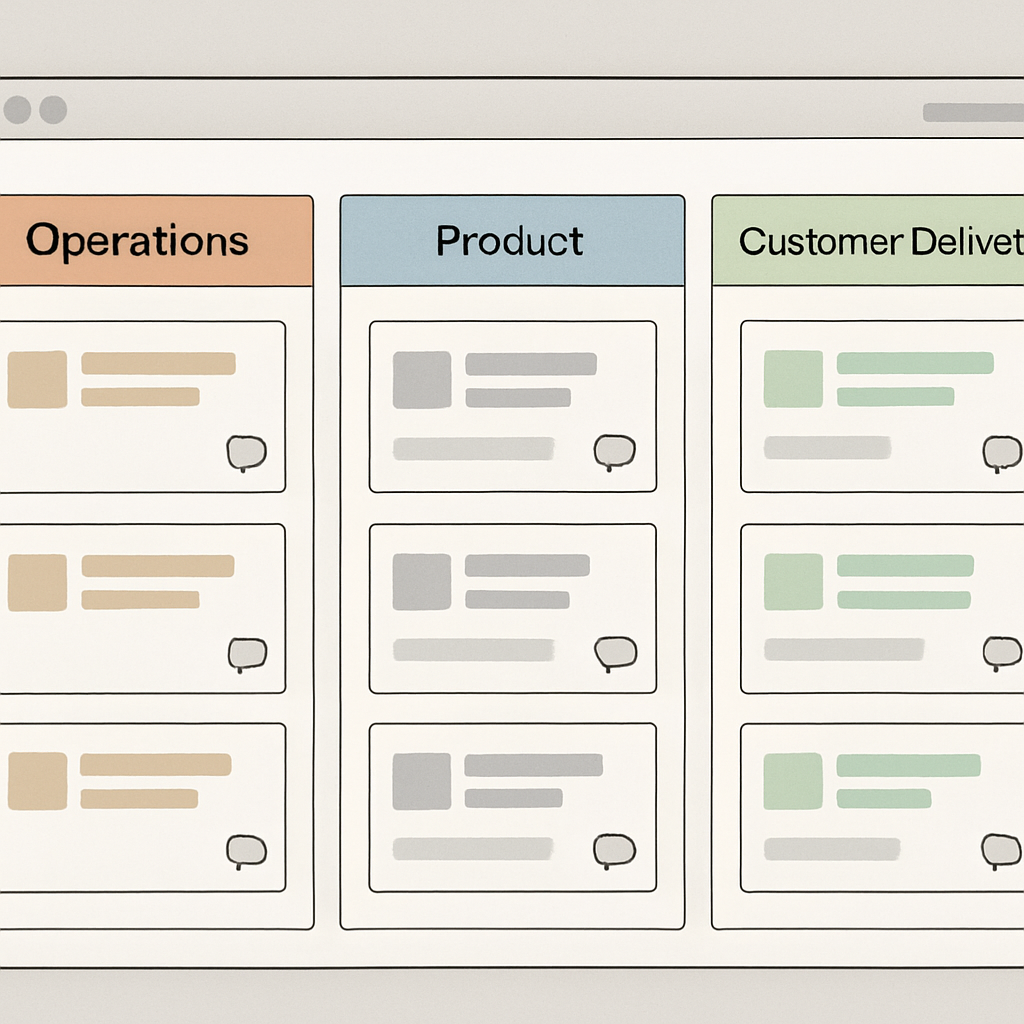
For example, a small company might use:
- Operations Team: daily execution, blockers, recurring follow-up.
- Product Team: feature planning, subtasks, notes, dependencies, review items.
- Customer Delivery Team: client work, handoffs, due dates, attachments.
- Leadership Team: high-level follow-up, decisions, and operational visibility.
Each team should have a clear purpose. If people cannot explain what belongs in a team space, the structure may be too vague.
A useful naming pattern is:
- Team name: short and functional.
- Task name: action-oriented.
- Subtasks: execution steps.
- Comments: decisions, questions, and follow-up.
This creates a shared language across teams without forcing every team to work exactly the same way.
Step 3: Use assignments to clarify ownership
Once work is inside the right team, assignments help turn visibility into responsibility. A shared task without an owner can still be ignored, especially when several people can see it.
In Task it All, team collaboration includes assignment flows, shared work, comments, visibility, and follow-up. Use assignments to answer three basic questions:
- Who is responsible for the next action?
- Who needs to be informed?
- Which team owns the task context?
For small teams, this is often enough to reduce confusion. The task stays in the correct team workspace, the owner is visible, and follow-up can happen in comments instead of scattered chat threads.
Step 4: Keep comments close to the task
When multiple teams are active, decisions can get lost if they happen away from the task. Task it All supports comments, highlighted comments, mentions, and real-time chat for faster coordination when needed.
A good team habit is to use comments for task-specific context:
- Why the task exists.
- What changed.
- What decision was made.
- Who needs to respond.
- What blocker is preventing completion.
This keeps the history close to the work itself. If someone joins the team later or reviews a task after a delay, they do not need to reconstruct the conversation from memory.
For deeper execution habits, see How to Turn Task Statuses, Comments, and Subtasks into a Daily Execution System for Small Teams.
Step 5: Break larger work into subtasks
Multiple team spaces help with separation, but subtasks help with execution. If a team task is too broad, people may understand the goal but still not know what to do next.
Use subtasks when a task includes multiple steps, handoffs, or smaller deliverables. For example:
Main task: Prepare customer onboarding package
Subtasks:
- Confirm account details.
- Attach required documents.
- Prepare internal notes.
- Schedule first review.
- Mark handoff complete.
This makes progress easier to review and helps the team distinguish between a task that is blocked, partially complete, or ready for the next person.
Step 6: Use statuses, dates, alarms, and priorities consistently
To organize tasks across multiple teams, each team needs a consistent way to understand progress. Task it All supports status flow, due dates, alarms, reminders, and priorities in the daily workflow.
You do not need an overly complex system. A simple approach can work well:
- Status shows where the task is in the workflow.
- Due date shows when attention is needed.
- Alarm or reminder helps prevent important work from being missed.
- Priority helps the team understand what should be handled first.
The key is consistency. If one team uses statuses carefully and another ignores them, cross-team review becomes harder. Keep the rules simple enough that people can actually follow them.
Step 7: Use notifications without creating noise
Task it All can help users notice important activity through visible and audible notification behavior, including new assignment alerts, an icon counter, sound, and on-screen notices. Notification behavior can also be configured to match different work styles.
For multiple teams, this is important. People should notice new assignments, but they should not feel interrupted by every update that does not involve them.
A practical approach:
- Treat new assignments as high-signal notifications.
- Use comments and mentions when a specific person needs attention.
- Review team workspaces on a schedule instead of reacting to every minor change.
- Adjust notification behavior when the workflow becomes too noisy.
The goal is awareness, not constant interruption.
Step 8: Use visibility and audit layers for operational control
As teams grow, task organization becomes more than convenience. It becomes part of operational control. Task it All’s team plans include shared visibility, collaboration, synchronization, and basic operational audit. Team Plus extends Teams with add-ons, advanced collaboration, premium governance, and deeper audit coverage.
This can help teams review activity, understand context, and support stronger oversight when workflows become more demanding.
Security and access also matter when multiple teams are involved. Task it All uses a local-first foundation, protects local secrets with PBKDF2-HMAC-SHA256, encrypts local task data with AES-GCM, and protects team/cloud activity with permission checks, database security policies, encrypted team keys, and audit controls.
For a more technical explanation, read Task it All Local-First Security Explained: PBKDF2, AES-GCM, and Team Access Control for Small Teams.
Example: organizing a small company with three teams
Imagine a small company with 12 people. The team wants shared task visibility, but it does not want every person seeing every unrelated detail in one crowded space.
A simple Task it All setup could look like this:
Operations Team
Used for daily execution, blockers, internal follow-up, and recurring operational tasks.
Typical tasks:
- Review open blockers.
- Confirm weekly supplier follow-up.
- Update internal process notes.
- Prepare handoff for customer delivery.
Product Team
Used for planning product work, feature tasks, subtasks, dependencies, and review comments.
Typical tasks:
- Draft feature requirements.
- Review UI changes.
- Prepare release checklist.
- Track blocked technical items.
Customer Delivery Team
Used for client-facing work, deadlines, attachments, and task handoffs.
Typical tasks:
- Prepare onboarding checklist.
- Attach required files.
- Confirm delivery date.
- Follow up after client review.
In this structure, each team has its own context. Leadership can review the right spaces, team members can focus on relevant work, and task comments stay connected to the correct workflow.
Common mistakes to avoid
Creating too many teams too early
If every small project becomes a separate team, people may spend more time navigating than working. Start with the main operating areas, then add more teams only when separation is useful.
Using team spaces for personal reminders
Personal tasks are still valuable. Keep private planning, drafts, and individual reminders out of shared team spaces unless they need collaboration.
Leaving tasks without owners
A visible task is not the same as an assigned task. Use assignments so the next responsible person is clear.
Turning comments into unrelated chat
Task comments should explain the work. Use chat when coordination needs speed, but keep important decisions and task-specific updates close to the task.
Ignoring statuses
Statuses help teams understand progress across many tasks. If statuses are not updated, team visibility becomes less useful.
How onboarding helps new team members
Task it All includes a guided in-app onboarding path: Be more productive -> Tutorial -> Basic steps. This tutorial helps a new user create a real task, use core fields and tools, add comments, and create a subtask within a few minutes after the main window opens.
For teams, this can reduce the learning gap. New members can practice the core workflow before they start working inside shared team spaces.
Task it All also includes an integrated user guide, contextual help, Ask ChatGPT, and troubleshooting support for practical questions about tasks, fields, synchronization, updates, subscriptions, security, and account topics.
FAQ
Can I create more than one team in Task it All?
Yes. Task it All supports creating and managing multiple teams inside the same company context, so work can stay organized by function, department, operating unit, or project group.
How do I avoid mixing workspaces?
Give each team a clear purpose, keep personal reminders out of shared team spaces, assign work inside the correct TEAM scope, and use comments for task-specific context.
Do I need a paid plan for team collaboration?
The Free plan is designed for personal tasks and secure local work. Teams unlocks TEAM scope, collaboration, assignments, comments, visibility, realtime coordination, and basic operational audit. Team Plus adds productivity add-ons, advanced collaboration, premium governance, and deeper audit coverage.
Can different teams use different workflows?
Yes, teams can organize work according to their needs. However, it helps to keep basic conventions consistent across teams, especially for task names, statuses, due dates, comments, and assignments.
Are team comments and chat protected by access controls?
Task it All uses permission checks and database security policies for team/cloud activity. Comments and chat publishing stay behind access rules in the owning team context.
What should stay personal instead of becoming a team task?
Private reminders, draft ideas, personal planning, and tasks that do not require shared visibility can stay personal. Move work into TEAM scope when collaboration, assignment, or team review is needed.
Soft CTA: organize team work with clearer boundaries
If your team is outgrowing one shared task list, Task it All gives you a practical way to separate work by team while keeping assignments, comments, subtasks, dates, reminders, and visibility in one desktop workflow.
Start by defining your team spaces, move shared work into the right TEAM scope, and keep execution close to the task itself.