Onboarding and Tutorials
Task it All Onboarding Guide for Small Teams: From First Run to Your First Real Workflow
Task it All Onboarding Guide for Small Teams: From First Run to Your First Real Workflow
For small teams, the hardest part of adopting a task manager is often not the features. It is getting started without turning setup into a project of its own.
That is where Task it All is designed to stay practical. It starts with a local-first desktop experience, helps new users create a secure local account before the app fully opens, and then provides a simple in-app tutorial for learning the core workflow with a real task.
If you are evaluating a simple way to organize daily work without too much process overhead, this Task it All onboarding guide for small teams walks through what first run looks like, how to begin using the app quickly, and how to move from solo planning into team coordination when needed.
If you want to explore the product directly, you can Organize your team tasks.
Why onboarding matters for small teams
Small teams usually do not need a giant implementation plan. They need a tool that helps them:
- create tasks quickly
- add enough context to avoid confusion
- break work into subtasks
- keep comments close to the work
- scale into shared visibility only when collaboration becomes necessary
Task it All is built around that kind of progression. You can start with personal work and a secure local setup, then move into TEAM scope when shared execution matters.
That makes onboarding especially important, because the first experience should help users understand two different moments clearly:
- what happens before the app opens fully
- what happens inside the main app once the workspace is available
First run comes before the in-app tutorial
A useful distinction with Task it All is that initial setup begins before the normal main window opens.
On first use, the app creates a local user. That means a new user goes through local account and security setup first, including:
- username
- password confirmation
- Recovery Phrase confirmation
This pre-opening step matters because Task it All is local-first. Before users begin managing tasks, the app establishes the local identity and security foundation for that device.
Existing users also use that opening layer to unlock access, and account recovery or linking flows can happen there as well.
So if your team is preparing to roll out the software, the practical onboarding sequence is:
- complete local user and security setup first
- open the normal main window
- use the in-app learning path after that
What to do right after the app opens
Once the main window is available, the best starting point is the guided onboarding inside the app:
Be more productive -> Tutorial -> Basic steps
This built-in tutorial is designed to help a new user start working in minutes instead of reading long documentation first. It focuses on a real task workflow rather than abstract examples.
The onboarding flow helps users:
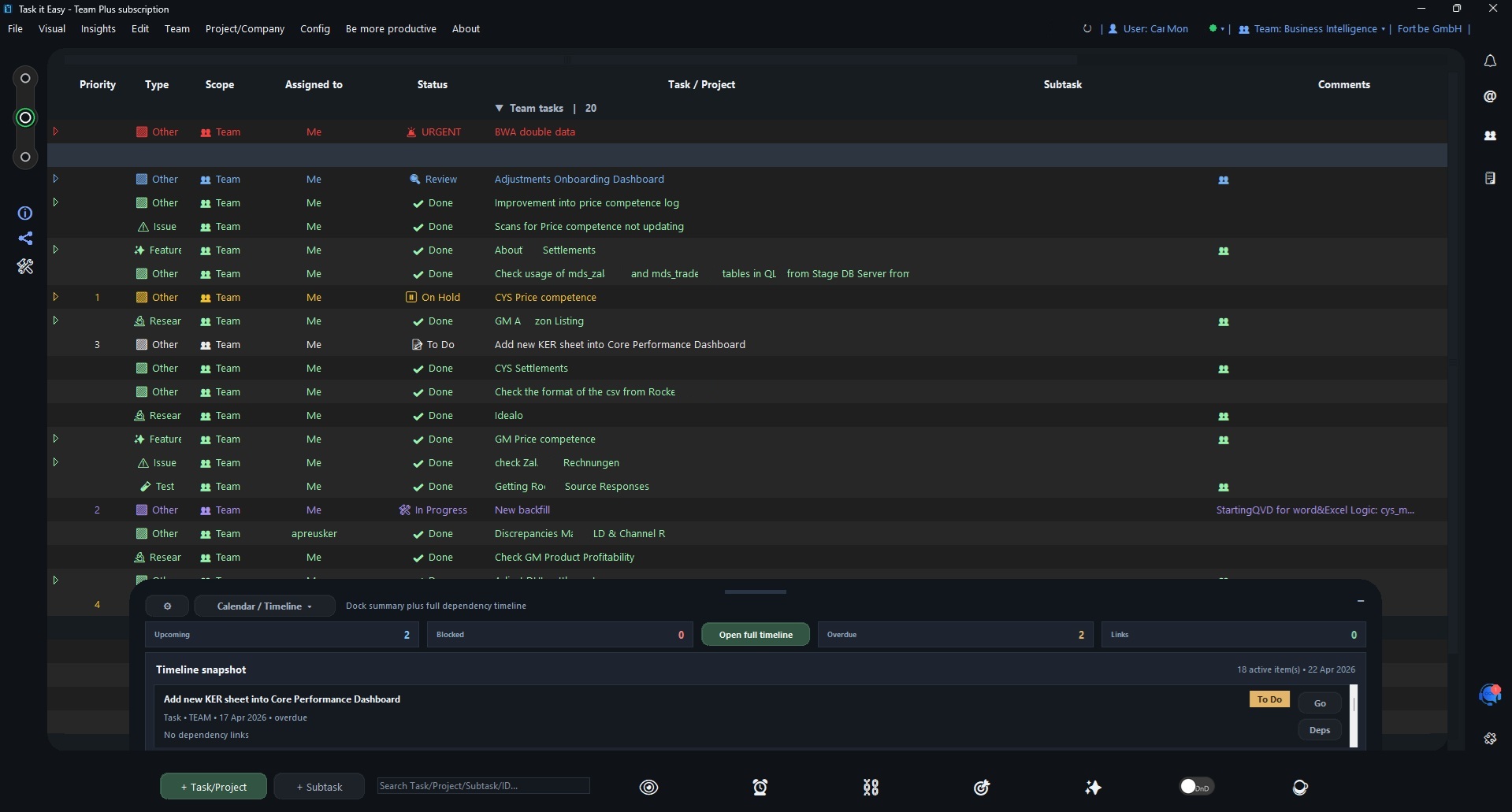
- create and name a real task or project
- practice core fields like status, type, due date, and alarm
- add comments
- create a subtask
- understand the basic daily workflow
For small teams, this approach is useful because it teaches the product through actual execution. Instead of learning every feature at once, users can understand the structure of work inside the app almost immediately.
A simple onboarding path for a small team
Here is a practical way to onboard a small team into Task it All without overcomplicating the process.
1. Set up each user locally
Have each user complete their first-run local account setup on their own device.
This helps establish:
- secure local access
- device-level readiness
- a clear separation between first-run identity setup and later teamwork features
Because Task it All is local-first, this step is not just administrative. It is part of how the product is designed to support fast desktop use with protected local data foundations.
2. Use the Basic steps tutorial inside the app
After the app opens, each user should complete the in-app onboarding path once.
This gives everyone a shared baseline for:
- task creation
- subtask structure
- comments
- due dates and alarms
- status flow
It also reduces confusion later when the team begins assigning work or collaborating in shared spaces.
3. Create one real task, not a fake training project
The fastest way to make onboarding stick is to use a real piece of work.
For example:
- prepare a proposal
- review a client request
- organize a product launch checklist
- track a weekly operations task
Task it All is easier to learn when users add real context such as:
- priorities
- notes
- links
- attachments
- reminders
- comments
That makes the app immediately useful instead of feeling like a separate training environment.
4. Break that task into subtasks
Once a first task exists, the next step is to create subtasks.
This is where many small teams start seeing the value of a more structured workflow without adding too much complexity. A parent task can represent the outcome, while subtasks capture the smaller actions needed to move it forward.
This can help teams keep execution visible without scattering information across chat threads, documents, and separate to-do lists.
5. Add comments where decisions happen
Comments are one of the simplest ways to keep task context connected to the work itself.
Instead of discussing next steps somewhere else and then trying to remember what was decided, teams can add comments directly on the relevant task.
That is especially helpful for:
- handoffs
- clarification
- status changes
- quick follow-up
- keeping a visible record of task-related discussion
If your team wants a deeper workflow for this, see How to Use Task it All Comments and Mentions to Keep Team Decisions Traceable (Audit-Friendly Workflow for Small Teams).
How Task it All stays simple at the beginning
Some tools become difficult because they ask teams to define everything up front. Task it All takes a more gradual path.
You can begin with:
- personal tasks
- nested subtasks
- notes
- comments
- due dates
- alarms
- priorities
- attachments
Then, when the work becomes shared, the app can expand into TEAM scope for:
- shared visibility
- assignments
- collaboration flows
- synchronization
- operational audit coverage
That progression is useful for founders, operators, and small teams that want structure without jumping immediately into a heavy enterprise workflow.
What new users usually learn first
During onboarding, most users only need a small part of the product to become productive enough for daily use.
The best first concepts to learn are:
Task structure
Users should understand how to create a task, name it clearly, and decide whether supporting work belongs in subtasks, notes, or comments.
Status flow
A simple status habit helps prevent work from disappearing. Even without overengineering the process, status visibility can help users review what is open, blocked, or moving.
Dates and reminders
Due dates and alarms are useful for turning a list of tasks into something actionable during the day.
If your team wants to go deeper on date-based planning, read How to Use Task it All’s Calendar/Timeline for Due Dates, Alarms, and Status Planning (Without Breaking Your Workflow).
Comments and collaboration context
Users should get comfortable adding comments directly inside the workflow so discussions stay close to the relevant task.
Personal first, team second
New users do not need to master every collaboration feature on day one. Starting with personal organization first often makes later team adoption smoother.
Local-first onboarding is part of the product experience
Task it All is not only a task manager with a tutorial. Its onboarding also reflects the product's local-first model.
That matters for teams that want a desktop app designed to stay responsive while still leaving room for cloud collaboration later.
The product is built to support protected local data foundations, including local secret protection with PBKDF2-HMAC-SHA256 and local task data encryption with AES-GCM. For team and cloud workflows, it also uses permission checks, database security policies, encrypted team keys, and audit controls.
This does not mean onboarding becomes technical. It means the first-run experience begins with local account and security setup because that foundation is part of how the product works.
When to move from solo use into TEAM scope
A small team does not always need shared collaboration on day one. A practical pattern is:
- start with personal task organization
- establish clear task structure and status habits
- begin using comments consistently
- move into TEAM scope when tasks need shared ownership and visibility
That can be a better fit for growing teams than forcing everyone into a complex collaborative system before they understand the core workflow.
With Teams, Task it All adds shared team workspaces, assignments, comments, visibility, realtime coordination, and a basic operational audit layer for shared work. Team Plus extends that with add-ons, broader collaboration, premium governance, and deeper audit coverage.
A realistic 15-minute onboarding plan
If you want a lightweight rollout, this is a practical first session for a small team:
Minutes 1-5: first-run setup
Each user completes:
- username
- password confirmation
- Recovery Phrase confirmation
Minutes 5-10: complete the Basic steps tutorial
Inside the app, each user goes to:
Be more productive -> Tutorial -> Basic steps
Then they create:
- one real task
- one comment
- one subtask
Minutes 10-15: create one shared team habit
Agree on a simple convention such as:
- every active task gets a clear owner
- every important update goes in comments
- every multi-step task gets subtasks
- every deadline-sensitive item gets a due date or alarm
That is often enough to make the software useful immediately without overwhelming the team.
Common onboarding mistakes to avoid
Treating first run and tutorial as the same thing
They are different stages. First comes local account and security setup before the app fully opens. The Basic steps tutorial happens after the main window is available.
Training in fake tasks only
Real work creates better adoption. A live task with real due dates, notes, and comments teaches faster than a generic demo item.
Trying every feature on day one
Small teams usually do better when they learn:
- tasks
- subtasks
- comments
- dates
- status flow
Then expand later into team coordination, add-ons, and advanced governance layers if needed.
Confusing subscription changes with account deletion
If a team later wants to change plans, use Config -> Manage subscription. That is separate from deleting the account.
For permanent account deletion, the route is Config -> User -> Security & Account -> Delete account.
Where to get help during onboarding
Task it All includes multiple help routes inside the product. Users can rely on:
- the in-app guide
- contextual help
- Ask ChatGPT
- troubleshooting for updates, login, synchronization, cache resets, subscriptions, security, and account questions
That is useful for teams that want guidance without leaving the workflow every time a small question appears.
FAQ
Is Task it All onboarding different before and after the app opens?
Yes. Before the normal main window opens, new users complete local account and security setup. After the app opens, users can follow the in-app onboarding at Be more productive -> Tutorial -> Basic steps.
What happens on first run in Task it All?
On first use, Task it All creates a local user with username, email, password confirmation, and Recovery Phrase confirmation. This happens before the normal main app window opens.
What is the fastest way for a small team to start using Task it All?
A simple approach is to complete first-run setup, finish the Basic steps tutorial, create one real task, add one comment, and break that work into a subtask. That gives the team a practical starting workflow quickly.
Can Task it All be used before setting up team collaboration?
Yes. The Free plan is built for personal tasks, subtasks, notes, comments, attachments, due dates, reminders, priorities, and secure local work before a team decides to move into shared collaboration.
When should a team move into TEAM scope?
Usually when work needs shared visibility, assignments, comments, realtime coordination, and operational follow-up across multiple users.
Is Task it All suitable for small teams that want simple task management?
It is designed for personal productivity and small-team organization with a direct desktop workflow. Teams can start simple and expand into collaboration features as their workflow grows.
Final thoughts
Task it All onboarding works best when teams keep it simple: set up local access first, learn the core workflow inside the app, and begin with real work instead of a complicated rollout plan.
For small teams, that can be a practical way to move from scattered daily tasks into a clearer and more organized workflow.
If you are ready to try that approach, you can Organize your team tasks.