
Productivity Workflows
How to Use Task it All’s Calendar/Timeline for Due Dates, Alarms, and Status Planning (Without Breaking Your Workflow)

How to Use Task it All’s Calendar/Timeline for Due Dates, Alarms, and Status Planning (Without Breaking Your Workflow)
Due dates and alarms are useful only when they help people act at the right time. If every task becomes a calendar event, the schedule gets noisy. If nothing has a date, important work slips. The goal is balance: use Task it All’s Calendar/Timeline as a planning layer that supports your task workflow instead of replacing it.
Task it All is a local-first desktop task and project manager for personal work and small-team execution. It supports tasks, subtasks, notes, comments, due dates, reminders, priorities, status flow, team assignments, and add-ons such as Calendar / Timeline. This guide explains how to use the Calendar/Timeline add-on for due dates, alarms, and status planning in a practical way.
If you are still choosing which add-ons to use, you may also want to read the related guide: Task it All Add-ons Guide: How to Choose the Right Tools.
What the Calendar/Timeline should do in your workflow
The Calendar/Timeline should not become a second task list. Your task record should remain the main place for work details: name, type, status, comments, notes, attachments, priorities, and subtasks.
Use the Calendar/Timeline to answer time-based questions:
- What needs attention today?
- Which tasks are approaching their due date?
- Which work has an alarm or reminder?
- What should be reviewed before the end of the week?
- Are too many important tasks scheduled for the same day?
- Which blocked or delayed tasks need follow-up?
A healthy setup keeps the task as the source of context and uses Calendar/Timeline as the visual planning layer.
Start with a simple rule: not every task needs a due date
A common mistake in task management is adding due dates to everything. That creates artificial urgency and makes real deadlines harder to see.
In Task it All, use due dates for work that has a real time expectation, such as:
- A customer follow-up that must happen by a specific day
- A team handoff that blocks the next step
- A review meeting preparation task
- A delivery milestone
- An internal deadline agreed with the team
- A personal planning item you truly want to complete by a date
Avoid due dates for vague ideas, backlog items, or optional tasks unless you are actively scheduling them. Those can live as tasks, notes, subtasks, or lower-priority items until they become actionable.
Use alarms for action moments, not just deadlines
A due date tells you when something is expected. An alarm should remind you when you need to act.
For example:
- Due date: Friday
- Alarm: Wednesday morning to start the review
That small distinction helps avoid last-minute pressure. For small teams, it also makes assignments easier to coordinate because people can see not only when work is due, but when attention is needed.
Good alarm moments include:
- Before a due date, when preparation is needed
- At the start of a work block
- Before a meeting related to a task
- When a blocked item should be checked again
- When a follow-up comment or message is expected
Use alarms selectively. If every task has an alarm, the team may start ignoring them.
Connect statuses to your calendar planning
Statuses are what turn dates into execution signals. A date alone does not tell you whether a task is new, active, blocked, in review, or complete.
A simple status planning rhythm can look like this:
- Open / New — the task exists but has not started.
- In progress — someone is actively working on it.
- Blocked — progress depends on another person, decision, file, or step.
- Review / Follow-up — work needs confirmation, comments, or approval.
- Completed — the task is done.
Use Calendar/Timeline to review tasks by date, then use statuses to decide what action is required.
For example:
- A task due tomorrow with status Completed may need no action.
- A task due tomorrow with status Blocked should be escalated or discussed.
- A task due today with status Open may need reassignment, rescheduling, or clarification.
- A task due next week with status In progress may be healthy if progress is visible in comments or subtasks.
This is where Task it All’s broader workflow matters: comments, subtasks, notes, and assignments give context around the date.
A practical weekly planning workflow
Here is a simple way to use Task it All’s Calendar/Timeline without overcomplicating your week.
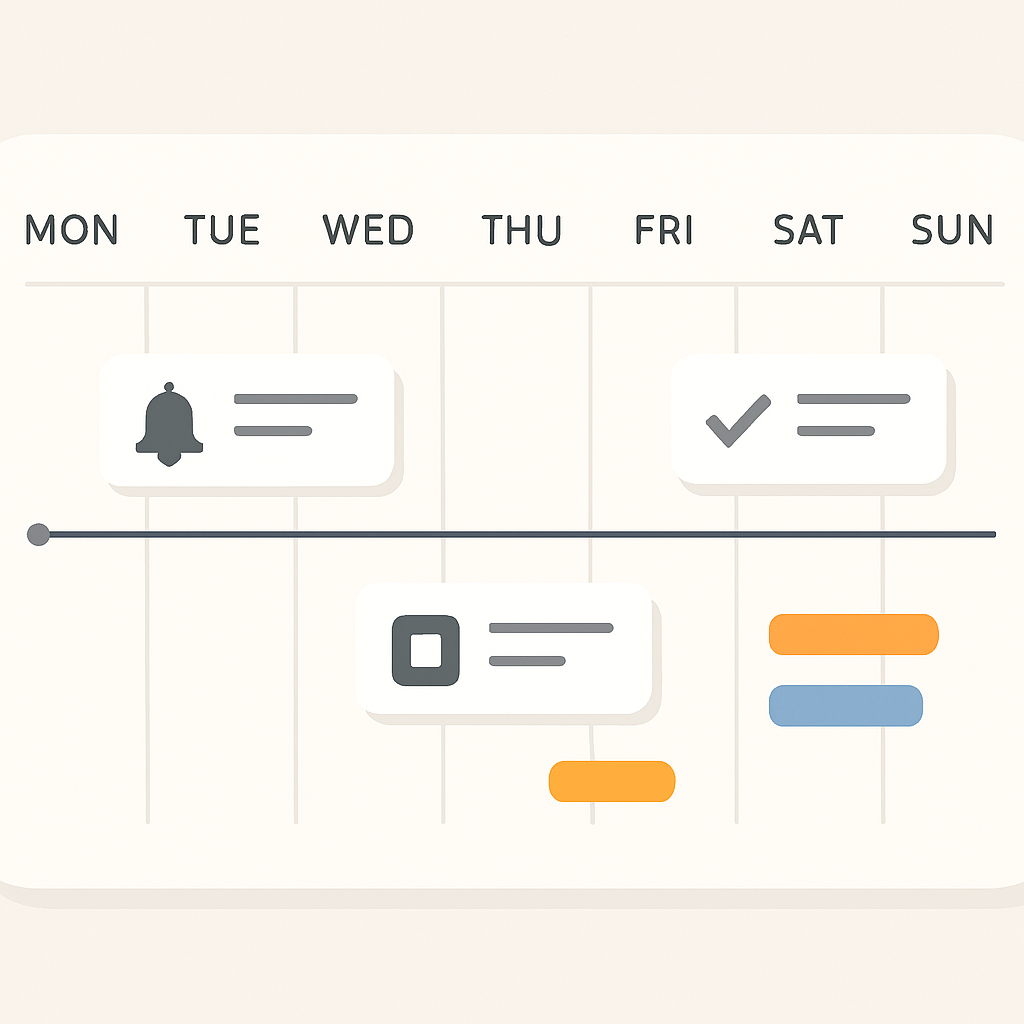
1. Review open tasks
Start with the tasks that are already open. Look for items with due dates, alarms, high priority, or blocked status.
Ask:
- Is this task still relevant?
- Does it have the right owner?
- Is the due date realistic?
- Does the task need a subtask before it can move forward?
- Does a comment or note need to be added for clarity?
2. Assign dates only to work that should be scheduled
Move the right tasks into your time plan by adding or adjusting due dates. Do not schedule every backlog item.
For team work, dates should usually reflect shared expectations. If a task is assigned to another person, use comments or team communication to keep the due date understandable.
3. Add alarms where attention is needed before the due date
If a task needs preparation, review, or coordination before the actual deadline, set an alarm before the due date.
Examples:
- Task due Friday → alarm Wednesday
- Client follow-up due Monday → alarm Monday morning
- Internal review due Thursday → alarm Wednesday afternoon
- Blocked item check-in → alarm after the expected response window
4. Break larger work into subtasks
If a task has several steps, do not rely only on one due date. Create subtasks so progress is visible.
For example, instead of one large task called “Prepare launch checklist,” use subtasks such as:
- Confirm owner list
- Review open blockers
- Attach final files
- Add team comments
- Mark launch checklist as ready
This keeps the Calendar/Timeline useful while the task itself remains operational.
5. Check status distribution before the week starts
Before the week begins, scan the status of dated tasks. If too many items are still open or blocked, your timeline may be overloaded.
A useful weekly review question is:
> “Which dated tasks are not ready to be dated?”
If the owner, next step, or required information is unclear, the task may need a comment, subtask, or reassignment before the date is meaningful.
A daily planning workflow for due dates and alarms
A weekly plan gives structure, but daily execution keeps work moving.
At the start of the day, use Calendar/Timeline together with your task list to check:
- Tasks due today
- Alarms or reminders for today
- Overdue or delayed items
- Blocked tasks that need follow-up
- Assigned team tasks that require action
- Comments or updates that change priority
Then choose a small set of focus items. The goal is not to complete everything shown on the timeline. The goal is to identify what should move today.
A simple daily process:
- Review today’s due dates and alarms.
- Update statuses for anything that changed.
- Add comments where context is missing.
- Break unclear work into subtasks.
- Move completed work out of the active view.
- Adjust dates only when the plan has truly changed.
This keeps your timeline clean and reduces the habit of constantly rescheduling tasks without improving execution.
How small teams can use Calendar/Timeline without adding confusion
For small teams, the biggest risk is not lack of tools. It is unclear ownership.
When you use Calendar/Timeline in a team workspace, make sure each dated task has:
- A clear owner or assignment
- A realistic due date
- A status that reflects reality
- Comments for decisions, blockers, or handoffs
- Subtasks when multiple steps are involved
Task it All’s TEAM scope supports shared visibility, assignments, comments, synchronization, and operational audit coverage. That makes the Calendar/Timeline more useful because dates are connected to actual team execution instead of being isolated reminders.
If your team also relies on assignment alerts, see this related guide: How to Set Up Notifications for Assignments in Task it All.
When to use comments instead of changing the date
A changed due date can hide the reason behind the change. If a task slips, add context.
Use a comment when:
- The task is blocked by another person or dependency
- A deadline changed because the scope changed
- A team member needs to explain progress
- A handoff needs clarification
- A decision affected the timeline
For example:
> “Moved due date to Thursday because the file review is still pending. Waiting for confirmation from design.”
That kind of comment makes the timeline easier to trust. It also helps later review because the team can understand why work moved instead of only seeing that the date changed.
How Calendar/Timeline fits with Task it All insights
Task it All includes operational visibility through views such as snapshot summaries and productivity analytics. These views can help teams review open items, due signals, alarms, blocked work, totals, created work, completed work, and completion behavior over time.
Use Calendar/Timeline for planning and Task it All’s insight views for review.
A simple pattern:
- Calendar/Timeline: What is scheduled and when?
- Task statuses: What is happening now?
- Comments and subtasks: What context or steps are needed?
- Snapshot and trend views: What patterns are appearing over time?
This creates a workflow that is easier to manage than relying on memory, scattered notes, or separate planning tools.
Mistakes to avoid
1. Turning every task into a deadline
If all tasks have due dates, the calendar stops showing priority. Keep dates meaningful.
2. Using alarms as a substitute for planning
Alarms should support a plan, not replace one. If a task is unclear, add comments, subtasks, or ownership first.
3. Moving dates without updating status
If the due date changes, the status should still reflect reality. A delayed task may be blocked, in progress, or waiting for review.
4. Keeping large tasks too vague
Large tasks should usually be broken into subtasks. This makes progress easier to see and reduces confusion around the due date.
5. Ignoring team context
For shared work, dates should be connected to assignments, comments, and visibility. A timeline is only useful when the team understands what each date means.
Recommended setup for a small team
If your team is new to Task it All, start with a lightweight setup:
- Use due dates only for committed work.
- Use alarms for preparation or follow-up moments.
- Keep statuses simple and consistent.
- Add comments when dates change.
- Use subtasks for multi-step work.
- Review the timeline once per day and once per week.
- Avoid adding too many rules before the team has a stable routine.
This approach helps the Calendar/Timeline support daily execution without becoming another layer of administration.
Where onboarding fits in
If you are new to Task it All, first get comfortable with the basic task workflow. After the main window opens, you can use the in-app tutorial through Be more productive -> Tutorial -> Basic steps. It walks you through creating a real task, using core fields, adding comments, and creating a subtask.
That foundation makes Calendar/Timeline planning easier because due dates and alarms work best when your tasks already have clear names, statuses, comments, and subtasks.
FAQ
What is the best way to use Task it All Calendar/Timeline for due dates and alarms?
Use it as a planning layer. Keep the task as the main source of details, then use due dates for real deadlines and alarms for action moments before or during execution.
Should every task have a due date?
No. Use due dates for work that has a real time expectation. Backlog ideas, optional tasks, and unclear work do not always need a date.
What is the difference between a due date and an alarm?
A due date shows when work is expected. An alarm reminds you when attention or action is needed. For example, a task may be due Friday but need an alarm on Wednesday so preparation starts earlier.
How should small teams connect statuses with the timeline?
Review dated tasks by status. A due task marked completed may need no action, while a due task marked blocked may need follow-up, reassignment, or a comment explaining the blocker.
Can Task it All support team planning with assignments and comments?
Yes. TEAM scope supports shared workspaces, assignments, comments, visibility, synchronization, realtime coordination, and basic operational audit for shared work.
Is Calendar/Timeline part of Task it All add-ons?
Calendar / Timeline is listed among Task it All’s useful add-ons that extend the base workflow. Availability can depend on the plan or workspace setup.
How do notifications relate to due dates and alarms?
Notifications help users notice important activity such as new assignments through visible and audible signals, depending on configuration. Due dates and alarms help structure when work needs attention.
Where can I get help inside the app?
Use the in-app guide, contextual help, Ask ChatGPT, and troubleshooting resources for practical questions about tasks, fields, updates, synchronization, subscriptions, security, and daily use.
Soft CTA: build a timeline your team can actually follow
Task it All is designed to keep tasks, subtasks, comments, due dates, reminders, statuses, notes, and team coordination in one desktop workflow. Start simple, keep dates meaningful, and let Calendar/Timeline support your execution rhythm instead of overwhelming it.
Ready to plan work with clearer dates and follow-up? Organize your team tasks with Task it All.