AI Productivity Assistant
How a Compact Windows AI Assistant Helps You Write, Translate, and Capture Tasks Faster
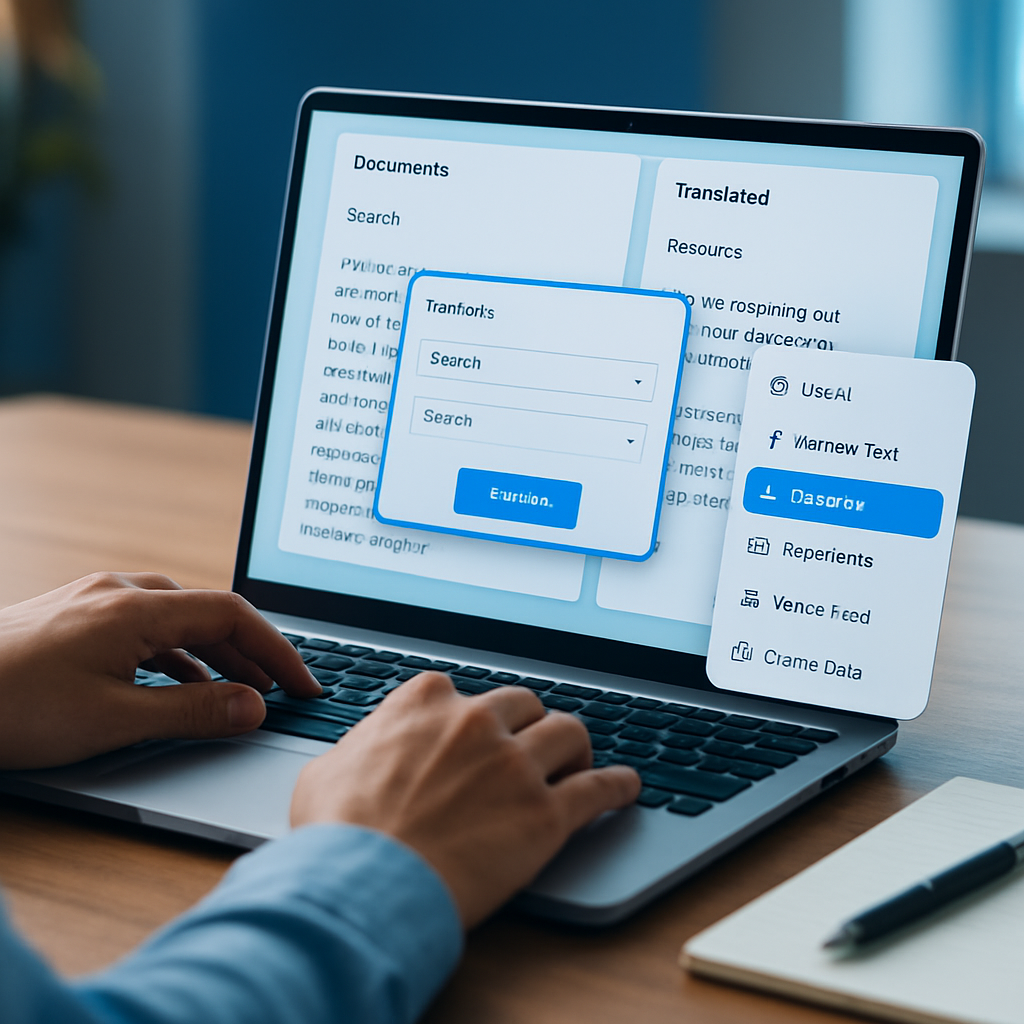
How a Compact Windows AI Assistant Helps You Write, Translate, and Capture Tasks Faster
If you spend your day moving between emails, notes, documents, chat messages, and browser tabs, small interruptions can add up quickly. A compact Windows AI assistant can help reduce that friction by bringing common text actions closer to where you already work.
Flytivy AI Assistance is designed for that kind of workflow. Instead of opening a full AI suite every time you need help, you can paste text, choose an action, adjust the output, and return to your task with less context switching. For solo professionals, support teams, sales reps, content operators, and remote workers, that can make everyday writing tasks feel more manageable.
What a compact Windows AI assistant is meant to do
A compact assistant is not about replacing your tools. It is about speeding up the small but frequent tasks that interrupt focus.
With Flytivy AI Assistance, those tasks can include:
- improving a rough draft
- translating a message
- summarizing a long passage
- writing a quick email draft
- turning a note into a task
- brainstorming alternatives
- shortening verbose text
- adjusting tone to sound more professional
The goal is simple: keep the action close to the text you are already handling.
Why workflow friction matters
Many knowledge workers do not lose time on one big task. They lose time in the handoffs:
- copying text into another app
- switching tabs to prompt an AI tool
- reformatting the output
- copying it back into an email or document
- forgetting what they were doing in the first place
A desktop-first AI assistant can reduce that back-and-forth. Flytivy is built to stay near your workflow so you can act on text faster, with less interruption.
Common actions that fit daily work
Flytivy AI Assistance includes a set of practical text actions that match common business and productivity needs.
Improve text
Use this when a message, paragraph, or draft needs clearer wording. It can help polish phrasing and make the text easier to read.
Translate
Useful when you need to quickly convert a message into another language without leaving your current screen.
Summarize
Helpful for long notes, meeting text, support threads, or articles when you need the short version first.
Write email
Good for drafting replies, follow-ups, and concise business communication.
Create task
Turn a note or message into a simple task item so you do not have to retype it later.
Brainstorm
When you need ideas, variations, or alternate angles, this action can help you get unstuck.
Explain
Useful when a sentence, message, or concept needs to be broken down in simpler language.
Make shorter
A practical option for trimming long text into something more direct.
Professional tone
Helpful when you want the same message to sound more business-ready.
How the desktop experience is designed
Flytivy AI Assistance is built for Windows and offers compact ways to work with AI output. The app supports expanded and bubble/widget modes, so you can use it in a way that fits your space and habits.
Other workflow-friendly features include:
- editable output
- copy and replace original options
- regenerate
- save note
- local history
- clipboard import
- contextual hotkeys
- model and theme settings
- company or custom instructions
- clear credit-based usage
This makes the assistant feel more like a quick working layer than a separate destination.
Free, Pro, and Ultimate: what to expect
Flytivy uses a credit-based model, so it is important to plan around your usage.
Free
The Free option provides a quick trial with 10 AI actions. It is a simple way to test the workflow before deciding whether you want more capacity.
Pro
Pro includes 500 monthly AI actions, conversation history, Clipboard AI and shortcuts, custom prompts, and image analysis.
Ultimate
Ultimate includes 1200 monthly AI actions, the Document assistant, and export responses.
If you want a deeper breakdown of the usage model, this related guide may help: How to Use Credit-Based AI Actions in Windows Without Breaking Your Workflow.
Where Flytivy fits in a real workday
A compact assistant is most useful when the task is frequent and small enough to interrupt focus.
Here are a few examples:
- a support rep rewriting a reply before sending
- a sales rep shortening a long message for faster follow-up
- a remote worker summarizing notes from a call
- a content operator polishing a rough paragraph before publishing
- a small business owner turning ideas into a task list
- a solo professional translating a client message quickly
These are the kinds of tasks where less friction can matter more than a huge feature set.
Productivity tips for using AI without losing context
If you want the assistant to stay useful, keep the workflow simple:
- Start with the text you already have.
- Choose the action that matches the job.
- Review the result before using it.
- Copy, replace, or save only what you need.
- Return to the original task quickly.
That pattern helps the assistant support your work instead of becoming a new distraction.
How Flytivy handles production AI calls
Flytivy AI Assistance is designed so production AI calls go through Supabase Edge Functions. That approach helps keep OpenAI keys server-side rather than shipping secrets inside the Windows app.
From a product standpoint, this means the desktop app is built to work as a client-side workflow tool, while sensitive access stays managed in the backend architecture.
Who may benefit most
This kind of assistant is a strong fit for people who:
- work mostly in Windows
- handle repetitive writing tasks
- need quick translation or summarization
- want faster clipboard-based actions
- prefer a compact tool over a full AI workspace
- want structured credit-based usage for planning
If your day includes a lot of copy, rewrite, summarize, and send, a compact Windows assistant can save a surprising amount of motion.
Internal links and related reading
If you are evaluating how this product fits your workflow, these resources are a good next step:
- How a Windows AI Assistant Can Speed Up Everyday Writing, Translation, and Task Capture
- How to Use an AI Clipboard Assistant in Windows to Rewrite, Summarize, and Translate Without Switching Apps
- Get Flytivy AI Assistance
FAQ
What is a compact Windows AI assistant?
It is a small desktop assistant designed to help with common text tasks like rewriting, translating, summarizing, and drafting without forcing you into a separate full-screen workflow.
Does Flytivy replace human review?
No. It is designed to support your work, not replace review or judgment. You should always check the output before using it.
Can Flytivy help with email writing?
Yes. One of the available actions is Write Email, which can help you draft or refine messages more quickly.
Is Clipboard AI available in every plan?
No. Clipboard AI is part of Pro, along with shortcuts, conversation history, custom prompts, and image analysis.
Does Ultimate include the Document assistant?
Yes. The Document assistant is included in Ultimate, along with export responses and higher monthly AI action capacity.
Soft CTA
If you want a desktop-first way to handle everyday writing and text transformation tasks, you can Get Flytivy AI Assistance and try quick AI actions from your Windows workflow.