
Credits and Billing
How to Use Credit-Based AI Actions in Windows Without Breaking Your Workflow
How to Use Credit-Based AI Actions in Windows Without Breaking Your Workflow
If you use AI at work, you probably know the pattern: copy text, open a separate tool, wait for output, copy it back, and then try to remember where you were. That flow can work, but it also adds friction every time you need to rewrite a paragraph, summarize a message, translate a note, or turn a quick thought into a task.
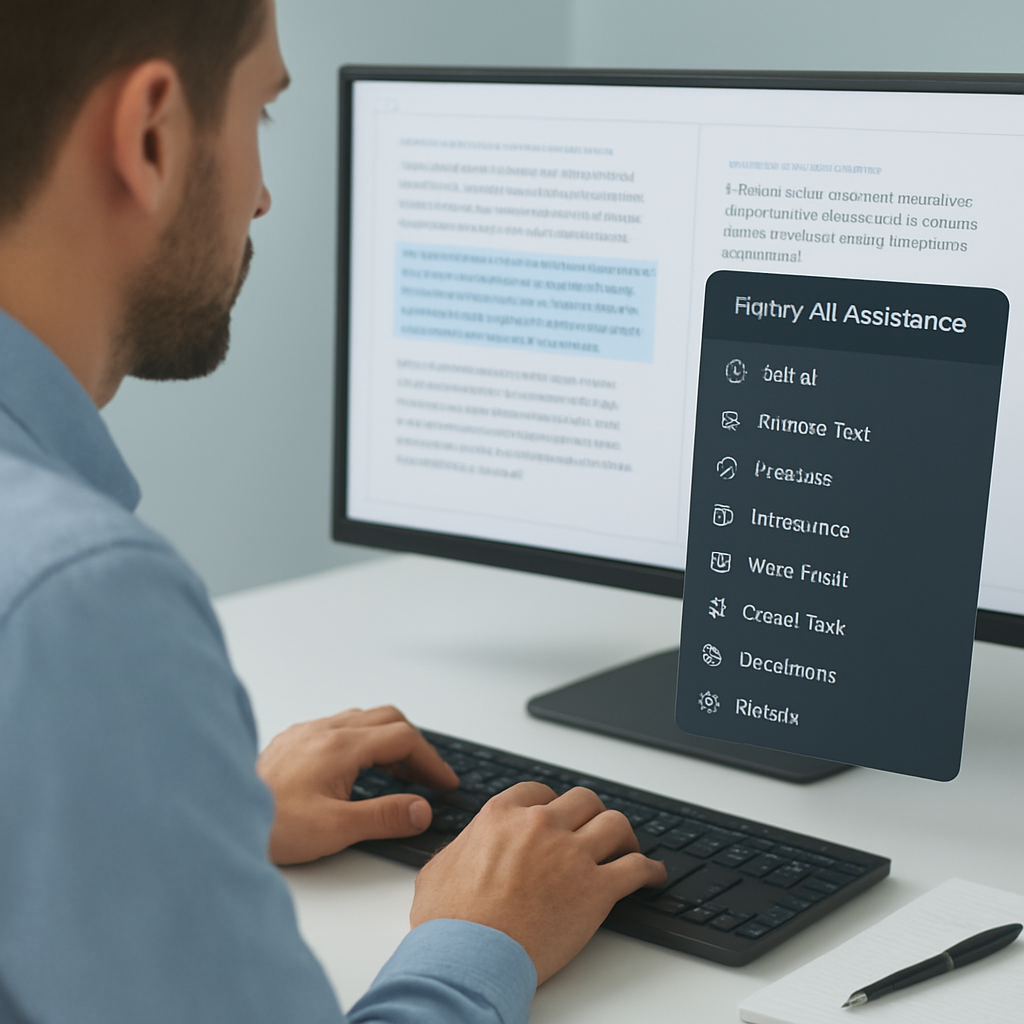
Flytivy AI Assistance is designed to reduce that friction with compact, credit-based AI actions directly on Windows. Instead of opening a full AI suite, you can paste text, choose an action, adjust the tone or language, copy the result, and get back to work.
This article explains how credit-based AI actions work in a practical desktop workflow, what kinds of tasks they fit best, and how to make the most of them without overcomplicating your day.
What credit-based AI actions mean in a Windows workflow
Credit-based usage is a simple way to measure AI activity. In Flytivy AI Assistance, AI actions are counted against the plan’s monthly allowance. That means you can use the app for targeted tasks while keeping track of how often you rely on it.
For everyday work, this model can be useful because it encourages focused use:
- one action for one job
- faster decisions on whether to rewrite, summarize, or translate
- clearer usage expectations for solo professionals and small teams
- less time spent hunting for the right AI prompt in a separate tab
Free provides a quick trial with 10 AI actions. Pro adds 500 monthly AI actions, conversation history, Clipboard AI, shortcuts, custom prompts, and image analysis. Ultimate adds 1200 monthly AI actions, Document assistant, and export responses.
Why credit-based AI tools can fit real desktop work
Most people do not need a long AI chat session every time they edit text. They need quick help with practical tasks:
- polishing a support reply
- shortening a long note
- translating a message
- extracting a task from an email
- making text sound more professional
- brainstorming a short list of ideas
A compact Windows AI assistant works well here because it stays close to the task. You do not need to leave the document, browser, or note-taking app for every small edit.
Flytivy is built to support that kind of workflow with actions like Ask AI, Improve Text, Translate, Summarize, Write Email, Create Task, Brainstorm, Explain, Make Shorter, and Professional tone.
Common ways teams and solo users apply AI actions
Here are a few practical examples of how credit-based AI actions can be used during a normal workday.
1. Writing and editing support
If you draft messages, proposals, updates, or notes, AI can help you refine text before you send it.
Useful actions include:
- Improve Text for clarity
- Make Shorter for concise communication
- Professional tone for business-ready wording
- Ask AI for a quick rewrite or explanation
This is helpful for remote workers, content operators, sales teams, and support teams who need speed without sacrificing readability.
2. Email drafting
Email often consumes more time than it should. A short prompt or rough draft can be transformed into a cleaner message with less effort.
Flytivy includes a Write Email action that can help shape a response based on the text you already have. That can be useful for:
- follow-ups
- customer replies
- internal updates
- meeting coordination
The goal is not to remove human review. It is to give you a better starting point.
3. Translation and summaries
If you work with multilingual content or need to read long text quickly, translation and summary actions can save time.
You can:
- translate a note before sharing it
- summarize a long message into the main points
- explain a complex paragraph in simpler terms
This is especially useful when you need a fast understanding before responding.
4. Task capture
A useful AI workflow is not only about writing. It is also about turning information into action.
With a Create Task action, you can convert a message or note into something more actionable. That can help with:
- follow-up items
- reminders
- next steps after a call
- support ticket notes
For busy teams, this can reduce the chance of important work getting lost in chat or email.
How Flytivy keeps the workflow compact
Flytivy AI Assistance is built for Windows users who want quick actions instead of a large, separate AI workspace. The app supports:
- expanded and bubble/widget modes
- editable output
- copy and replace original
- regenerate
- save note
- shorten and translate options
- local history
- clipboard import
- contextual hotkeys
- model and theme settings
- company and custom instructions
- clear credit-based usage
That combination makes it easier to keep the assistant close to your existing workflow. You can paste text, choose the action, review the result, and continue without unnecessary switching.
Where credit-based usage becomes practical
A credit model can help you make better decisions about when to use AI. It is especially practical when your team wants to avoid casual overuse and keep AI focused on real work.
Good fit scenarios include:
- rewriting a customer email before sending it
- summarizing a long internal update
- translating a short message from a teammate
- cleaning up a rough draft before publishing
- turning notes into a task list
In these cases, the value is speed and consistency, not unlimited experimentation.
Choosing the right Flytivy plan
Flytivy offers different plan levels depending on how often you use AI and which features you need.
- Free: a quick trial with 10 AI actions
- Pro: 500 monthly AI actions, conversation history, Clipboard AI and shortcuts, custom prompts, and image analysis
- Ultimate: 1200 monthly AI actions, Document assistant, and export responses
If you mainly want to test the workflow, Free can help you evaluate the app.
If you use AI daily for writing, translation, or clipboard-based tasks, Pro may be a better fit.
If you need heavier usage and document-focused support, Ultimate adds more capacity and advanced features.
What to expect from production AI handling
Flytivy is designed so production AI calls go through Supabase Edge Functions. That approach helps keep OpenAI keys server-side instead of shipping secrets inside the Windows app.
That matters because the app is built to support secure software design practices. It is not the same as giving users direct access to internal keys or exposing sensitive credentials in the desktop client.
Best practices for getting more from AI actions
To get better results from credit-based AI actions, keep the workflow specific:
- paste only the text you need to transform
- choose the closest action instead of asking for too many changes at once
- use custom instructions when your company style matters
- review the result before sending or publishing
- regenerate when needed, but keep the task focused
For example, if your goal is a concise reply, ask for a short professional rewrite rather than a broad creative rewrite. Clear input usually produces more useful output.
Internal links and related reading
If you want to explore related workflows, these guides may help:
- How a Windows AI Assistant Can Speed Up Everyday Writing, Translation, and Task Capture
- How to Use an AI Clipboard Assistant in Windows to Rewrite, Summarize, and Translate Without Switching Apps
You can also start with the product page here: Get Flytivy AI Assistance
FAQ
What are credit-based AI actions in Flytivy?
They are AI actions measured against a plan’s monthly allowance. This helps define usage and makes it easier to understand how much AI support is available.
Does Flytivy include unlimited AI actions?
No. Flytivy uses clear credit-based usage, so plans have defined monthly action limits.
Can Flytivy help with writing and editing?
Yes. It includes actions like Improve Text, Make Shorter, and Professional tone, which can help refine drafts and messages.
Can I use Flytivy for email and task capture?
Yes. It includes Write Email and Create Task actions designed to support those workflows.
Does Flytivy replace human review?
No. It is designed to support your work, not replace your judgment or review process.
Is the Document assistant included in Pro?
No. Document assistant is listed with Ultimate.
Final takeaway
Credit-based AI actions in Windows make the most sense when they are tightly connected to daily work. That is the main strength of Flytivy AI Assistance: it keeps AI close to the desktop task, helps you move faster, and avoids the overhead of switching into a separate AI environment for every small change.
If you want a compact assistant for writing, translation, summaries, clipboard-based workflows, and task capture, Get Flytivy AI Assistance and try the quick AI actions for yourself.