Clipboard AI
How to Use an AI Clipboard Assistant in Windows to Rewrite, Summarize, and Translate Without Switching Apps
How to Use an AI Clipboard Assistant in Windows to Rewrite, Summarize, and Translate Without Switching Apps
If you spend a lot of time copying text between emails, notes, documents, and chat windows, an AI clipboard assistant for Windows can save a lot of back-and-forth. Instead of opening a full AI suite, pasting text into a browser, and returning to your desktop workflow, you can keep the task close to where the text already is.
That is the basic idea behind Flytivy AI Assistance: a compact Windows AI assistant designed for quick actions like rewrite, summarize, translate, explain, shorten, and draft email responses. It is built for people who want practical text help without interrupting their work flow.
What an AI clipboard assistant does
A clipboard AI tool watches for copied content and gives you fast ways to transform it. In a Windows workflow, that usually means:
- copying text from an email, document, support ticket, or webpage
- opening a small assistant or widget
- choosing an action like rewrite, summarize, or translate
- reviewing the output
- copying or replacing the original text
The goal is not to replace your tools. It is to reduce the number of steps between reading text and acting on it.
Why this matters for Windows users
Many Windows users work across multiple apps all day:
- solo professionals editing client messages
- small business owners answering leads
- support teams rewriting replies
- sales teams polishing outreach
- content operators summarizing source text
- remote workers moving between chat, docs, and email
When every task requires switching tabs or opening a separate AI site, small delays add up. A clipboard assistant can help keep the workflow tighter and more focused.
Common clipboard AI use cases
Here are some practical ways people use clipboard AI on Windows:
1. Rewrite text
If a message sounds too informal, too long, or unclear, you can use a rewrite action to make it cleaner. This is useful for:
- customer emails
- internal updates
- quick Slack or Teams messages
- short announcements
2. Summarize long text
When you copy a long thread, article, or meeting note, a summary action can help you get the main idea faster. That can be useful for:
- support case notes
- sales briefs
- project updates
- research snippets
3. Translate content
If you work across languages, translation can turn copied text into something you can read or send more easily. This is helpful for:
- international email communication
- customer messages
- document snippets
- quick internal references
4. Draft emails
Clipboard AI can help turn rough notes into a more structured email draft. This is useful when you already know the point you want to make, but want a cleaner starting version.
5. Shorten text
If a copied paragraph is too wordy, a shorten action can make it more concise while keeping the core meaning.
A simple workflow for faster desktop writing
A practical Windows clipboard assistant workflow usually looks like this:
- Copy the text you want to work on.
- Open the assistant or use a hotkey.
- Choose the action you need.
- Adjust tone or language if needed.
- Review the result.
- Copy, replace, or save it for later.
This keeps the process close to the desktop app, document, or email you are already using.
How Flytivy AI Assistance fits this workflow
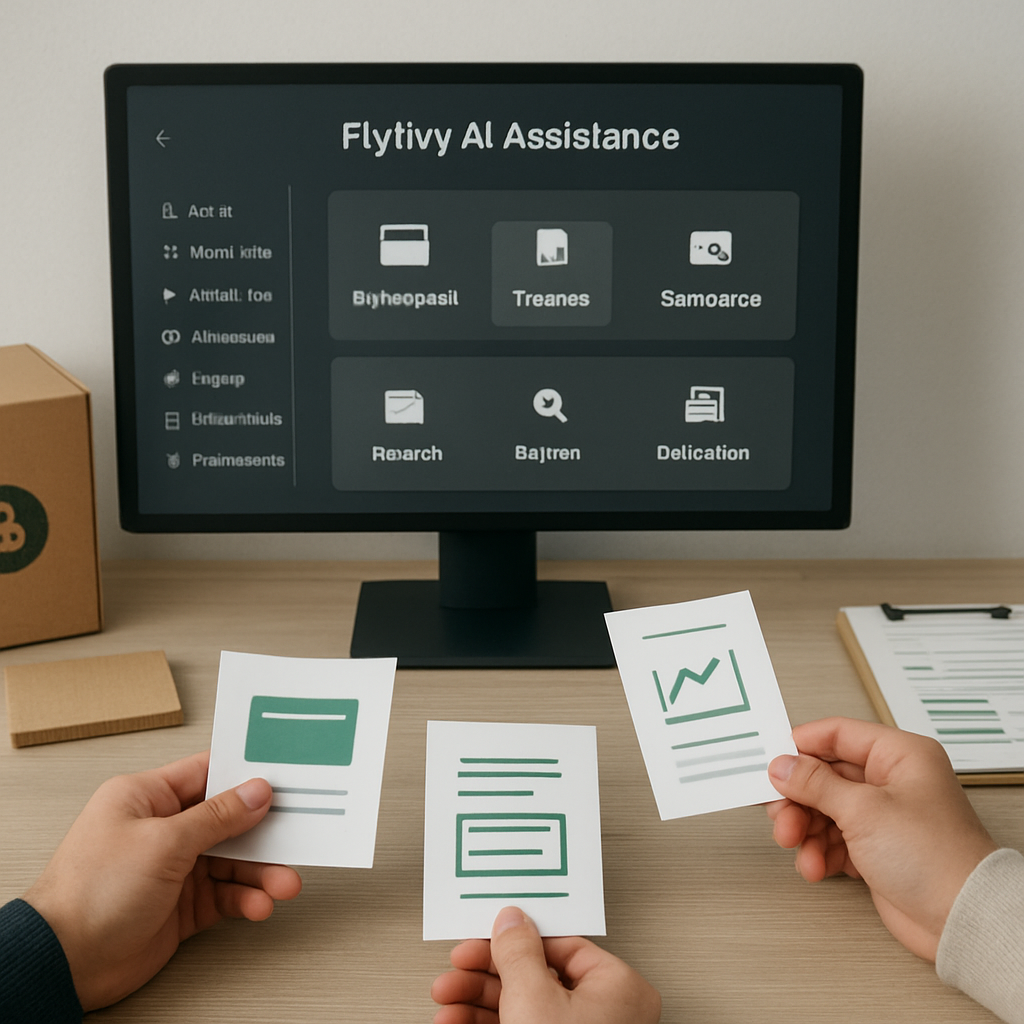
Flytivy AI Assistance is designed as a compact Windows AI assistant with quick actions for writing and editing tasks. Its core actions include:
- Ask AI
- Improve Text
- Translate
- Summarize
- Write Email
- Create Task
- Brainstorm
- Explain
- Make Shorter
- Professional tone
It also supports features that are helpful for daily clipboard-style work, such as:
- expanded and bubble/widget modes
- editable output
- copy and replace original
- regenerate
- save note
- local history
- clipboard import
- contextual hotkeys
- model and theme settings
- company/custom instructions
- clear credit-based usage
If you want to see the product overview, you can start here: Get Flytivy AI Assistance
Free, Pro, and Ultimate: what to expect
Flytivy uses a credit-based structure, so it is important to plan usage based on the plan you choose.
Free
The Free option provides a quick trial with 10 AI actions. This is useful if you want to test the basic workflow before upgrading.
Pro
Pro adds:
- 500 monthly AI actions
- conversation history
- Clipboard AI and shortcuts
- custom prompts
- image analysis
Ultimate
Ultimate adds:
- 1200 monthly AI actions
- Document assistant
- export responses
If you need a deeper look at how the product is positioned for everyday desktop usage, the best next step is to try quick AI actions.
Tips for better clipboard AI results
A clipboard assistant is most useful when you give it clear input. A few simple habits can improve the output:
- copy only the relevant text
- use short prompts when the action allows it
- choose the right tone for the recipient
- translate before rewriting if the source language is not your target language
- review the result before sending or pasting it elsewhere
It is still a good idea to check the final text, especially for client-facing or important communication.
What to look for in a Windows AI clipboard assistant
If you are comparing options, consider whether the assistant is designed for real desktop work. Helpful features often include:
- quick actions instead of a full app switch
- editable output
- history for recent actions
- shortcut support
- copy and replace options
- tone and language controls
- credit transparency
Flytivy AI Assistance is built around this kind of practical workflow, with the goal of making everyday writing tasks faster without asking you to move everything into a separate AI environment.
Internal link suggestions
- Get Flytivy AI Assistance
- Related topic ideas: Windows AI productivity, clipboard shortcuts, AI writing assistance, email drafting workflows
FAQ
### What is an AI clipboard assistant for Windows?
An AI clipboard assistant for Windows helps you turn copied text into useful output like rewrites, summaries, translations, or email drafts without leaving your desktop workflow.
### Can Flytivy replace my original text?
Flytivy supports copy and replace original workflows, but you should always review the result before using it.
### Does Flytivy include unlimited AI usage?
No. Flytivy uses clear credit-based usage, and plans have defined monthly AI action limits.
### Can I use Flytivy for translation and summaries?
Yes. Translation and summarization are part of the core action set designed for quick desktop work.
### Is Document assistant available in Pro?
Document assistant is listed for Ultimate, not Pro.
Final thoughts
If your day involves copying text from one app to another, an AI clipboard assistant for Windows can reduce friction and help you move faster. Flytivy AI Assistance is built for that kind of workflow: quick actions, editable output, history, hotkeys, and practical tools for writing, rewriting, summarizing, and translating.
For a compact desktop-first approach to AI text actions, explore Get Flytivy AI Assistance.