AI Productivity Assistant
Why a Compact Windows AI Assistant Can Reduce Daily Writing Friction
Why a Compact Windows AI Assistant Can Reduce Daily Writing Friction
If your day is full of emails, notes, short documents, and quick content edits, the biggest slowdown is often not the writing itself. It is the switching. Open a browser. Open a separate AI tool. Paste text. Wait. Copy the result. Return to your work. Repeat.
A compact Windows AI assistant is designed to reduce that friction by keeping common AI actions close to the desktop workflow. Instead of asking users to change tools every time they need help, it focuses on fast, practical actions such as rewriting text, summarizing content, translating copy, drafting emails, and capturing tasks.
Flytivy AI Assistance is built around that idea. It is meant to support quick, credit-based AI actions on Windows so you can move from input to output with fewer steps.
What makes a compact Windows AI assistant useful?
A useful Windows AI assistant does not try to replace your whole workflow. It supports it.
That usually means:
- quick access from the desktop
- text actions that fit real work tasks
- editable output you can review before using
- copy, replace, and regenerate options
- local history for recent actions
- settings for tone, language, and model behavior
For many professionals, the value is not in doing something novel. It is in doing ordinary tasks faster and with less distraction.
Common tasks a desktop AI assistant can support
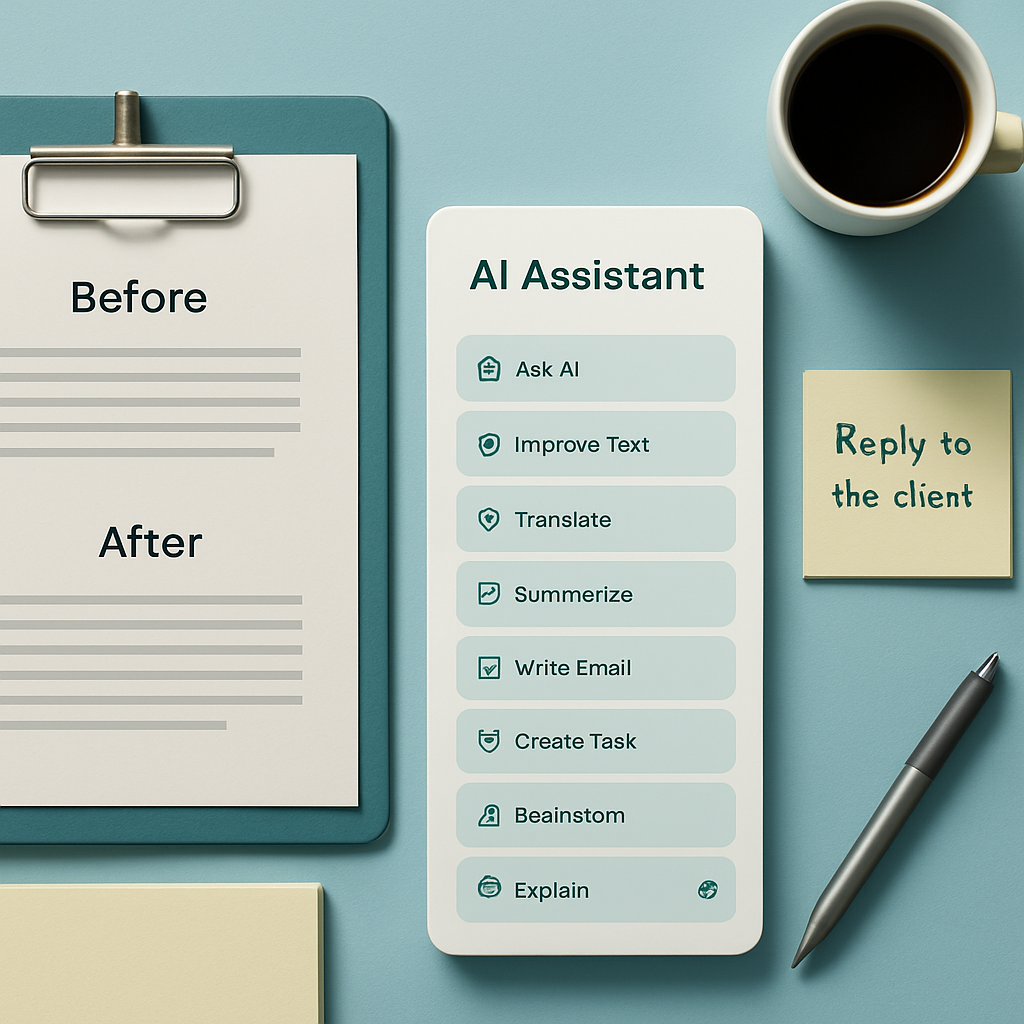
Flytivy AI Assistance includes a set of actions designed for everyday use. These can help when you need to move quickly from raw text to something cleaner or more useful.
Writing and editing
Use actions like:
- Improve Text
- Make Shorter
- Professional tone
- Ask AI
- Explain
- Brainstorm
These are helpful when you want to polish a message, simplify a paragraph, or generate a starting point without opening a larger AI suite.
Translation and summaries
When you need to work across languages or reduce long content into something easier to scan, quick actions such as Translate and Summarize can save time.
This can be useful for:
- support replies
- internal notes
- product updates
- customer messages
- research excerpts
Email and communication
Writing emails often takes more time than expected because the message needs to sound clear, polite, and appropriate for the recipient.
Flytivy includes a Write Email action that can help you draft faster while still leaving you in control of the final message.
Task capture
Sometimes you do not need a full rewrite. You just need to turn a thought into an action.
A Create Task action can help transform loose notes into a clearer next step so you can keep momentum.
Why fewer app switches matter
App switching sounds small, but it adds up throughout the day. A few extra seconds here and there become interruptions that break concentration.
A compact assistant can help by keeping the interaction close to where the work already happens. That can be useful for:
- solo professionals handling multiple client tasks
- support teams drafting responses
- sales teams polishing outreach
- content operators editing short-form copy
- remote workers managing notes and follow-ups
The goal is not to turn every task into an AI task. The goal is to make frequent text work less repetitive.
How Flytivy AI Assistance fits into this workflow
Flytivy AI Assistance is a Windows-focused assistant built to stay compact and practical. It supports expanded and bubble/widget modes, so users can choose a layout that fits the way they work.
It also includes features such as:
- editable output
- copy and replace original
- regenerate
- save note
- local history
- clipboard import
- contextual hotkeys
- model and theme settings
- company or custom instructions
That combination is useful because it keeps the user in control. You can review the result, adjust it, and decide whether to use it as-is or refine it further.
A practical approach to credit-based usage
Flytivy uses a credit-based model for AI actions, which can help make usage more predictable. That matters for users who want a simple way to understand how much AI interaction they are using.
The available plan structure includes:
- Free: a quick trial with 10 AI actions
- Pro: 500 monthly AI actions, conversation history, Clipboard AI and shortcuts, custom prompts, and image analysis
- Ultimate: 1200 monthly AI actions, Document assistant, and export responses
If you want a deeper breakdown of this model, you can also read How to Use Credit-Based AI Actions in Windows Without Breaking Your Workflow.
Why server-side AI handling matters
For production use, AI calls are designed to go through Supabase Edge Functions so sensitive keys stay server-side. That is important because it helps avoid shipping secret credentials inside the Windows app.
In practice, that means the desktop app is built to use the service safely rather than exposing private OpenAI, Supabase service role, or Google client secrets in the client.
This is a design choice that supports safer application architecture, but it does not remove the need for good internal access control and responsible deployment practices.
Who benefits most from this kind of tool?
A compact Windows AI assistant is especially relevant if your day includes repeated writing or transformation tasks.
It may be a good fit for people who:
- need fast rewrite and summarize actions
- handle lots of short text inputs
- work from Windows all day
- want to keep AI close to the desktop workflow
- prefer small, focused tools over large suites
If your work often starts with pasted text, clipboard content, or short notes, a lightweight assistant can reduce the number of manual steps between input and output.
How to choose the right workflow for your team
Before adopting any AI productivity tool, it helps to define the most common use cases.
Ask questions like:
- Which tasks happen most often: rewriting, translation, email drafting, or task capture?
- Do users need quick clipboard-based actions?
- Should the output be editable before copying?
- Would local history help with repeated work?
- Is a compact widget-style interface better than a larger panel?
These questions can help you choose a workflow that fits real needs instead of adding another tool that creates more steps.
Related reading
If you want to explore the workflow angle further, these resources may help:
- How a Compact Windows AI Assistant Helps You Write, Translate, and Capture Tasks Faster
- How to Use an AI Clipboard Assistant in Windows to Rewrite, Summarize, and Translate Without Switching Apps
FAQ
### What is a Windows AI assistant?
A Windows AI assistant is a desktop tool that helps users perform common text-based actions such as rewriting, translating, summarizing, or drafting messages without leaving the Windows environment.
### Is Flytivy meant to replace manual review?
No. Flytivy is designed to support faster drafting and editing, but users should still review the output before using it in important work.
### Does Flytivy offer unlimited AI usage?
No. Flytivy uses credit-based AI actions, and plan limits apply.
### Can I use Flytivy for email drafting?
Yes. One of the available actions is Write Email, which can help you build a draft faster.
### Does Flytivy include Clipboard AI?
Clipboard AI is included in Pro, along with conversation history and shortcuts.
### Is Document assistant available in Pro?
No. Document assistant is part of Ultimate.
CTA
Ready to reduce the back-and-forth in your daily writing workflow? Try Flytivy AI Assistance and keep quick AI actions close to your Windows desktop.
If you want a fast first step, you can also try quick AI actions and see how the compact workflow fits your routine.