Productivity Workflows
How Task it All Helps Small Teams Turn Daily Work Into a Clear Execution Flow
How Task it All Helps Small Teams Turn Daily Work Into a Clear Execution Flow
Small teams often do not have a task problem. They have a workflow problem.
Work gets spread across chats, notes, files, reminders, and mental follow-up. A task may be assigned, discussed, delayed, and revisited in different places, which makes it harder to see what is truly moving forward. Task it All is built to help with that kind of daily execution. It gives teams a desktop workspace for tasks, subtasks, notes, comments, due dates, reminders, alarms, priorities, attachments, and status flow.
This article explains how small teams can use Task it All to create a clearer execution flow without adding unnecessary complexity.
Why daily execution gets messy for small teams
For a small team, the challenge is usually not long-term strategy. It is the daily handoff between planning and doing.
Common friction points include:
- Tasks are scattered across multiple tools.
- Important follow-up depends on memory.
- Status updates live in chat instead of the task itself.
- Files and notes are separated from the work they support.
- The team loses visibility into what is waiting, blocked, or done.
When that happens, people spend more time checking where things stand than actually moving work forward.
What Task it All is designed to support
Task it All is a local-first Windows desktop task and project manager from Power CM Software. It is designed for personal productivity first, and it can scale into team collaboration when needed.
That makes it useful for:
- founders managing their own work and a small team
- team leads coordinating daily execution
- operations managers handling recurring follow-up
- remote workers who need structure in one desktop workspace
- consultants who want clearer task tracking and context
The product includes practical features such as:
- tasks and subtasks
- notes and comments
- due dates and reminders
- alarms and priorities
- attachments
- status flows
- guided onboarding
- shared visibility and assignments in team scope
- direct messages and notifications where team collaboration is enabled
- audit controls for operational traceability
A simple execution flow you can build in Task it All
A good workflow does not need to be complicated. In many small teams, a simple structure is enough:
- Capture the work.
- Clarify the next action.
- Assign ownership.
- Add the due date or follow-up reminder.
- Track progress through status changes.
- Keep comments and attachments inside the task.
- Review what needs attention today.
Task it All supports this kind of flow because it keeps the work, the context, and the follow-up in one place.
1. Capture the work without losing context
Instead of writing action items in one app and details in another, you can create the task and attach notes, comments, or files right away. That makes it easier to keep context close to execution.
2. Use subtasks to break work into manageable steps
A task often becomes easier to finish when it is divided into smaller steps. Subtasks help teams and individuals see what still needs to happen without creating a separate planning system.
3. Add dates and reminders for follow-up
Many tasks are not forgotten because they are unimportant. They are forgotten because there is no clear follow-up moment.
Due dates, reminders, and alarms help keep follow-up visible. That is useful for recurring coordination, handoffs, and time-sensitive work.
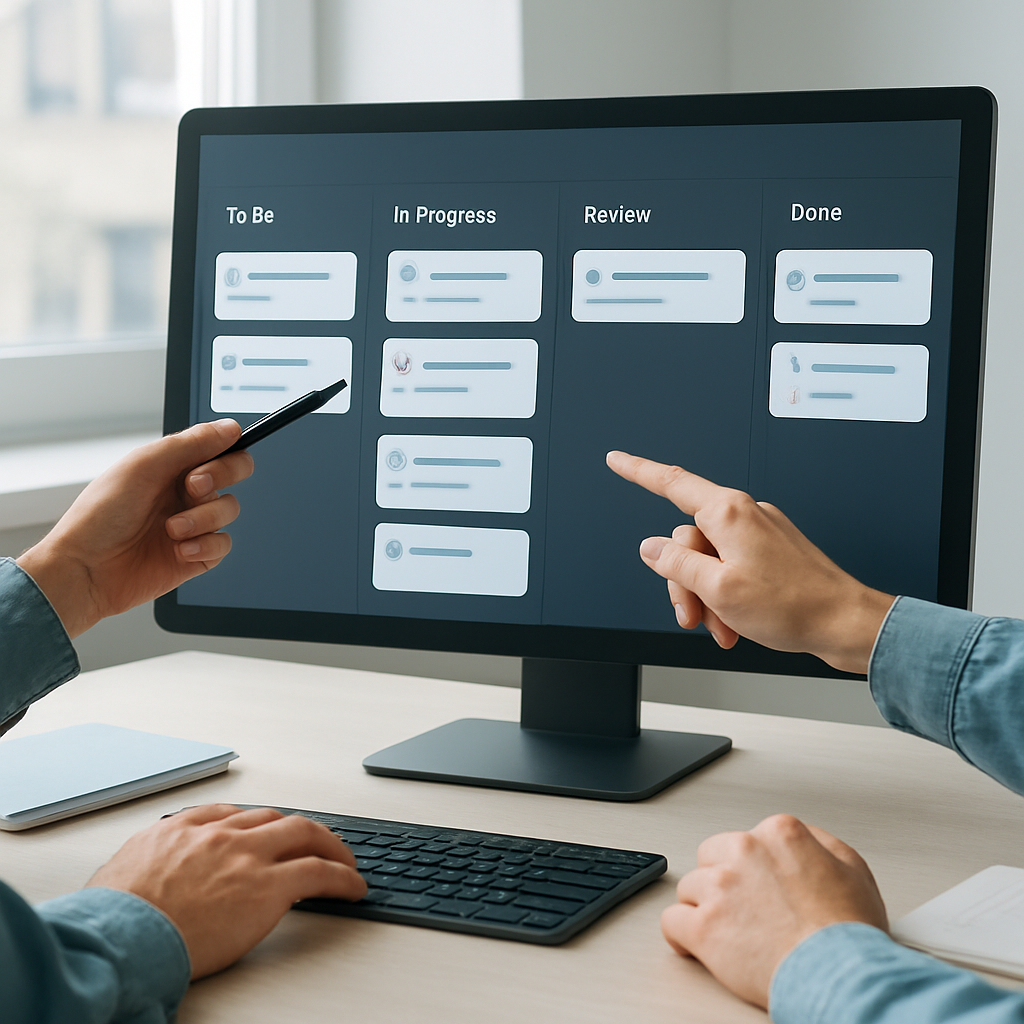
4. Track progress with clear status changes
Status flow matters because it gives the team a shared signal.
For example, a task may move from open to in progress to waiting or done. Even simple status changes can reduce uncertainty and help the team know what to focus on next.
5. Keep comments and attachments attached to the task
A team loses time when context is buried in a chat thread or file name. Keeping comments and attachments inside the task makes it easier to review the full picture later.
How teams can use Task it All differently by scope
Task it All is useful both for personal work and for team coordination.
Personal use
The Free plan is suitable for people who want a structured desktop workspace for their own tasks, reminders, notes, and follow-up.
This can be a good fit if you want to:
- plan your day
- track priorities
- keep recurring tasks visible
- store notes and attachments with the work
Team use
The Teams plan is designed for small team collaboration and assignment flows.
It supports use cases like:
- assigning tasks to team members
- coordinating shared visibility
- adding comments for decisions and context
- keeping notifications tied to work updates
- organizing execution without spreading it across too many tools
Expanded team operations
Team Plus adds support for add-ons, deeper collaboration, governance, and more operational visibility.
That can be helpful for teams that want more structure around processes, file handling, planning, or audit-friendly workflow activity.
Why local-first desktop software can be a practical fit
For some teams, a desktop app feels more focused than a browser-based workspace.
Task it All is local-first, which means it starts as a secure personal productivity workspace on the device and can scale into collaboration when needed. That approach may suit people who want a practical desktop environment for daily work.
The security model also matters. Task it All uses local login secrets with PBKDF2-HMAC-SHA256 and encrypted local task data with AES-GCM. Team and cloud collaboration are protected by permission checks, database security policies, encrypted team keys, device-aware messaging protections where available, and audit controls.
As with any software, no collaboration setup should be treated as zero-risk, but this design is meant to support safer local and team workflows.
Add-ons that can extend the workflow
Task it All can be extended with add-ons such as:
- Process Manager
- Universal File Viewer
- Easy note
- Calculator
- Calendar
- Timeline
These add-ons can support teams that want more visibility or more structure around execution, planning, and daily work organization.
The main idea is not to add tools for their own sake. It is to support the workflow when a team needs a little more clarity.
A practical way to start
If you are introducing Task it All to a small team, start with one simple process:
- create tasks for today’s work
- assign owners
- add due dates or reminders
- attach any files needed to finish the task
- use comments for decisions and updates
- review status once per day
That alone can make the workflow easier to follow.
If the team needs more structure later, you can expand into shared collaboration, team visibility, and add-ons without changing the basic execution model.
Internal link suggestions
If you want to go deeper, these related resources may help:
- How Small Teams Can Use a Desktop Task Manager to Keep Daily Work Clear and Organized
- How Task it All Helps Small Teams Turn Daily Work Into a Simple Execution Flow
FAQ
Is Task it All only for team collaboration?
No. It is designed to support personal productivity first and can scale into team collaboration when needed.
Can Task it All help with reminders and follow-up?
Yes. It supports due dates, reminders, and alarms, which can help teams keep follow-up visible.
Does Task it All keep tasks, notes, and attachments together?
Yes. The product is designed so tasks can include notes, comments, attachments, and related context in one workspace.
Is Task it All a browser app?
No. It is a Windows desktop app with a local-first approach.
Can I use Task it All for recurring daily work?
Yes. It can support recurring follow-up, status tracking, and task organization for ongoing daily work.
Final thought
A clear execution flow does not require a complicated system. It usually requires one place where the team can capture work, assign ownership, add context, and keep follow-up visible.
That is the kind of practical workflow Task it All is built to support.
Ready to organize your team tasks? Try Task it All and start with a cleaner daily workflow.
Primary CTA: Organize your team tasks
Secondary CTA: Plan your day