Task Management
How Small Teams Can Use a Desktop Task Manager to Keep Daily Work Clear and Organized
How Small Teams Can Use a Desktop Task Manager to Keep Daily Work Clear and Organized
Small teams often start with good intentions: a shared spreadsheet, a chat thread, a notebook, and maybe one or two reminder tools. The problem is not effort. It is fragmentation. When tasks, notes, due dates, and follow-ups live in different places, daily work becomes harder to track.
A desktop task manager for small teams can help bring that work into one practical place. Task it All is designed for people who want a simpler execution flow on Windows, with personal planning, team visibility, comments, assignments, reminders, attachments, and status tracking in a local-first workspace.
In this article, we will look at how small teams can use a desktop task manager to keep work clear, reduce context switching, and maintain a more consistent daily rhythm.
Why small teams need a clearer daily task system
Small teams usually do not need a complicated enterprise process to stay organized. What they need is:
- a reliable place to capture tasks
- a way to break work into subtasks
- due dates and reminders that are easy to follow
- shared visibility for team coordination
- simple status control so work does not disappear
- attachments and notes close to the task
Without that structure, people tend to ask the same questions repeatedly:
- Who owns this task?
- Is it still in progress?
- What is due today?
- Where is the latest file?
- Did anyone already comment on this?
A desktop task manager helps answer those questions inside the work itself.
What a desktop task manager can do for daily execution
Task it All is built to support both personal work and small-team execution. That matters because many teams need one workspace that can start simple and grow into shared coordination when needed.
A practical desktop task manager can help you:
- capture tasks quickly
- organize them with subtasks and notes
- assign work to teammates
- add comments for context
- set due dates, reminders, and alarms
- track status changes across a workflow
- attach files to the right task
- keep daily follow-up visible
This is especially useful for founders, operations managers, remote workers, consultants, and team leads who want a steady way to keep work moving.
A simple workflow small teams can follow
A clear task system does not have to be complex. One simple pattern is enough for many teams:
1. Capture the work
Start by putting all new tasks in one place. Use a short title, a clear owner, and a due date if needed. If the task has more context, add a note.
2. Break bigger tasks into subtasks
For work that has multiple steps, use subtasks to make the next actions visible. This is helpful when one item depends on several smaller actions.
3. Add reminders and follow-up points
Not every task needs constant attention, but many need a nudge. Reminders and alarms can help the team return to the task at the right time.
4. Use comments for coordination
If a task needs clarification, use comments instead of moving details into a separate chat thread. That keeps the conversation near the work.
5. Track status changes consistently
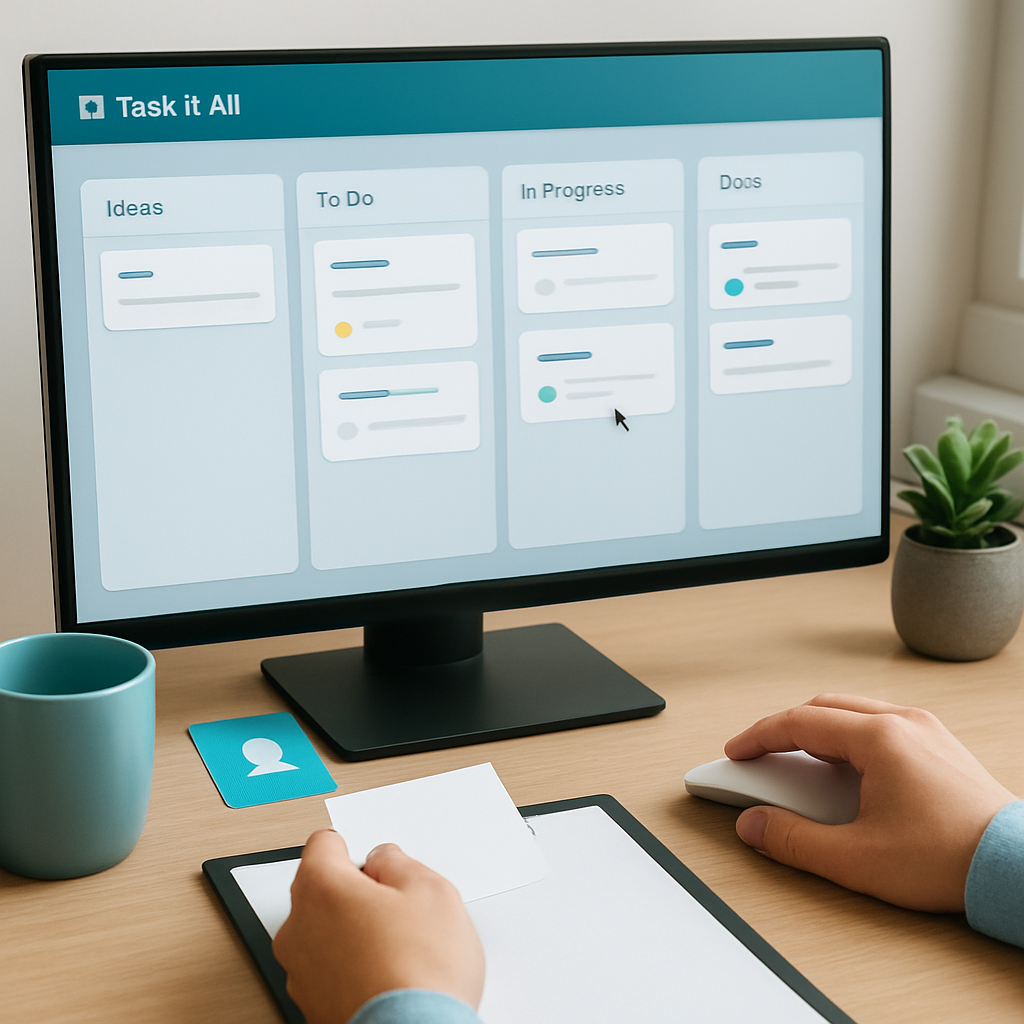
A task is easier to manage when everyone understands what the statuses mean. For example, a simple flow might be:
- To Do
- In Progress
- Waiting
- Done
The exact labels can vary, but the goal is the same: make task movement visible.
6. Attach files where they matter
When a document, image, or reference file is part of the work, attach it to the task. That reduces the time spent searching across folders and messages.
Why local-first can be useful for small teams
Task it All follows a local-first approach for personal work and expands into team collaboration when needed. For many users, this is appealing because it keeps the desktop workspace practical and centered on the device first.
The product’s security story includes local login secrets protected with PBKDF2-HMAC-SHA256 and encrypted local task data using AES-GCM. For team collaboration, access checks, encrypted team keys, database security policies, and audit controls are part of the design. That said, no collaboration tool can promise zero risk, so the right expectation is support for stronger control and safer handling, not absolute security.
If your team wants to understand this side of the product better, you can also read Task it All Local-First Security Explained: PBKDF2, AES-GCM, and Team Access Control for Small Teams.
When a small team should move from personal planning to shared execution
Some teams start with one person managing everything, then slowly grow into shared task ownership. That transition is often messy if the app is not designed for it.
Task it All can support that shift by moving from personal planning into team scope with:
- shared visibility
- assignments
- comments
- notifications
- direct messages
- multiple teams inside one company
- operational audit features
That makes it easier to keep personal planning and team coordination in the same workspace without turning the process into extra overhead.
Add-ons that can support a more practical workflow
For teams that want more support without turning the app into a sprawling system, Task it All also offers add-ons such as Process Manager, Universal File Viewer, Easy note, Calculator, Calendar, and Timeline.
These add-ons can help when your team wants:
- more structured process steps
- faster access to files
- lightweight note taking
- date and planning views
- a more connected daily routine
The key is to add tools only when they support the workflow. A good task system stays simple enough to use consistently.
A good desktop task manager should reduce friction, not add it
A task tool should make the day easier to follow. If people spend too much time managing the system, the system becomes part of the problem.
Task it All is intended to keep the workflow practical by focusing on daily execution needs:
- personal and team tasks in one desktop app
- notes and comments near the work
- reminders for follow-up
- attachments for context
- status visibility for coordination
- room to grow into shared team execution
That combination can be especially useful for small teams that want structure without adopting a heavy process.
How to evaluate whether this approach fits your team
Before rolling out any desktop task manager, ask a few simple questions:
- Do we need one place for tasks, notes, and reminders?
- Do we want clearer ownership and follow-up?
- Would a desktop app fit our daily routine better than a web-only tool?
- Do we need both personal planning and team collaboration?
- Would status visibility help reduce repeated check-ins?
If the answer is yes to several of these, a local-first desktop task manager may be a practical fit.
Getting started with Task it All
If your team wants a simpler execution flow, start with one small workflow. Add a few tasks, assign ownership, set reminders, and use comments for context. Then see how the system feels in daily use.
You can begin here: Organize your team tasks.
For a more detailed workflow-focused article, you may also find these helpful:
- How Task it All Helps Small Teams Turn Daily Work Into a Simple Execution Flow
- How Small Teams Can Build a Simple Daily Execution Workflow with a Desktop Task Manager
FAQ
### What is a desktop task manager for small teams?
A desktop task manager is an app that helps teams organize tasks, notes, reminders, and status updates from a desktop workspace instead of relying only on chat or spreadsheets.
### Why would a small team use Task it All instead of multiple tools?
Task it All is designed to concentrate daily execution in one local-first desktop app, which can reduce context switching and keep task details closer to the work.
### Can Task it All support both personal tasks and team work?
Yes. It starts as a personal productivity workspace and can scale into team collaboration with assignments, comments, notifications, and shared visibility.
### Does a task manager replace every workflow tool?
No. It is designed to support task execution, planning, and coordination. It is not positioned as a replacement for legal, accounting, or formal compliance systems.
### Is Task it All guaranteed to solve productivity problems?
No tool can guarantee productivity. Task it All is designed to help teams organize work more clearly, but results depend on how the team uses it.
Final thoughts
Small teams do not always need more tools. Often, they need a clearer place to manage the work they already have. A desktop task manager can help turn scattered follow-up into a more visible daily workflow.
If your team wants a practical way to organize tasks, reminders, notes, attachments, and collaboration in one desktop app, Task it All may be a strong fit for your routine.