Local-First Documents
How to Streamline Private PDF Workflows on Windows Without Uploading Files
How to Streamline Private PDF Workflows on Windows Without Uploading Files
If your team handles contracts, invoices, reports, or internal documents, you already know the tradeoff with many web PDF tools: they are convenient, but they often require you to upload files first. For private or sensitive documents, that extra step can be difficult to justify.
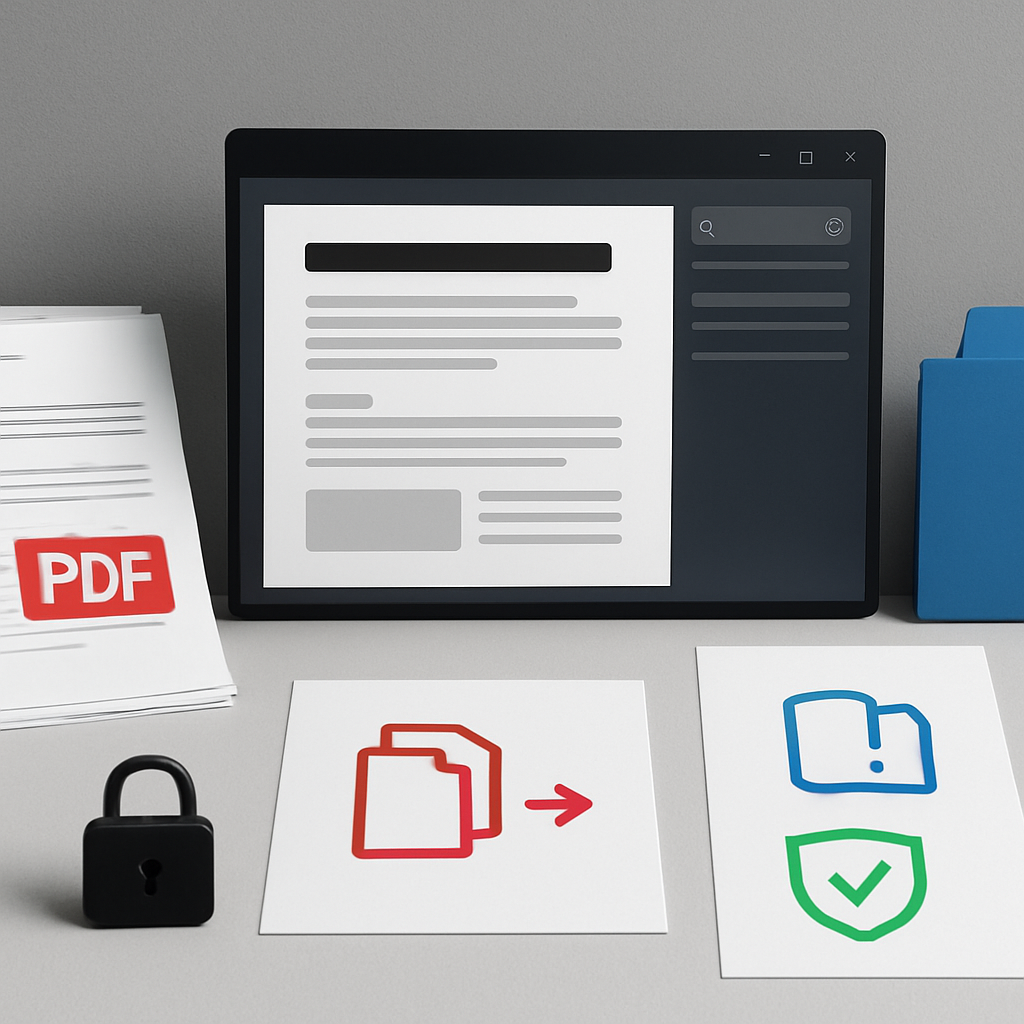
A local-first PDF workflow for Windows helps you keep common PDF tasks on your desktop instead of sending every file to a browser-based service. With the right app, you can read, search, merge, split, extract, and prepare PDFs locally while staying in control of where documents are handled.
Open PDF PowerKit is designed for that kind of workflow.
What a local-first PDF workflow looks like
A local-first workflow keeps document processing on your Windows device by default. That means your day-to-day PDF tasks happen in a desktop app rather than in separate online tools.
Typical tasks in a local-first setup include:
- Opening and reading PDFs locally
- Searching text inside documents
- Merging multiple PDFs into one file
- Splitting a large PDF into smaller files
- Extracting selected pages
- Reordering pages before saving or sharing
- Applying workflow controls for protection, metadata, or signing preparation
This approach can be especially useful when your team works with private files and wants fewer steps between opening a document and completing the task.
Why teams prefer local PDF handling on Windows
Windows teams often use PDFs for contracts, onboarding, finance reviews, approvals, and operational files. In those workflows, speed matters, but so does document handling discipline.
A local-first approach can help you:
- Reduce repeated uploads to web tools
- Keep routine file preparation in one place
- Work more consistently across common PDF tasks
- Avoid switching between multiple browser tabs and services
- Stay focused on the document instead of the platform
For teams that review sensitive information, local processing can also feel simpler to govern because the files stay on the desktop during the workflow.
For more context, see Why Local-First PDF Workflows Matter for Windows Teams.
Common PDF tasks you can prepare locally
PDF PowerKit is built for practical desktop PDF work. Depending on your workflow, you may use it to handle tasks like reading, merging, splitting, extraction, search, and document preparation.
Read and search PDFs locally
A built-in reader makes it easier to open PDFs, zoom in on details, navigate pages, and use search when you need to find specific text. That is useful for reviewing long files, checking clauses, or finding figures inside reports.
Merge and reorder PDFs
If you need to combine multiple files into one document, a local merge workflow helps you do that without uploading files to another service. Reorder controls are especially helpful when the final sequence matters.
Split large PDFs into smaller files
Splitting can be useful when you need to separate a multi-section document into smaller parts for review, sharing, or archive preparation. Common split patterns include page ranges, every N pages, or individual pages.
Extract selected pages
When only a few pages are needed, extraction can save time and reduce clutter. This is useful for preparing review packets, reference files, or document subsets for internal use.
Prepare documents for signing or protection workflows
Some teams use a desktop PDF app to prepare files before signing, redaction, metadata review, or protection steps. It is important to distinguish preparation and workflow support from any legal or compliance advice, especially for contracts and regulated documents.
How PDF PowerKit supports local workflows on Windows
PDF PowerKit is a native Windows desktop app built for local PDF workflows. It is designed with a Fluent-style dashboard and a local file-first approach.
The app includes capabilities such as:
- Local PDF reading with zoom and navigation actions
- Search panel for finding text in documents
- Recently opened files stored locally
- Merge PDFs with reorder controls
- Split PDFs by page ranges, every N pages, or individual pages
- Extract selected pages
- Operation progress with cancel hooks
- Local theme switching
- Prepared language options for multiple languages
Its implementation uses Windows-native technologies and local processing components, which supports a desktop workflow rather than a browser-centered one.
If your team wants to organize private workflows in a more structured way, this guide may also help: How to Organize Private PDF Workflows on Windows Without Uploading Files.
A simple way to structure your PDF routine
If you are trying to reduce tool switching, a predictable routine can help.
1. Open the source PDFs locally
Start in the desktop app with the files you already have on your Windows machine.
2. Review and search before editing
Use the reader and search tools to confirm what needs to be merged, split, or extracted.
3. Prepare the document structure
Reorder pages, select ranges, or extract only what you need.
4. Save the result locally
Export the prepared file and keep it in the folder or workflow system you already use.
This pattern can reduce back-and-forth, especially when the same document types appear every day.
Who benefits most from local-first PDF workflows
Local-first PDF workflows can be especially useful for:
- Operations teams managing routine document preparation
- Legal and contract teams working with private files
- Finance admins handling invoices and approvals
- Consultants organizing client deliverables
- Small businesses that want fewer third-party steps
- Educators preparing course materials and handouts
The goal is not to replace every document platform. It is to give you a practical desktop option for the PDF tasks that do not need a browser-first process.
Notes on signing, protection, compression, and future features
Some PDF workflows include signing, protection controls, watermarking, compression, metadata management, or OCR-related needs. In a product like PDF PowerKit, it is reasonable to discuss these areas as part of the PDF workflow surface.
That said, it is important to be precise:
- Do not assume every advanced feature is already in the current build
- Do not claim guaranteed compression results for all PDFs
- Do not describe protection as absolute or perfect
- Do not present the app as legal advice for contracts or signatures
For teams evaluating document handling, the best framing is that the app helps prepare and manage workflows locally, while any legal or regulatory decision remains your own process.
Internal links and next reading
If you want to continue exploring this workflow topic, these resources are a good next step:
- Why Local-First PDF Workflows Matter for Windows Teams
- How to Organize Private PDF Workflows on Windows Without Uploading Files
FAQ
### What is a local-first PDF workflow for Windows?
A local-first PDF workflow keeps common document tasks on your Windows desktop instead of relying on web tools by default. It is useful for reading, searching, merging, splitting, and preparing PDFs locally.
### Why avoid uploading PDFs when possible?
Many teams prefer fewer uploads because it simplifies handling private documents and reduces the need to move files between different services for routine tasks.
### Can PDF PowerKit help with merge and split tasks?
Yes. PDF PowerKit is designed to support local PDF workflows such as merging, splitting, extracting pages, and preparing files on Windows.
### Does PDF PowerKit replace legal review or signing advice?
No. It is a document workflow tool, not legal advice. Teams should follow their own review and approval process for contracts and signatures.
### Does the app automatically send files to the cloud?
No. The product positioning is local-first, so documents are handled locally by default.
Soft CTA
If you want a practical desktop workflow for reading, searching, merging, splitting, and preparing PDFs on Windows, start here:
You can also Open PDF PowerKit to see the app and explore the local workflow approach for yourself.