Local-First Documents
How to Organize Private PDF Workflows on Windows Without Uploading Files
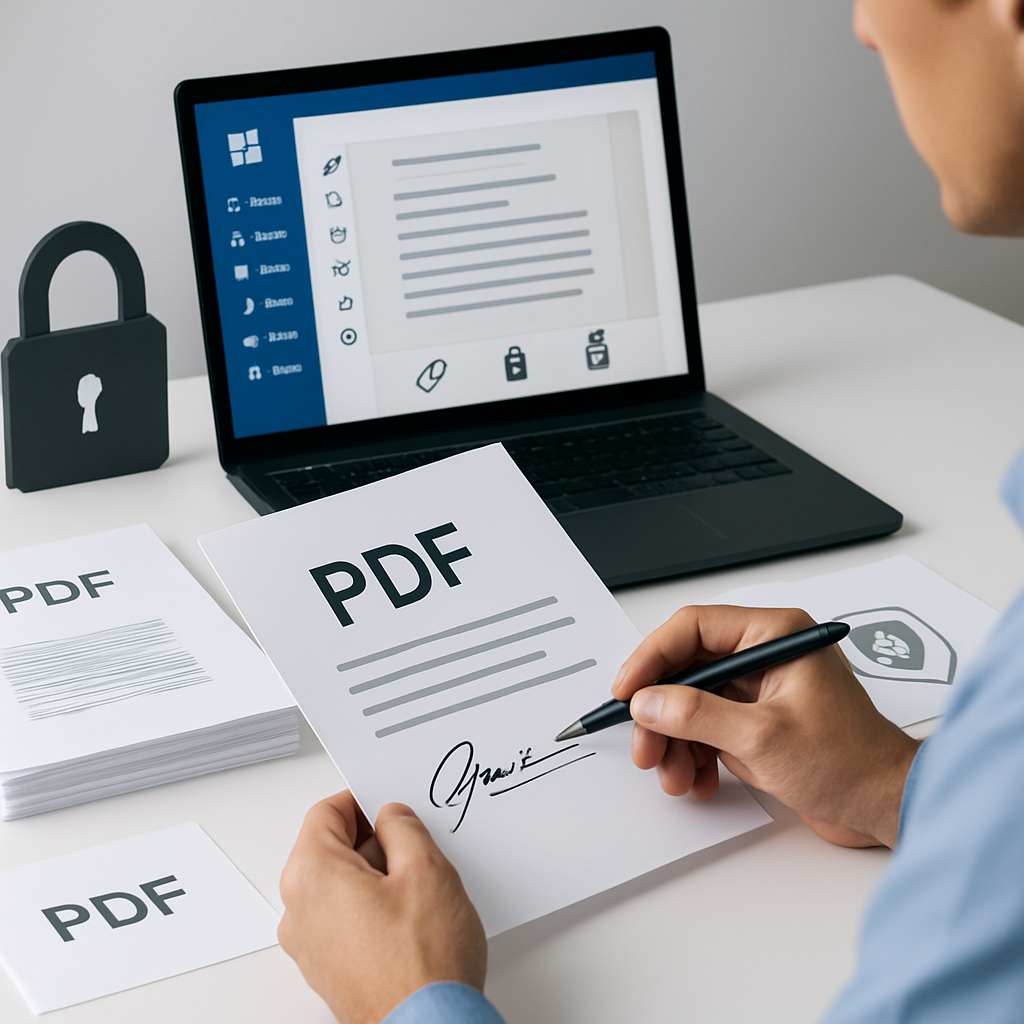
How to Organize Private PDF Workflows on Windows Without Uploading Files
Handling PDFs often means more than just opening a document. Teams need to read files, find text, merge reports, split pages, extract sections, and prepare documents for review or signing. When those files are sensitive, sending them to a web tool for every step can be inconvenient.
A local-first PDF workflow for Windows helps keep that work on your desktop. Instead of switching between browser tools and cloud uploads, you can prepare documents locally in one place with PDF PowerKit.
Why local PDF workflows matter
For many teams, PDFs contain contracts, invoices, internal reports, HR forms, lesson materials, and client documents. In these cases, the main need is not just speed—it is control.
A local workflow can help you:
- keep files on your Windows device while you work
- reduce context switching between apps and browser tabs
- organize PDF tasks in one desktop environment
- prepare documents for review, sharing, or archival
- search and inspect content without relying on a web upload step
PDF PowerKit is designed for this kind of desktop workflow. It is a native Windows app built for local PDF reading and common document operations.
What a practical local-first PDF workflow looks like
A good workflow usually starts with reading and searching. From there, you may need to combine documents, cut out specific pages, or extract sections for a separate review pack.
With PDF PowerKit, you can work through common steps locally:
- Open a PDF in the desktop reader.
- Search text in the document.
- Navigate pages with zoom and reader controls.
- Merge PDFs and reorder files before finalizing.
- Split files by page range, every N pages, or individual pages.
- Extract selected pages into a new document.
- Prepare files for follow-up actions such as signing or protection workflows.
That sequence is especially useful for operations teams, finance admins, legal and contract teams, consultants, educators, and small businesses that want a more direct desktop process.
Key PDF tasks you can handle locally
Read and search PDFs
If you need to find a clause, invoice number, policy term, or note, a local reader with search support can save time. PDF PowerKit includes a local PDF reader with navigation actions and search controls so you can inspect documents without leaving the desktop app.
Merge documents
When you need a combined packet, merging files locally can be faster than uploading several documents to a web service. PDF PowerKit supports merge workflows with reorder controls so you can arrange the sequence before finishing the output.
Split large files
Sometimes the cleanest way to share a PDF is to split it first. You may want separate files by section, by chapter, by date, or by review batch. PDF PowerKit supports split workflows by page ranges, every N pages, or individual pages.
Extract selected pages
If you only need a few pages from a larger file, extraction can create a more focused document for review or distribution.
Prepare documents for later steps
Depending on your workflow, you may want to get files ready for signing, watermarking, metadata review, or protection controls. PDF PowerKit can support these workflow areas, while keeping the actual handling local.
Why teams choose desktop over browser tools
Web tools are useful for some tasks, but they are not always the best fit for private or repeated PDF work. A desktop app can be a better option when your team wants:
- fewer file uploads
- a more repeatable process
- local access to recent documents
- a focused environment for document operations
- better control over the order of tasks
That is especially relevant when teams work with confidential files and want to avoid sending every document through a browser-based service.
For a deeper look at this approach, see Why Local-First PDF Workflows Save Time for Windows Teams.
How PDF PowerKit supports local PDF work
PDF PowerKit is a Windows desktop app built for fast, private, local PDF workflows. It includes a professional Fluent-style dashboard, local file handling, and a reader focused on practical document tasks.
The app is designed to support workflows such as:
- reading and reviewing PDFs locally
- searching text in documents
- merging and splitting files
- extracting pages for review packs
- tracking recent files locally
- switching themes inside the app
- preparing documents for follow-up workflow steps
Because it is local-first, PDF PowerKit is intended to help you keep documents on your device during the workflow rather than defaulting to cloud upload.
If you want to start with the desktop app, you can Open PDF PowerKit.
Example use cases
Operations teams
Operations teams often work with recurring PDFs such as internal reports, handoff documents, and process packets. A desktop workflow helps them merge, split, and search files more efficiently.
Legal and contract teams
Legal and contract teams may need to review private files, pull specific pages into a review packet, or prepare documents for signature workflows. PDF PowerKit is designed to support document preparation, but it is not a legal advisor or a replacement for professional review.
Finance admins
Finance teams may use PDFs for invoices, statements, approvals, and reconciliations. Local search and page extraction can make those tasks easier to manage.
Educators and consultants
Educators and consultants often combine handouts, notes, and reference PDFs into one package. Local merge and split tools can simplify that work.
Notes on signing, protection, and compression
PDF workflows often include signing, protection, metadata review, watermarking, and compression needs. PDF PowerKit can be discussed in those product areas, but it is best to keep expectations precise.
- Signing workflows should be treated as document preparation support, not legal advice.
- Protection features can help organize access or handling, but they do not guarantee absolute security.
- Compression should be described carefully, since not every file will shrink the same way and no reduction can be guaranteed.
This careful framing keeps the workflow practical and avoids overstating what any PDF tool can promise.
Internal link suggestions
If you are building a resource hub around local PDF work, these related topics fit well:
- How to Prepare Private PDF Workflows on Windows Without Uploading Files
- Why Local-First PDF Workflows Save Time for Windows Teams
FAQ
What is a local-first PDF workflow for Windows?
It is a PDF process that keeps work on your Windows desktop instead of relying on browser uploads for every step. You open, search, merge, split, and prepare files locally.
Why avoid uploading PDFs to web tools?
Uploading can add extra steps and may not suit private documents. A local workflow is often simpler for recurring internal or sensitive files.
Can PDF PowerKit help me search inside PDFs locally?
Yes. PDF PowerKit includes local PDF reading and search support so you can find text without moving the document into a browser-based tool.
Does PDF PowerKit replace legal review or advice?
No. It is a document workflow tool. It can help prepare files, but it is not legal advice and should not replace professional review.
Does PDF PowerKit promise perfect security?
No software can promise perfect security. PDF PowerKit is designed to support local-first handling so you can keep work on your desktop during the workflow.
Final takeaway
If your team regularly works with private PDFs, a local desktop workflow can reduce friction and keep the process more organized. PDF PowerKit is built to support that Windows-first approach with local reading, search, merge, split, and page extraction tools.
Ready to get started? Open PDF PowerKit or prepare PDF workflows locally.