Local-First Documents
Local-First PDF Workflows on Windows: A Practical Guide to Reading, Merging, Splitting, and Searching Files Privately
Local-First PDF Workflows on Windows: A Practical Guide to Reading, Merging, Splitting, and Searching Files Privately
Many Windows users still depend on web tools for everyday PDF tasks. That often means uploading private files just to merge a few pages, split a document, search inside a contract, or prepare a file for review. If your work involves sensitive content, that extra step can be a problem.
A local-first PDF workflow keeps the work on your Windows desktop instead of sending files to a browser-based service by default. That makes it easier to stay organized, work faster, and keep control of documents that should remain private.
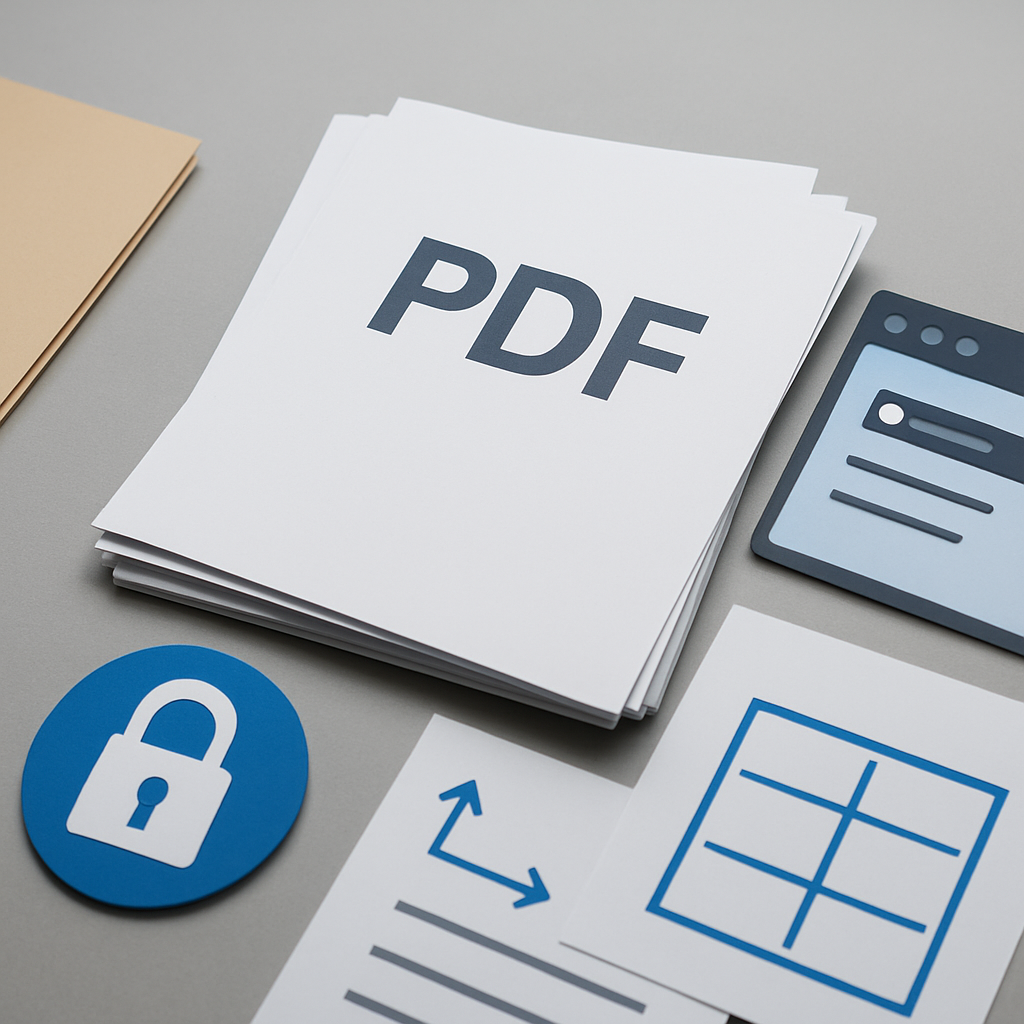
Open PDF PowerKit is designed for that kind of workflow. It helps Windows users read, search, merge, split, extract, and prepare PDFs locally in a desktop app.
What a local-first PDF workflow means
A local-first PDF workflow is a process where your PDF tasks happen on your device first, not in a cloud tool by default. For many teams, that matters because PDFs often contain:
- Contracts and draft agreements
- Financial documents
- Internal reports
- HR or operations files
- Teaching materials and student records
- Client deliverables that should stay private
Instead of switching between multiple web apps, you can keep common tasks in one Windows desktop workspace.
Common PDF tasks teams want to do locally
Different teams use PDFs in different ways, but the most common workflow needs are usually simple and repetitive.
Read and search documents
A local PDF reader helps when you need to open large files, jump between pages, zoom in, or search for specific text. This is useful when reviewing long reports or checking terms in a contract.
PDF PowerKit includes a local PDF reader with zoom, navigation actions, and a search panel so users can inspect files without leaving the desktop app.
Merge PDFs
Merging is one of the most common PDF tasks. You might combine a cover page, a report, and supporting pages into one file. In a local-first workflow, you can do that without uploading files to a website.
PDF PowerKit supports merge workflows with reorder controls, which helps when the final page order matters.
Split PDFs
Sometimes you do not need the entire document. You may want to split a report into sections, extract a chapter, or create smaller files for review.
PDF PowerKit supports splitting by page ranges, every N pages, or individual pages.
Extract selected pages
Extraction is helpful when only a few pages need to be shared or archived. It can reduce clutter and make handoff easier for internal review.
Prepare files for signing or protection
Teams often need to prepare PDFs for later signing, watermarking, metadata review, or protection steps. These workflows may involve careful document handling and should be managed with the right internal process.
PDF PowerKit can support preparation workflows locally, while advanced signature placement, true compression, OCR, and AI capabilities may belong to later phases unless they are already included in your build.
Why local-first matters for privacy and speed
Local-first workflows are valuable for two practical reasons: privacy and efficiency.
1. Fewer file transfers
When you are not sending every file to a web app, you reduce the number of places where a document has to move. That can simplify day-to-day work for teams that handle private information.
2. Less switching between tools
A desktop app can keep reading, searching, merging, splitting, and extracting in one place. That saves time compared with opening separate browser tabs for each task.
3. Better fit for recurring workflows
Operations teams, finance admins, consultants, educators, and legal or contract teams often repeat the same PDF steps over and over. A local desktop tool makes those repeatable actions easier to standardize.
For a broader view on this topic, see Why Local-First PDF Workflows Matter for Windows Teams.
A practical Windows workflow example
Here is a simple example of a private PDF workflow on Windows:
- Open the PDF in a local desktop app.
- Search for the relevant section.
- Extract the pages you need.
- Reorder pages if necessary.
- Merge the selected files into a final document.
- Save the result locally for review or sharing.
That kind of flow is especially useful when the goal is to prepare a document quickly without relying on a browser-based service for every step.
If you want a deeper walkthrough of this approach, read How to Streamline Private PDF Workflows on Windows Without Uploading Files.
What PDF PowerKit is built for
PDF PowerKit is a native Windows desktop app built for fast, local PDF workflows. Its current MVP focus includes:
- Local PDF reading with zoom and navigation actions
- Text search inside PDFs
- Recent files stored locally
- Merge and split workflows
- Extract selected pages
- Operation progress with cancel hooks
- Local theme switching
- Language options prepared for multiple markets
The app is built with a Fluent-style desktop experience and is intended for users who want practical PDF work on Windows without default cloud dependence.
Where teams should be careful
For sensitive documents, it is worth defining internal rules for how PDFs are handled, stored, and shared. A local app can help with workflow control, but it does not replace your organization’s own review, approval, or compliance process.
Also, if you are evaluating signing or protection workflows, make sure you check exactly which features are included in the build you are using. Product areas like signature workspaces, compression, watermarking, metadata, and protection controls should be described carefully based on what is actually available.
When a local desktop app is the better choice
A local PDF desktop app is often a better fit when you:
- Work with private or confidential files
- Repeat the same PDF steps many times per day
- Need to search or review documents quickly
- Want to reduce browser switching
- Prefer keeping document preparation on Windows
This does not mean every PDF task must be local forever. It means the default workflow can start on your machine, where it is easier to manage time and document handling.
FAQ
Is PDF PowerKit a web app?
No. PDF PowerKit is a native Windows desktop app designed for local-first PDF workflows.
Can I read and search PDFs locally?
Yes. The app includes local reading and search tools so you can inspect documents without relying on a browser-based workflow.
Does PDF PowerKit merge and split PDFs?
Yes. The app supports merge and split workflows, including page ranges, every N pages, and individual pages.
Does it upload my files by default?
No. The product is positioned as local-first, so the default workflow is on your Windows desktop rather than uploading files to a web tool.
Can I use it for signing or protection workflows?
PDF PowerKit can support preparation areas related to signing and protection, but you should confirm the exact feature set in the build you are using before depending on it for a specific process.
Soft CTA
If you want a practical way to handle PDFs on Windows without making every task a web upload, start with Open PDF PowerKit and build your local workflow from there.
Internal link suggestions
- Why Local-First PDF Workflows Matter for Windows Teams
- How to Streamline Private PDF Workflows on Windows Without Uploading Files
Final takeaway
A local-first PDF workflow can make Windows document work simpler, faster, and easier to manage. For teams and individuals who want to read, search, merge, split, and prepare PDFs privately, a desktop app like PDF PowerKit offers a focused way to keep the work on the machine instead of defaulting to the browser.