Local-First Documents
How to Prepare Private PDF Workflows on Windows Without Uploading Files
How to Prepare Private PDF Workflows on Windows Without Uploading Files
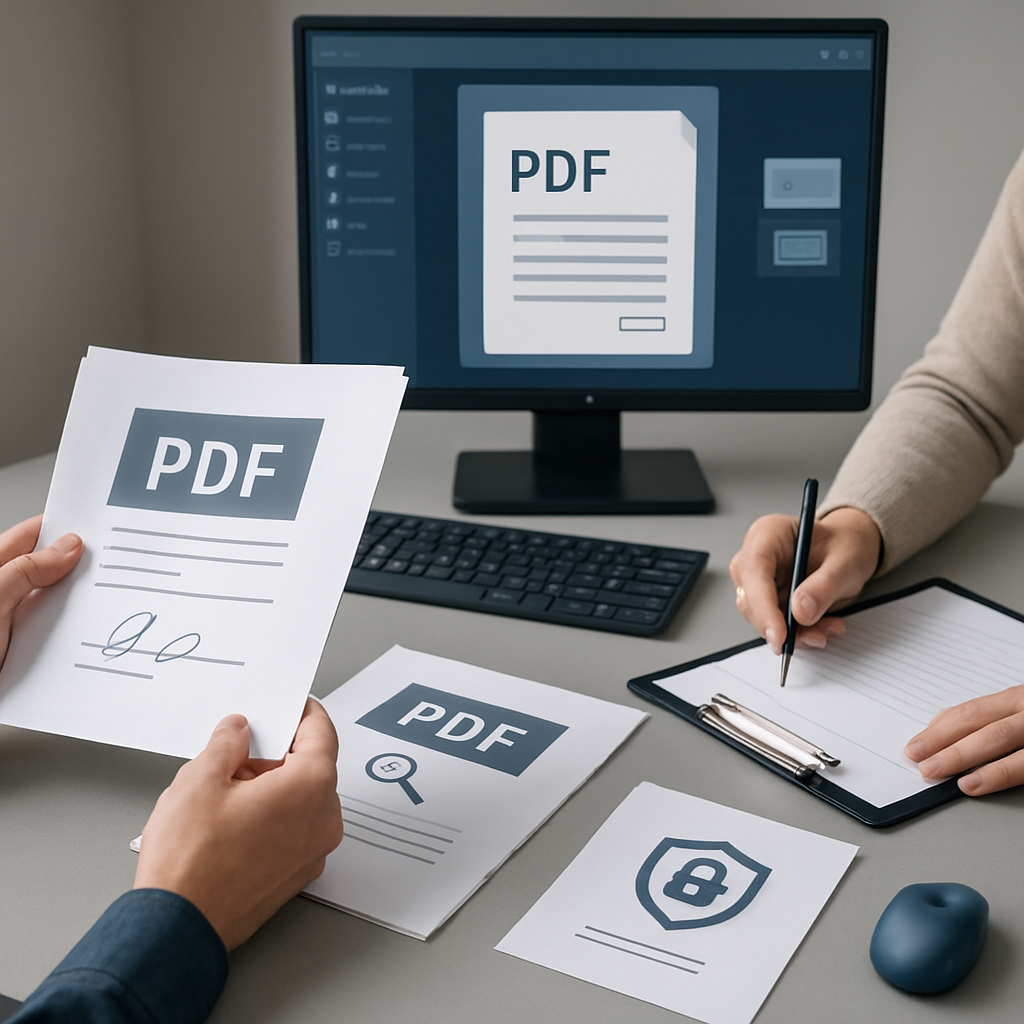
If you work with contracts, reports, invoices, or internal documents, you probably want a faster way to prepare PDFs without sending them to a web tool every time. A local-first PDF workflow for Windows helps you keep documents on your device while you read, search, merge, split, extract pages, and organize files for review.
That is the core idea behind PDF PowerKit: a native Windows app designed for local PDF tasks, with a focus on privacy, speed, and practical daily workflows.
Why local PDF workflows matter
Many teams still use multiple browser-based tools to handle simple PDF tasks. That can create friction:
- switching between websites
- repeating uploads for every task
- waiting for files to process online
- keeping sensitive documents in more places than necessary
- losing time on repetitive review preparation
A local workflow is often more convenient when you need to work on documents privately and move quickly. Instead of opening several web services, you can keep the work on your Windows desktop and use one app for the main PDF steps.
What you can do locally in PDF PowerKit
PDF PowerKit is built for everyday desktop PDF operations. Depending on the build you are using, it can help you:
- open and read PDFs locally
- search text inside documents
- merge PDFs and reorder files before combining them
- split PDFs by page ranges, every N pages, or individual pages
- extract selected pages for review or sharing
- keep recent files available locally for faster reopening
- switch themes and work in supported interface languages
These workflows are useful for operations teams, finance admins, legal and contract teams, consultants, educators, and small businesses that handle PDFs often.
A practical Windows workflow for private documents
A good local-first workflow does not need to be complicated. A typical process might look like this:
- Open the source PDF in the desktop app.
- Review the document and use search to find the sections you need.
- Split or extract the pages that matter.
- Reorder files before merging if you are creating a packet.
- Prepare the final PDF for internal review or distribution.
This approach reduces back-and-forth between tools and helps you keep the task in one place.
Reading and searching without leaving the desktop
When you only need to inspect a document, a local reader is often the fastest option. PDF PowerKit includes a local PDF reading experience with navigation and search features designed for everyday use.
That is useful when you need to:
- jump to a specific page
- zoom in on dense content
- look for names, references, or clause numbers
- review long reports without uploading them elsewhere
For many document workflows, search is the difference between a slow manual review and a quick answer.
Merge and split PDFs with more control
A common task for teams is preparing a clean combined file or breaking a large document into smaller parts.
With local PDF tools, you can handle tasks such as:
- combining related documents into one packet
- splitting a large file into sections
- extracting a subset of pages for review
- organizing pages before final output
PDF PowerKit is designed to support these workflows locally, with controls for reordering and progress feedback during operations.
When local-first is a better fit
A local-first approach can be a better fit when:
- the documents are sensitive or confidential
- you need to work offline or with limited connectivity
- your team repeats the same PDF steps often
- you want to reduce tool switching
- you prefer desktop workflows over browser tabs
It is especially relevant for teams that prepare files for internal review, contract handling, finance processing, or educational materials.
About signing, protection, and preparation tasks
PDF workflows often include signing, watermarking, metadata updates, or document protection. PDF PowerKit can support product areas like these, but the exact availability depends on the build.
For teams evaluating these workflows, it is best to think in terms of preparation and support rather than assumptions about every advanced feature. Some capabilities may be in active development or later phases, so check the current product build before planning a production process around them.
Privacy-first by design, with careful cloud usage
The main value of PDF PowerKit is that it is designed for local desktop work. That means your PDFs are intended to stay on your Windows device for the tasks you perform locally.
If any future AI-assisted features are used, they should be treated carefully and only with per-document consent before any cloud processing. The product should not be described as uploading documents by default.
Who this workflow is for
A local-first PDF workflow is a strong fit for:
- Windows users who handle PDFs daily
- operations teams preparing internal packets
- legal and contract teams organizing review files
- finance admins working with statements and reports
- consultants delivering client-ready documents
- educators preparing course materials and handouts
- small businesses that want fewer web-based PDF steps
How to start with PDF PowerKit
If you want a simpler way to prepare PDFs locally on Windows, start with the tasks you repeat most often:
- reading and searching
- merging and reordering
- splitting large files
- extracting pages for review
- keeping recent files easy to reopen
Then build your workflow around those steps.
Start here: Open PDF PowerKit
For more context on the broader approach, see Why Local-First PDF Workflows Save Time for Windows Teams.
FAQ
### What is a local-first PDF workflow for Windows?
A local-first PDF workflow keeps document tasks on your Windows device instead of sending every file to a web tool. It is useful for reading, searching, merging, splitting, and preparing PDFs privately.
### Can PDF PowerKit help with confidential documents?
It is designed for local desktop workflows, which can help reduce the need to upload documents to online tools. You should still review your own data handling practices for sensitive files.
### Does PDF PowerKit replace all online PDF tools?
It is meant to support common local PDF workflows, but different teams may still use other tools for specific needs. The best fit depends on your process and document requirements.
### Can it compress any PDF with guaranteed size reduction?
No product should promise that for every file. Compression results vary depending on the document, images, and content structure.
### Is PDF PowerKit legal advice or a contract-signing advisor?
No. It is a PDF workflow tool and should not be treated as legal advice or a replacement for professional review.
Related reading
- Windows Local-First PDF Workflow: How to Extract Pages, Keep Bookmarks, and Prepare Files for Review Without Uploading
- Why Local-First PDF Workflows Save Time for Windows Teams
Soft CTA
If your team wants to prepare PDFs locally with fewer browser hops and less file moving, try a desktop workflow built for Windows: Prepare PDF workflows locally