Local-First Documents
How to Manage Private PDF Workflows on Windows Without Uploading Files
How to Manage Private PDF Workflows on Windows Without Uploading Files
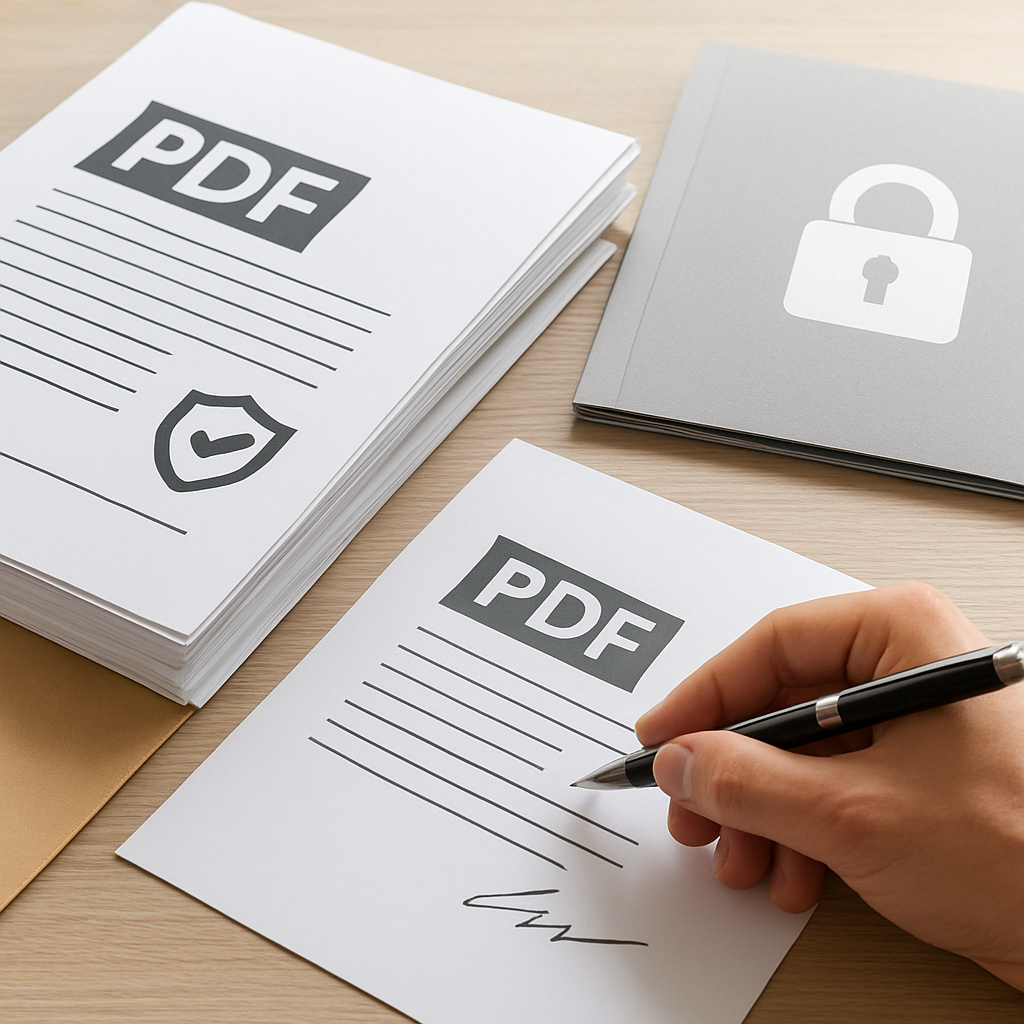
If your team handles contracts, reports, invoices, or internal documents, you may not want to upload every PDF to a web app just to merge, split, search, or review it. A local-first approach gives Windows users a practical way to keep PDF work on the desktop, where files stay under your control.
That is the core idea behind a local-first PDF workflow for Windows: open files locally, work on them locally, and only use external services when you intentionally choose to.
With PDF PowerKit, Windows users can prepare PDF workflows on the desktop with tools for reading, searching, merging, splitting, extracting pages, and organizing documents locally.
What a local-first PDF workflow means
A local-first workflow is simply a document process that starts and finishes on your device. Instead of sending a file to a browser tool for every task, you use a desktop app that keeps the work local.
For many teams, that matters because:
- sensitive files do not need to be uploaded for routine tasks
- document handling stays consistent on Windows desktops
- repeated actions like merge, split, and search are faster to repeat
- internal workflows are easier to standardize across a team
This approach is especially useful for operations teams, finance admins, legal and contract teams, consultants, educators, and small businesses that work with PDFs every day.
Common PDF tasks that work well locally
Many daily PDF tasks do not require a browser upload. A desktop workflow is often enough.
Reading and reviewing PDFs
A local PDF reader can help users open documents, zoom, move through pages, and search text without switching tools. In PDF PowerKit, the local reader is designed for fast navigation and practical review work.
Searching text in files
If you often need to find clauses, names, invoice numbers, or page references, local search can save time. Search stays in the app, which makes it easier to review a document before deciding what to do next.
Merging PDFs
Merging is a common task for teams that combine related files into a single packet, such as a proposal, report bundle, or contract set. A local tool can help you reorder files before combining them.
Splitting PDFs
Splitting helps when one file needs to become several smaller files. For example, you may want to split by page ranges, every N pages, or individual pages depending on the job.
Extracting selected pages
Sometimes you only need a section of a larger PDF. Extracting selected pages locally can help you prepare a smaller file for review or sharing.
Why teams prefer keeping PDF work on the desktop
For many organizations, the main benefit is not just convenience. It is workflow control.
When PDF work happens locally, teams can often:
- reduce repetitive uploads for basic tasks
- keep a clearer process for internal document handling
- use one consistent Windows app for routine PDF actions
- avoid bouncing between several browser tools
This is why local-first document tools are often a better fit for private or recurring workflows than one-off web utilities.
You can read more in Why Local-First PDF Workflows Matter for Windows Teams.
How PDF PowerKit supports local PDF workflows
PDF PowerKit is a native Windows desktop app built for private, local PDF tasks. It is designed to support practical document work such as:
- reading PDFs locally
- searching within documents
- merging and reordering files
- splitting by page ranges or page counts
- extracting pages for follow-up work
- preparing PDF workflows on the desktop
The app also includes a professional Fluent-style dashboard, recent files stored locally, theme switching, and language options prepared for multiple languages.
For a broader workflow overview, see Local-First PDF Workflows on Windows: A Practical Guide to Reading, Merging, Splitting, and Searching Files Privately.
Practical use cases by team type
Operations teams
Operations teams often deal with recurring files, status packets, and internal documentation. A local desktop app can help standardize routine PDF prep without sending files to a different tool each time.
Legal and contract teams
Contract teams often need to review, split, or prepare files carefully. A local-first workflow can support document handling while keeping the work on the desktop. This article is not legal advice, but it can help teams organize files before review.
Finance admins
Finance workflows often involve invoices, statements, approvals, and backup documents. Local PDF tools can help staff merge related files, extract supporting pages, or search for reference data quickly.
Consultants and small businesses
Consultants and small teams often need a simple way to prepare client-ready PDFs without a complex document stack. A local desktop app can keep that process straightforward.
Educators
Educators may want to combine handouts, split course packs, or search through document sets for quick preparation. Local workflows can be useful when the same file tasks repeat often.
When a local desktop app is a better fit than a web tool
A browser-based PDF tool can be fine for a quick one-off task. But a desktop app is often better when you need:
- repeated document actions every day
- a consistent Windows interface
- local file handling for private work
- faster access to frequently used PDFs
- a single place for reading, search, merge, split, and extract tasks
That is why many teams choose a local-first PDF workflow for Windows instead of treating each PDF task as a separate web visit.
What to expect from advanced features
Some product areas, such as signature workspaces, compression, metadata controls, and protection workflows, may be discussed as part of the PDF PowerKit roadmap or product scope depending on the build.
It is best to evaluate those features based on the version you are using. For example:
- signature-related workflows should be reviewed in the context of the available build
- compression results can vary by file type and content
- protection tools can help manage document access, but they do not guarantee absolute security
- OCR and advanced AI features should only be considered available when explicitly shipped in the target build
This keeps expectations realistic and helps teams choose the right workflow for the job.
Getting started with local PDF workflows on Windows
If you want a simple way to work with PDFs locally, start with the most common tasks in your team:
- Open the PDF in a local desktop app
- Search the file for the section you need
- Merge or split documents as required
- Extract pages when only part of the file is needed
- Save the result locally and keep the workflow consistent
A local-first approach works best when you repeat the same document steps often and want to keep the process inside Windows.
FAQ
### What is a local-first PDF workflow for Windows?
A local-first PDF workflow for Windows is a document process that keeps reading, searching, merging, splitting, and other PDF tasks on your desktop instead of sending files to a web app by default.
### Is PDF PowerKit a cloud PDF tool?
No. PDF PowerKit is positioned as a local-first Windows desktop app. It is designed for local PDF workflows, and cloud or AI-based processing should only be used when explicitly chosen and supported.
### Can I use PDF PowerKit for merging and splitting PDFs?
Yes. PDF PowerKit is designed to support local PDF merge and split workflows, including common page-based preparation tasks.
### Does PDF PowerKit promise perfect compression or perfect security?
No. Compression results and protection behavior can vary depending on the file and workflow. The app should not be described as offering absolute or perfect security.
### Is this article legal advice?
No. This content is for product and workflow guidance, not legal advice.
Related reading
- Why Local-First PDF Workflows Matter for Windows Teams
- Local-First PDF Workflows on Windows: A Practical Guide to Reading, Merging, Splitting, and Searching Files Privately
Soft CTA
If you want a practical way to prepare PDFs on Windows without turning every task into a web upload, Open PDF PowerKit and prepare PDF workflows locally.