Weekly Planning
How to Plan a Realistic Week with AI When Your Task List Keeps Changing
How to Plan a Realistic Week with AI When Your Task List Keeps Changing
If your week starts with a plan and ends with a completely different list of priorities, you are not alone. For solo professionals, founders, consultants, and small teams, the problem is often not a lack of tasks. It is turning those tasks into a week that can actually be executed.
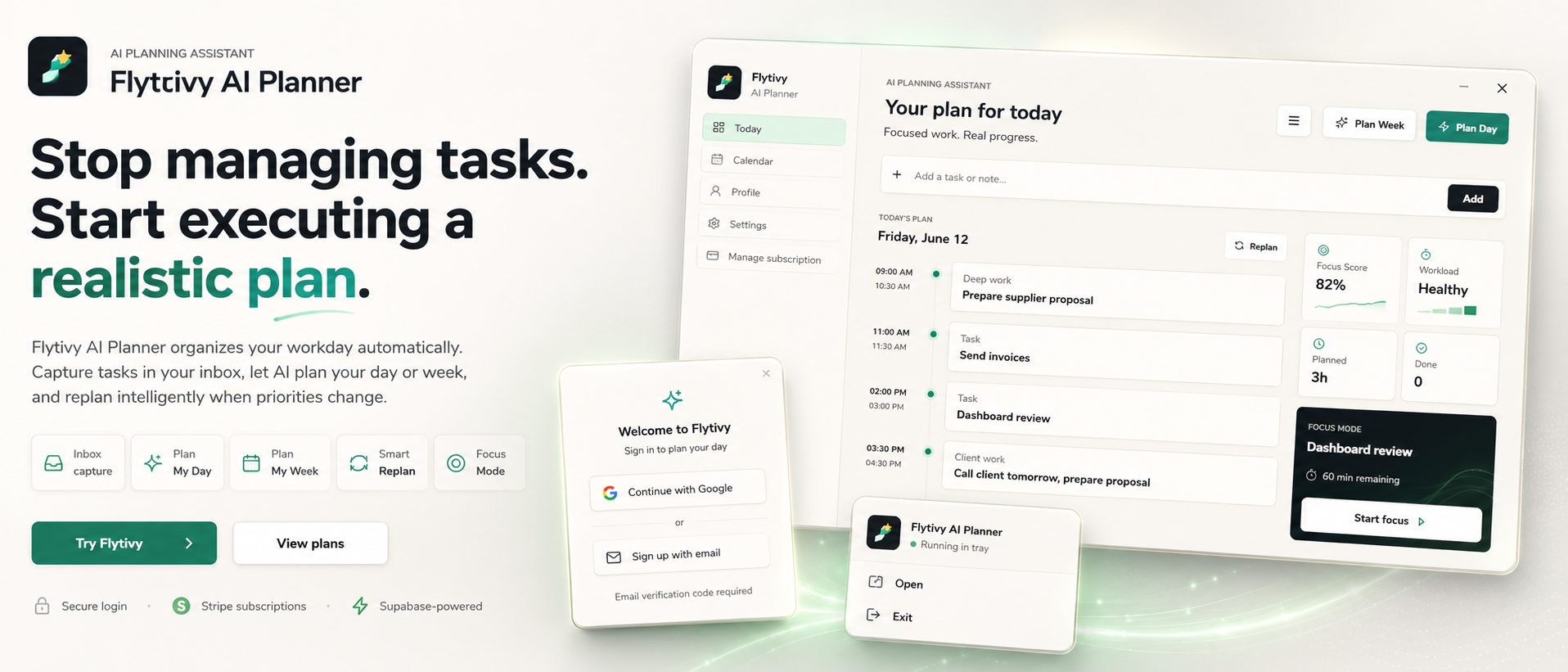
That is where AI weekly planning can help. Instead of treating your calendar as a place to manually place everything, Flytivy AI Planner is designed to turn loose work into a realistic weekly plan, then replan it when priorities shift.
In this article, you will learn a practical workflow for planning a week with AI when your task list keeps changing.
What AI weekly planning is designed to do
AI weekly planning is not about filling every open slot. It is about helping you decide:
- what matters most this week
- what can realistically fit into your available time
- what should happen first
- what should move when your week changes
Flytivy supports this by letting you capture tasks with deadlines, priorities, estimated duration, and energy type. From there, it can generate a week plan that is meant to be executable, not overloaded.
Why this is different from using a calendar alone
A calendar shows time blocks. A planning assistant helps decide the work that goes into those blocks.
With Flytivy, the core value is automatic work planning. Calendar and Gantt views are there to visualize the plan, but the main goal is to help you choose what to do now and what to move later.
A practical workflow for planning your week with AI
Here is a simple process you can use when your task list keeps changing.
1. Capture the full task list first
Start by putting every task in one place, including the messy ones. For each item, try to add:
- deadline
- priority
- estimated duration
- energy type
- any important context
You do not need perfection. You need enough information for the planner to make a realistic decision.
2. Separate urgent from important
When everything feels important, weekly planning gets crowded fast. AI can help surface the tasks that are most time-sensitive, but the decision still depends on your real capacity.
A good weekly plan usually includes:
- a few high-priority outcomes
- smaller tasks that can be completed between meetings
- buffer for new work or shifting priorities
3. Use energy-aware planning
Not every task belongs in the same part of the day or week. Some tasks need deeper focus, while others are lighter or more administrative.
Flytivy supports energy type and focus-aware planning so your schedule can better match the kind of work you have. That does not guarantee a perfect day, but it can help create a more realistic structure.
4. Generate the week plan
Once your tasks are ready, use Flytivy to create a weekly plan. The goal is to turn a long list into a sequence of work that can fit within the time you actually have.
You can also use the calendar and timeline context to see how meetings and tasks interact.
5. Replan when the week changes
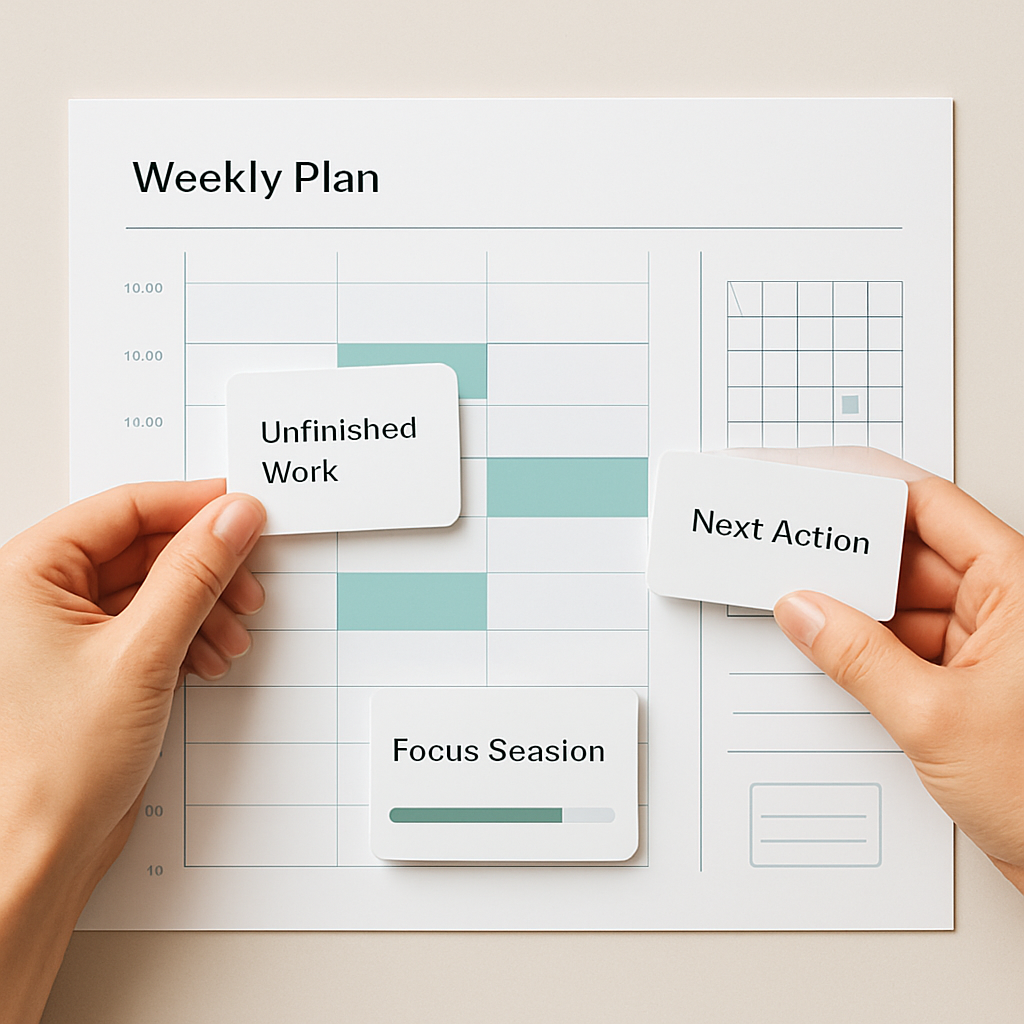
Most weeks do change. A meeting moves, a priority shifts, or a task takes longer than expected. Instead of rebuilding the whole schedule manually, Flytivy includes replanning workflows for unfinished work.
This is especially useful when you need to:
- move unfinished tasks forward
- adjust after a meeting-heavy day
- protect remaining focus time
- reset the week without starting from zero
How Flytivy helps you keep the plan realistic
Flytivy AI Planner is built for solo professionals and small teams who need automatic work planning, not another generic calendar.
Core planning inputs
You can capture:
- tasks
- deadlines
- priorities
- estimated durations
- energy type
Core planning outputs
Flytivy can help create:
- a day plan
- a week plan
- a replan for unfinished work
Coach support
Flytivy Coach can help you review:
- task conflicts
- workload
- credits
- subscription state
- next actions
That makes it easier to understand what is blocking the plan before you commit to it.
A good weekly plan is executable, not optimistic
Many weekly plans fail because they assume every hour will go smoothly. A realistic plan usually leaves room for:
- meetings that run long
- context switching
- unexpected tasks
- work that takes longer than expected
AI weekly planning can help reduce manual scheduling work, but it still works best when you keep the plan grounded in real constraints.
If you want a deeper step-by-step example of turning tasks into a weekly structure, you can also read How to Turn a Loose Task List into a Realistic Daily Plan with AI.
When to use weekly planning vs. daily planning
Use a weekly plan when you need to:
- organize multiple projects
- balance deadlines across several days
- protect time for deeper work
- decide what fits before the week starts
Use a daily plan when the day is already crowded and you need a clear next-step sequence.
Many users benefit from both: weekly planning for the big picture, then daily planning for execution.
Free, Pro, and Ultimate credits: what to know before you plan
Flytivy uses AI credits for planning actions and Coach messages.
- Plan Day, Plan Week, and Replan cost 1 AI credit each
- Each Coach message costs 0.25 credits
- Free includes 30 AI credits per month for each of the first two associated-account months
- From month three, Free receives 0 new monthly AI credits unless the user upgrades
- Pro includes 350 monthly AI credits
- Ultimate includes 900 monthly AI credits
If you plan and replan often, it is worth understanding your credit usage before you start a new workflow.
FAQ
Is Flytivy a calendar app?
No. Flytivy is positioned as an AI planning assistant for automatic work planning. Calendar and Gantt are views, but the main value is turning tasks into realistic plans.
Can Flytivy plan a full week for me?
Flytivy can help generate a week plan from your tasks, deadlines, priorities, durations, and energy type. The plan is meant to be realistic and executable, not overpacked.
What happens if my priorities change midweek?
You can use Flytivy’s replanning workflow to adjust unfinished work instead of manually rebuilding the entire schedule.
Does Free include unlimited AI planning?
No. Free includes 30 AI credits per month for each of the first two associated-account months, then 0 new monthly AI credits from month three unless the user upgrades.
Can Flytivy read live external data like weather or news?
Only if that information is provided in the workflow or by the user. It should not be assumed to access live external data by default.
Soft CTA
If you are ready to turn a changing task list into a plan you can actually follow, start here: Plan your day with Flytivy.
If the week changes before you finish everything, you can also Replan unfinished work.
Internal links and next steps
Related resources:
- How to Turn a Loose Task List into a Realistic Daily Plan with AI
- How to Replan a Busy Day with AI When Your Priorities Change
Practical next step: capture your tasks, assign basic priorities and durations, then let Flytivy help shape the week around the time you actually have.