Writing and Editing
How a Compact Windows AI Assistant Reduces Writing Friction During Daily Work
How a Compact Windows AI Assistant Reduces Writing Friction During Daily Work
If you spend your day switching between email, notes, documents, and browser tabs, small writing tasks can take more time than they should. A compact Windows AI assistant is designed to reduce that friction by bringing common text actions closer to where you already work.
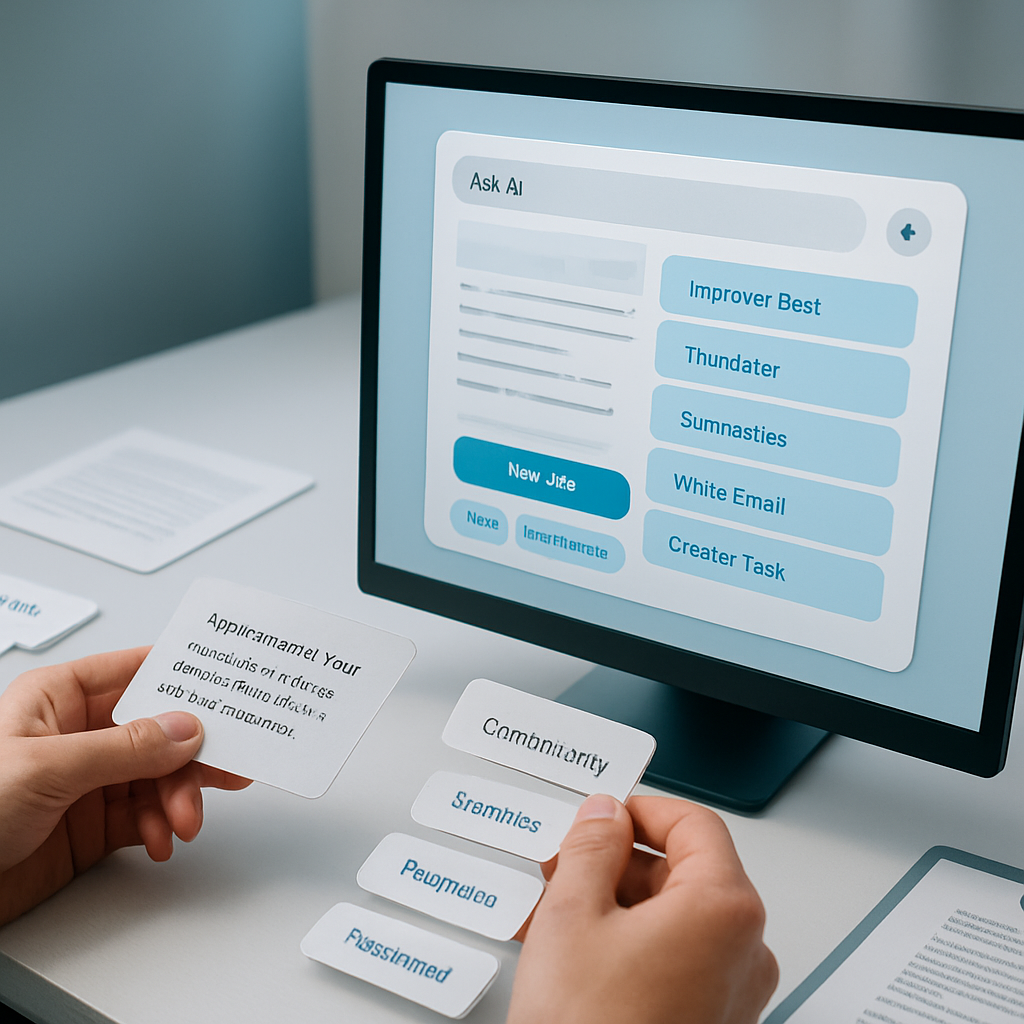
Flytivy AI Assistance follows that idea with quick actions for rewriting, summarizing, translating, drafting emails, creating tasks, and refining tone. Instead of opening a full AI suite for every small request, you can paste text, choose an action, and keep moving.
Why writing friction adds up
Writing friction is not only about big projects. It often shows up in small moments:
- rewriting a rough message before sending it
- shortening a paragraph for a status update
- translating a note or customer reply
- summarizing a long block of text
- turning a reminder into a task
- adjusting tone for a professional email
Each step may feel minor, but repeated interruptions can break focus. A compact assistant helps reduce those interruptions by keeping AI actions close to the desktop workflow.
What a compact Windows AI assistant is meant to do
A Windows AI assistant is most useful when it supports quick, repeated actions rather than forcing you into a new workspace. Flytivy AI Assistance is built around that idea.
Its core actions include:
- Ask AI
- Improve Text
- Translate
- Summarize
- Write Email
- Create Task
- Brainstorm
- Explain
- Make Shorter
- Professional tone
These actions are designed to help you move from text to a usable output faster. That can be especially useful for solo professionals, support teams, sales teams, content operators, remote workers, and other Windows productivity users.
How Flytivy fits a real desktop workflow
Flytivy AI Assistance is intentionally compact. It offers expanded and bubble/widget modes so you can keep it visible in a way that fits your workflow. The app also supports editable output, copy, replace original, regenerate, save note, shorten, translate, local history, clipboard import, contextual hotkeys, and model and theme settings.
In practice, that means you can:
- paste or import text from your clipboard
- choose a quick action
- adjust tone or language when needed
- copy the result or replace the original text
- return to the task you were already doing
That simple flow is the main value: fewer context switches and less time spent reformatting the same content in multiple tools.
Common use cases for daily writing
Rewrite a rough message
If your first draft feels too direct, too long, or too informal, Improve Text can help you reshape it before sending.
Summarize long content
When you need a shorter version of a note, thread, or document excerpt, Summarize can help you extract the main idea.
Translate text quickly
If you work across languages, Translate can help you convert text without leaving the app flow.
Draft an email faster
Write Email is useful when you already know the purpose of the message but want a faster starting point.
Turn reminders into tasks
Create Task can help turn a sentence or note into a more actionable item.
Make content shorter and clearer
Make Shorter and Professional tone are useful when you want to tighten phrasing or make a message sound more polished.
Free, Pro, and Ultimate: what to expect
Flytivy uses a clear credit-based usage model, so it is useful to understand what each plan is designed to support.
- Free provides a quick trial with 10 AI actions.
- Pro adds 500 monthly AI actions, conversation history, Clipboard AI and shortcuts, custom prompts, and image analysis.
- Ultimate adds 1200 monthly AI actions, Document assistant, and export responses.
If you are evaluating the product, the key question is not just how many actions you need, but how often you want quick AI help inside your normal desktop workflow.
Why clipboard-based AI can feel faster
Many writing tasks begin with text that already exists somewhere else: a copied email, a meeting note, a paragraph from a document, or a customer message. Clipboard import helps reduce the steps between "I have text" and "I need a result."
That is one reason clipboard-focused workflows are useful for productivity. They can make common AI actions feel more immediate and less disruptive.
If you want to read more about that workflow, see How a Compact Windows AI Assistant Helps You Move From Text to Action Faster.
Notes on privacy and implementation
Flytivy AI Assistance is built with production AI calls designed to go through Supabase Edge Functions so OpenAI keys stay server-side. That is an important implementation detail because it helps keep sensitive service credentials out of the Windows app.
The product description also notes that the Windows app should not ship secret OpenAI keys, Supabase service role credentials, or Google client secrets.
For users, the practical takeaway is simple: the app is designed to support a desktop workflow without asking you to manage hidden AI credentials.
When Flytivy is a good fit
Flytivy AI Assistance may be a good fit if you:
- want quick AI actions inside Windows
- spend a lot of time rewriting short messages
- frequently summarize or translate text
- need faster email drafting or task capture
- prefer a compact tool instead of a full AI suite
- use clipboard text throughout your day
It is especially relevant if your work depends on moving from raw text to a usable action with less friction.
Internal links and related reading
You may also find these resources useful:
- How Flytivy AI Assistance Helps Windows Users Turn Text Into Useful Actions Faster
- Get Flytivy AI Assistance
FAQ
What is a compact Windows AI assistant?
It is an AI tool designed to stay close to your desktop workflow and help you perform common text actions faster, such as rewriting, summarizing, translating, or drafting.
Does Flytivy replace human review?
No. Flytivy is designed to assist with writing and text handling, but it should not be treated as a replacement for human review, especially for important or sensitive content.
What can I do in the free version?
The Free version provides a quick trial with 10 AI actions.
What does Pro add?
Pro adds 500 monthly AI actions, conversation history, Clipboard AI and shortcuts, custom prompts, and image analysis.
What does Ultimate add?
Ultimate adds 1200 monthly AI actions, Document assistant, and export responses.
Is Flytivy meant for long-form writing only?
No. It is especially useful for short, repeated writing tasks, quick edits, summaries, translations, emails, and task capture.
Soft CTA
If you want a compact AI tool that stays close to your Windows workflow, try Get Flytivy AI Assistance and explore the quick actions that fit your day.
For a closer look at the workflow mindset behind the product, read How a Compact Windows AI Assistant Helps You Move From Text to Action Faster.