
AI Productivity Assistant
How a Compact Windows AI Assistant Helps You Move From Text to Action Faster
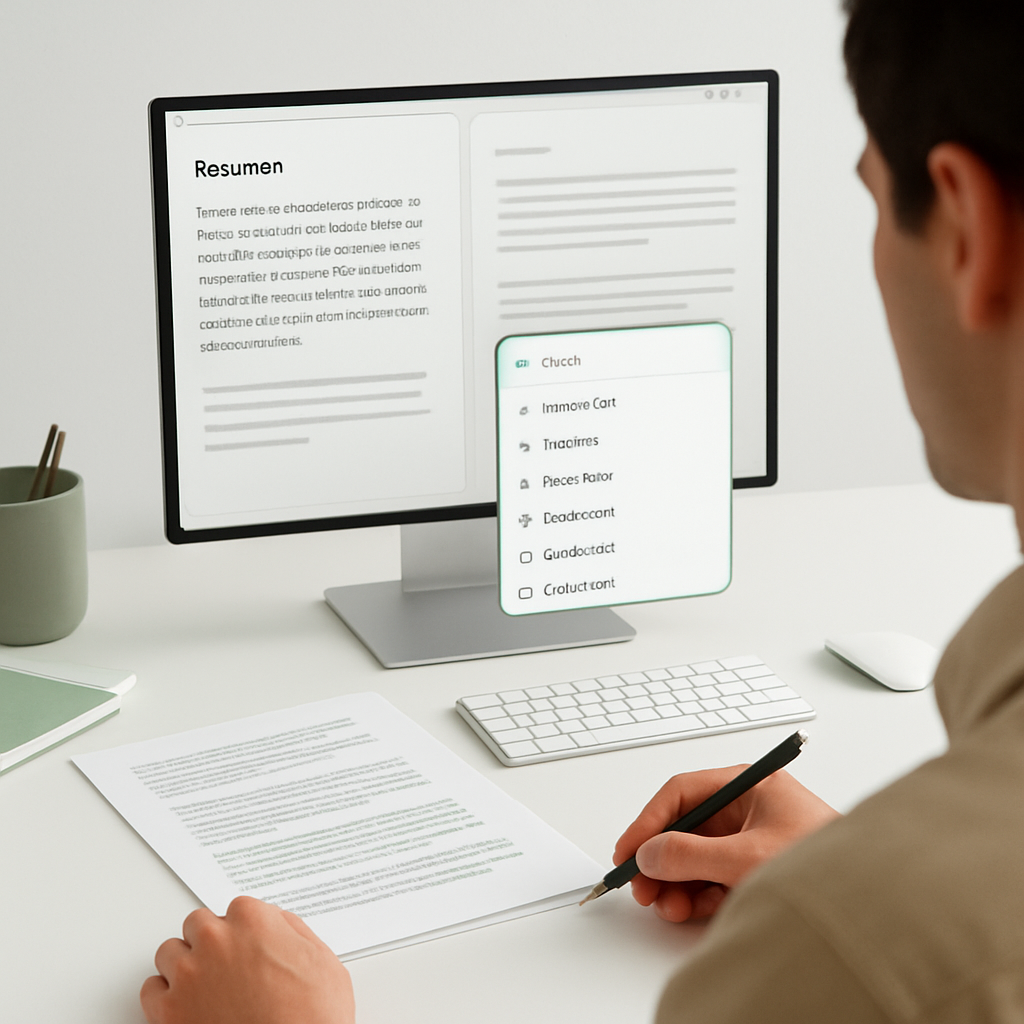
How a Compact Windows AI Assistant Helps You Move From Text to Action Faster
If your day involves switching between notes, emails, documents, chat windows, and browser tabs, even small writing tasks can start to feel slower than they should. That is where a compact Windows AI assistant can make a practical difference.
Flytivy AI Assistance is designed to stay close to your desktop workflow. Instead of opening a full AI suite every time you need help, you can paste or import text, choose an action, adjust tone or language, and return to work with less friction. For solo professionals, small business owners, support teams, sales reps, content operators, and remote workers, that kind of speed can save real time across the day.
Why a compact Windows AI assistant fits real daily work
A lot of AI tools are useful, but they can also create extra steps. Open the app, find the right prompt, move text around, copy the result, then switch back to the original window. When you repeat that process many times a day, the overhead adds up.
Flytivy AI Assistance is built for short, repeated actions like:
- improving a sentence or paragraph
- translating text into another language
- summarizing a long block of content
- drafting a quick email
- turning notes into a task
- brainstorming ideas or angles
- explaining a complex passage
- making text shorter or more professional
That makes it a strong fit for people who want AI to support the work, not interrupt it.
Core actions that help turn text into useful output
Flytivy includes a focused set of actions that are easy to use in everyday scenarios.
### Ask AI
Use this when you need a quick response, clarification, or idea based on the text in front of you.
### Improve Text
Helpful for smoothing rough writing, cleaning up clarity, and making copy easier to read.
### Translate
Use this to convert text into another language without leaving your workflow.
### Summarize
Good for turning longer content into a shorter version you can scan quickly.
### Write Email
Useful when you need to draft a reply, follow-up, or outreach message from a short prompt or pasted text.
### Create Task
Convert notes, comments, or messy reminders into something more actionable.
### Brainstorm
A practical option when you need ideas, subject lines, angles, or next steps.
### Explain
Helpful when a message, instruction, or internal note needs to be clearer.
### Make Shorter
Use this when you want a tighter version of a longer message.
### Professional tone
Good for making communication more polished without rewriting from scratch.
These actions are especially helpful when you want to work faster on Windows without jumping into a separate, full-screen AI environment.
What the workflow looks like in practice
Flytivy is designed around a simple loop:
- Paste text or import clipboard content.
- Pick an action such as rewrite, summarize, or translate.
- Adjust the tone, language, or prompt if needed.
- Review the output.
- Copy it, replace the original, or save it as a note.
- Return to your main task.
That process matters because it reduces interruption. You are not trying to “go use AI” as a separate activity. You are using AI as a quick step inside the work you are already doing.
Features that support faster desktop productivity
Flytivy AI Assistance includes several workflow-friendly features that make repeated use easier:
- expanded and bubble/widget modes
- editable output
- copy and replace-original options
- regenerate
- save note
- shorten and translate actions
- local history
- clipboard import
- contextual hotkeys
- model and theme settings
- company or custom instructions
- credit-based usage visibility
These features are useful for users who want a compact assistant that stays practical during the day. For example, clipboard import can help when you copied a paragraph from an email or document and want to act on it immediately.
Free trial, Pro, and Ultimate: how the usage model is structured
Flytivy uses clear credit-based usage so you can understand what is available in each plan.
### Free
The Free option provides a quick trial with 10 AI actions. That can help you evaluate the workflow and see whether the app fits your daily tasks.
### Pro
Pro adds:
- 500 monthly AI actions
- conversation history
- Clipboard AI and shortcuts
- custom prompts
- image analysis
### Ultimate
Ultimate adds:
- 1200 monthly AI actions
- Document assistant
- export responses
If you are comparing plans, it can help to think about how often you use AI in real work. Someone who only needs occasional rewrites may start smaller, while a team member handling many messages, notes, or summaries might prefer more monthly actions.
Why credit-based AI actions can be easier to manage
Credit-based usage can be easier to understand than vague unlimited language, especially when your workflow depends on predictable activity. It gives you a clearer sense of how many actions you can use and helps set expectations for daily work.
That said, no plan removes the need to think about how you use AI. A compact assistant is most effective when it supports focused tasks and helps you move faster, not when it becomes another place to overcomplicate the process.
Security and architecture notes that matter for desktop apps
Flytivy AI Assistance is built with a server-side approach for production AI calls. According to the product architecture, AI requests are designed to go through Supabase Edge Functions so sensitive OpenAI keys stay server-side.
That is an important design detail for a Windows app because it avoids shipping secret keys inside the desktop client. It also helps keep the product architecture aligned with safer backend handling.
Common ways Windows users can apply Flytivy
Here are a few practical examples of how people may use a compact Windows AI assistant during the day:
- support teams rewriting a customer response to sound clearer
- sales teams turning rough notes into a follow-up email
- remote workers summarizing meeting notes into action items
- content operators refining a paragraph before publishing
- small business owners translating short customer messages
- solo professionals turning scattered notes into tasks
These are not magic outcomes, but they are the kind of routine improvements that can reduce friction when the same kinds of text problems appear again and again.
Related resources
If you want to go deeper into the workflow behind Flytivy, these related articles may help:
- How Flytivy AI Assistance Helps Windows Users Turn Text Into Useful Actions Faster
- Why a Compact Windows AI Assistant Can Reduce Daily Writing Friction
FAQ
### What is Flytivy AI Assistance?
Flytivy AI Assistance is a compact Windows AI assistant designed for quick actions like rewriting, summarizing, translating, drafting emails, and turning text into useful work outputs.
### Does Flytivy replace human review?
No. It is designed to support your workflow, not replace careful review or judgment.
### Can I use Flytivy for writing and communication?
Yes. It includes actions such as Improve Text, Write Email, Professional tone, Make Shorter, and Summarize.
### Does the app offer clipboard-based workflows?
Yes. Clipboard import is part of the workflow, and Pro adds Clipboard AI and shortcuts.
### Is the Document assistant included in Pro?
No. Based on the product structure provided, Document assistant is an Ultimate feature.
### Does Flytivy use unlimited credits?
No. The product uses credit-based usage, and plan limits apply.
Final thoughts
If your work involves constant text handling, a compact Windows AI assistant can help you move from rough input to useful output with less disruption. Flytivy AI Assistance is built around that idea: quick actions, desktop-friendly workflows, and a practical credit-based model that supports daily productivity.
If you want a tighter way to rewrite, summarize, translate, and act on text from your Windows desktop, try Flytivy AI Assistance.
### Quick next step
Explore how Flytivy fits your workflow and test a few AI actions with your own text: Try quick AI actions.