Task Management
How to Use Task it All to Organize Personal Work and Small Team Execution in One Desktop App
How to Use Task it All to Organize Personal Work and Small Team Execution in One Desktop App
Many productivity tools push you to split your work across separate apps for notes, tasks, reminders, files, and team coordination. That can work for some teams, but for small teams and productivity-focused users, it often creates more context switching than clarity.
Task it All is built for a different approach: keep daily execution in one local-first Windows desktop workspace, and scale into team collaboration only when you need it. That makes it a practical option for people who want a simple task manager for personal work, as well as small teams that need visibility, assignment tracking, comments, and reminders without adding more tools.
Why a desktop task manager can be a better fit for daily execution
A desktop task manager can help when your real work happens on one computer, with occasional team coordination layered on top. Instead of bouncing between browser tabs and separate apps, you can keep tasks, subtasks, notes, reminders, and attachments in one place.
That is especially useful for:
- Founders managing their own task list and a small team
- Remote workers who need personal focus plus shared visibility
- Team leads tracking status, follow-up, and accountability
- Operations managers who want a clear daily workflow
- Consultants balancing client work, internal tasks, and notes
Task it All is designed to support both individual planning and small team execution, so users can start simple and expand as needed.
What Task it All helps you organize
Task it All combines several everyday workflow pieces into one app:
- Tasks and subtasks
- Notes and comments
- Due dates and reminders
- Priorities and status flows
- Attachments
- Guided onboarding
- Shared visibility and assignment flows for teams
- Direct messages and notifications for collaboration
- Multiple teams inside one company
- Operational audit features
- Add-ons such as Process Manager, Universal File Viewer, Easy Note, Calculator, Calendar, and Timeline
This makes it useful when the main problem is not a lack of tools, but too many disconnected tools.
How to use Task it All for personal planning and team execution
A good way to start is to keep your setup simple. Use Task it All for the work that needs daily attention, then build structure around it.
1) Start with your active tasks
Create a small set of tasks for the work you need to move forward this week. Add subtasks where helpful, especially when a task has multiple steps or dependencies.
2) Add notes and context early
Instead of storing context in another app, add notes directly to the task. This is helpful for instructions, decisions, client details, or handoff information.
3) Use due dates and reminders for follow-up
Task it All supports reminders, alarms, and scheduling features so you can keep follow-up visible. This can help reduce missed deadlines or forgotten check-ins, especially when work is shared across a small team.
4) Attach files where the work happens
If a task depends on a document, screenshot, or file, attach it to the task instead of searching across folders later. That keeps execution more practical and helps maintain context.
5) Use status flows to track progress
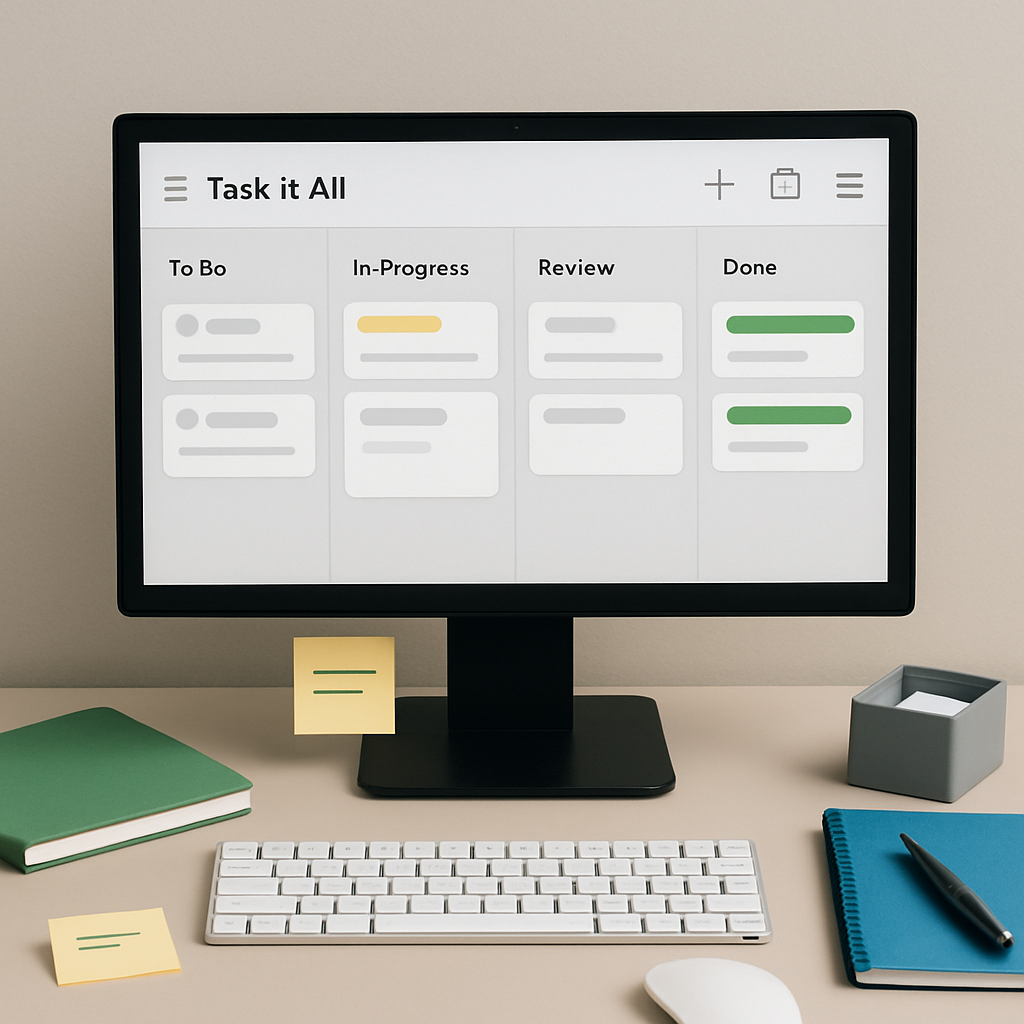
Status control is useful when a team needs a simple view of what is waiting, in progress, or completed. It can support clearer handoffs without turning your workflow into a complicated system.
6) Expand into collaboration only when needed
When you are ready, Task it All can scale from personal use into TEAM scope with assignments, comments, shared visibility, direct messages, and notifications. That means the app can support collaboration without forcing every user into a team-only setup from day one.
A practical workflow for small teams
If you are using Task it All with a small team, keep the workflow lightweight:
- Create one place for active work
- Assign clear owners to tasks
- Add subtasks for multi-step work
- Use comments for quick decisions and updates
- Attach supporting files directly to tasks
- Set reminders for important follow-up
- Review status regularly so work stays visible
This kind of setup is often easier to maintain than a large tool stack with separate boards, chat tools, file hubs, and reminder systems.
For a deeper walkthrough, you can also read How to Use Task it All for Daily Team Execution Without Adding More Tools.
Why local-first matters for everyday productivity
Local-first software can be appealing for people who want their work organized on a desktop workspace with a stronger sense of control over where data lives.
Task it All uses local login secrets protected with PBKDF2-HMAC-SHA256 and encrypted local task data with AES-GCM. In team and cloud collaboration scenarios, it also uses permission checks, database security policies, encrypted team keys, device-aware messaging protections where available, and audit controls.
That said, no software can promise zero risk. The practical value here is that Task it All is designed with local-first use and collaboration controls in mind, so users can organize work with security considerations built into the product story.
If security and local control are important to your workflow, you may also want to review Task it All Local-First Security Explained: PBKDF2, AES-GCM, and Team Access Control for Small Teams.
When add-ons make sense
Task it All can stay simple, but it also includes add-ons for teams that want more structure.
Examples include:
- Process Manager for repeatable workflow structure
- Universal File Viewer for working with files in context
- Easy Note for faster note capture
- Calculator for quick task-related calculations
- Calendar and Timeline for planning and visibility
These additions are useful when your team wants a practical upgrade path without moving to an entirely different system.
Pricing fit by use case
Task it All offers different scopes for different needs:
- Free for personal work
- Teams for collaboration and assignment flows
- Team Plus for add-ons, advanced collaboration, governance, and deeper audit coverage
That structure makes it easier to start small and grow only if your workflow needs it.
Who this app is best for
Task it All is a strong fit for:
- Productivity users who want one desktop workspace
- Small teams that need task visibility and follow-up
- Founders who manage both personal and shared work
- Team leads who want clearer execution without too much setup
- Operations teams that care about status, reminders, and accountability
- Consultants who need notes, tasks, and attachments together
FAQ
Is Task it All only for teams?
No. It starts as a local-first personal productivity workspace and can expand into team collaboration when needed.
Can I use Task it All for reminders and follow-up?
Yes. Task it All supports reminders, alarms, due dates, and status planning to help keep work visible.
Does Task it All replace all collaboration tools?
Not necessarily. It is designed to help with task execution, shared visibility, and workflow coordination, but it is not presented as a replacement for every communication or business tool.
Can Task it All help with secure local work?
Task it All includes local-first security features such as encrypted local data and protected login secrets. For team use, it also includes access and audit controls. As with any software, no solution can promise absolute security.
Where should I start if I am new to the app?
Start with a few active tasks, add notes and due dates, and then introduce assignments or comments only when your workflow needs them.
Suggested next steps
If you want a practical way to organize personal work and small team execution in one place, Task it All is worth exploring.
Start with your day-to-day tasks, keep your process simple, and expand only when the work needs more structure.
Organize your team tasks | Plan your day
For related guidance, see How to Keep Small Team Work on Track With a Desktop Task Manager That Handles Daily Execution.