Productivity Workflows
How to Keep Small Team Work on Track With a Desktop Task Manager That Handles Daily Execution
How to Keep Small Team Work on Track With a Desktop Task Manager That Handles Daily Execution
Small teams often lose momentum for a simple reason: the work is spread across too many places. Tasks live in one tool, notes in another, reminders in someone’s calendar, and files in chat threads. A desktop task manager can help bring that daily execution back into one practical workspace.
Task it All is designed for this kind of workflow. It combines personal task planning with small-team coordination in a local-first Windows desktop app, so people can keep work organized without turning every update into a process-heavy ritual.
Why small teams need a more focused task workspace
Many teams do not need a complex project stack. They need a reliable way to:
- capture tasks quickly
- add notes and context
- assign follow-up clearly
- keep due dates and reminders visible
- attach files where they are needed
- see status changes without losing the thread
When these steps are split across multiple tools, work becomes harder to track. A desktop task manager helps reduce that friction by keeping execution close to the actual work.
What a desktop task manager can help you do every day
A practical desktop task manager is not just a to-do list. For small teams, it can support a full daily flow:
1. Capture tasks with context
Instead of entering a task and hoping people remember the details later, you can store notes, subtasks, comments, and attachments alongside the task itself. That makes follow-up easier and reduces back-and-forth.
2. Track status as work moves forward
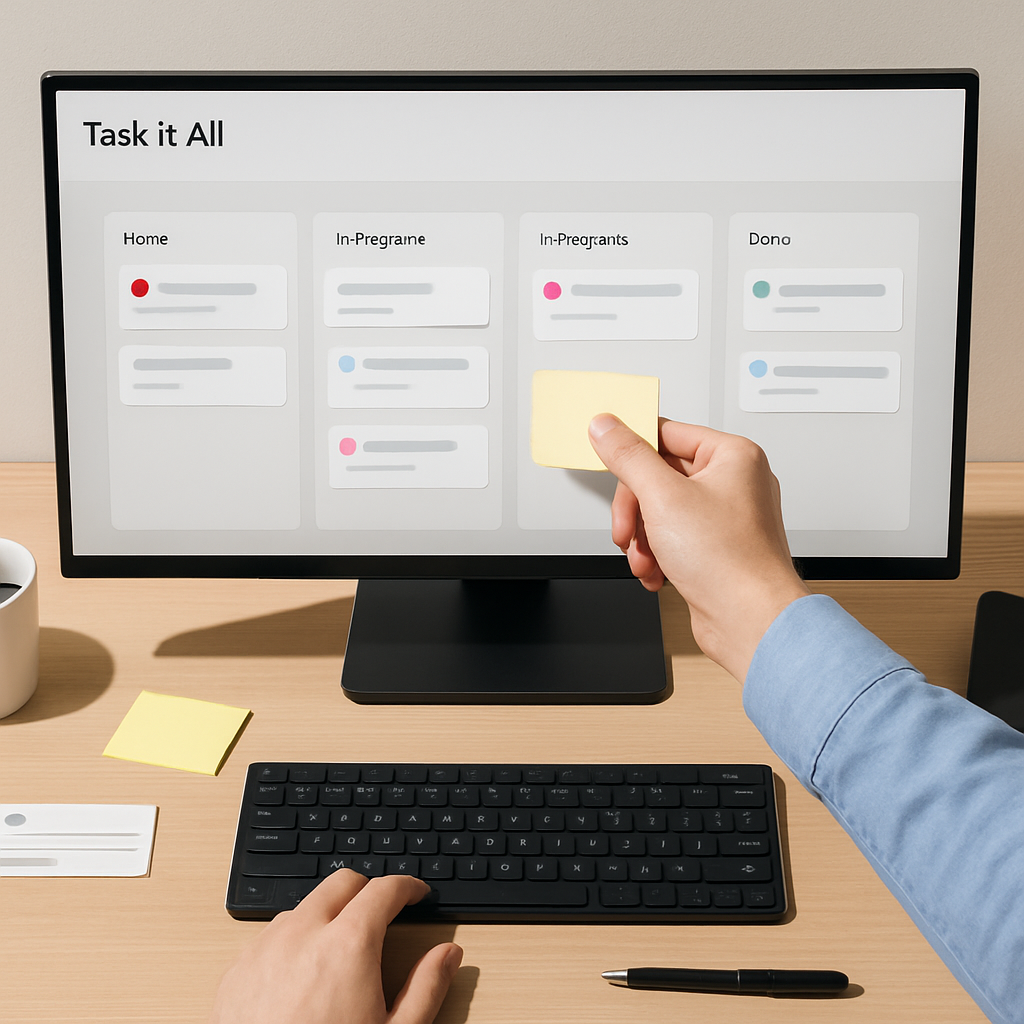
Status flow matters when several people touch the same work. Task it All supports task statuses, so team members can see what is planned, in progress, waiting, or complete based on your workflow.
3. Set reminders and due dates
Small teams often work best when reminders are simple and visible. Task it All includes due dates, reminders, and alarms so people can keep important follow-up from slipping.
4. Keep related files close to the task
Attachments can save time when the file belongs with the work. Instead of searching across chats and folders, teams can keep supporting documents attached to the relevant task.
5. Maintain accountability with comments and assignments
When a task is assigned, discussed, and updated in one place, it becomes easier to follow who owns what. That visibility helps teams coordinate without relying on scattered messages.
How Task it All supports both personal work and team execution
One useful pattern for small teams is starting with personal productivity and growing into shared coordination only when needed.
Task it All supports that approach:
- Free plan for personal work and individual task management
- Teams plan for collaboration, shared visibility, assignments, comments, and coordination
- Team Plus for add-ons, deeper collaboration, governance-oriented features, and broader audit coverage
This makes it possible to keep the tool lightweight for solo use while still supporting a team workspace when the team is ready.
Why local-first matters for daily task work
For many teams, local-first software is attractive because it keeps everyday work close to the desktop and reduces unnecessary dependence on constant browser switching.
Task it All uses a local-first approach for Windows desktop task management. That means the app is built to support secure local work first, while team features can scale when collaboration is needed.
Its security model includes local login secrets protected with PBKDF2-HMAC-SHA256 and encrypted local task data using AES-GCM. Team and cloud collaboration also uses permission checks, database security policies, encrypted team keys, device-aware messaging protections where available, and audit controls.
That said, no software should be described as risk-free. The right framing is that Task it All is designed to support secure local work and controlled collaboration, not to promise absolute security.
A simple daily workflow for a small team
If you want to keep things practical, here is a simple way to structure work in Task it All:
Morning: review priorities
Start with the tasks that matter today. Check due dates, priorities, and any reminders that need attention.
During the day: update status and comments
As work moves, update task status and leave a short comment if another person needs context. This keeps the record easier to follow later.
When work depends on files: attach them to the task
Store the relevant file where the task lives so the team does not need to search multiple tools.
End of day: confirm follow-up
Before closing out, review open items, pending reminders, and tasks that need next-step ownership.
This kind of rhythm can help small teams stay organized without creating a heavy process layer.
Add-ons that can extend the workflow
Task it All also offers add-ons that can support different work styles, including:
- Process Manager
- Universal File Viewer
- Easy note
- Calculator
- Calendar
- Timeline
These are useful when a team wants a little more structure or supporting functionality without moving to a separate app for every small need.
When a desktop task manager is the right fit
A desktop task manager is a strong fit when your team wants:
- a practical daily work hub
- less context switching
- clearer ownership of tasks
- reminders and follow-up in one place
- local-first Windows desktop usage
- a path from personal planning to small-team coordination
If your current workflow feels scattered, starting with a focused task app can be a simpler move than adding another layer of tools.
FAQ
Is Task it All only for teams?
No. Task it All can start as a personal productivity workspace and scale into team collaboration when needed.
Can I use it for reminders and follow-up?
Yes. Task it All includes reminders, alarms, due dates, and recurring follow-up support for task execution.
Does it support file attachments?
Yes. You can attach files to tasks to keep supporting information close to the work.
Is it browser-based?
Task it All is a Windows desktop app with a local-first approach, so it is not positioned as a browser-only tool.
Is it meant to replace legal or compliance software?
No. Task it All is designed for task management, team coordination, and workflow visibility, not as a replacement for legal, accounting, or formal compliance systems.
Internal links and next steps
If you want a deeper walkthrough of related workflows, these resources may help:
- How to Use a Desktop Task Manager for Small Teams That Need Simpler Daily Work
- How to Build a Simple Task and Notes Workflow for Small Teams Without Adding More Tools
To see how Task it All can help your team organize daily execution, use this next step:
Final takeaway
A good desktop task manager should make work easier to follow, not harder to maintain. For small teams, Task it All is built to support that balance: practical task planning, reminders, notes, attachments, status control, and team coordination in one local-first desktop workspace.