Productivity Workflows
How to Turn Task Statuses, Comments, and Subtasks into a Daily Execution System for Small Teams

How to Turn Task Statuses, Comments, and Subtasks into a Daily Execution System for Small Teams
Small teams often do not need a heavy project management framework. They need a practical way to know what is open, what is blocked, who is responsible, and what should happen next.
A simple daily execution system for small teams can be built from three core habits:
- Clear task statuses
- Useful comments
- Actionable subtasks
Task it All is designed around this kind of daily workflow: tasks, subtasks, comments, notes, due dates, reminders, priorities, assignments, and team visibility in one desktop workspace. This article shows how to turn those pieces into a repeatable system without adding unnecessary complexity.
What a daily execution system should do
A daily execution system is not just a task list. For a small team, it should help answer five questions quickly:
- What are we working on today?
- What is waiting, blocked, or overdue?
- Who owns each piece of work?
- What changed since the last review?
- What is the next visible action?
If the system cannot answer those questions, the team usually compensates with extra meetings, scattered messages, or repeated status checks.
In Task it All, the foundation is simple: create the work, break it into subtasks, keep comments close to the task, and use statuses to make progress visible.
Step 1: Define a small status flow your team can actually use
Statuses are only useful when everyone understands what they mean. A small team should avoid creating too many status categories at the beginning.
A practical daily status flow can look like this:
- New: the task has been captured but not reviewed yet.
- Ready: the task is clear enough to start.
- In progress: someone is actively working on it.
- Blocked: progress is stopped because something is missing.
- Review: the work needs feedback, validation, or approval.
- Done: the task is complete.
The exact labels can vary by team, but the principle should stay the same: each status should tell the team what kind of action is needed.
How to use statuses inside Task it All
In Task it All, statuses work best when they are part of the daily review rhythm. For example:
- Start the day by checking open tasks and due signals.
- Move unclear tasks into a status that shows they need review before work begins.
- Move blocked tasks out of the normal flow so they do not look like active progress.
- Use completed tasks as a lightweight record of what moved forward.
This helps the team avoid confusing “assigned” with “actually moving.”
Step 2: Use comments as the decision trail, not as noise
Comments are most valuable when they explain decisions, blockers, handoffs, and changes. They should not become a second inbox full of vague updates.

A useful comment usually includes one of these things:
- A decision that was made
- A question that needs an answer
- A reason the task is blocked
- A handoff note for another person
- A short summary of what changed
- A reference to an attachment, note, or related task
For example, instead of writing:
> “Working on this.”
A better comment would be:
> “Draft is ready for review. Waiting on pricing confirmation before final copy can be completed.”
That comment gives the team context and a next action.
Comment habits for small teams
To keep comments useful, agree on a few simple rules:
- Add a comment when a task changes direction.
- Add a comment when work is blocked.
- Add a comment before handing work to someone else.
- Avoid duplicating the same discussion in multiple places.
- Use comments to preserve context that the team may need later.
Task it All supports comments close to the work, so the discussion stays attached to the task instead of being lost in separate chat threads.
Step 3: Turn large tasks into subtasks with clear outcomes
Large tasks often hide uncertainty. Subtasks make the work visible.
A good subtask is not just a tiny note. It should describe an action or outcome that can be completed. For example:
- “Collect screenshots for onboarding guide”
- “Review due dates for active client tasks”
- “Prepare first draft of weekly report”
- “Confirm owner for blocked task”
A weak subtask is usually too vague:
- “Work on report”
- “Check things”
- “Follow up”
The clearer the subtask, the easier it is for the team to act without asking for extra explanation.
A simple subtask structure
For small teams, this structure works well:
- Main task: the outcome or deliverable.
- Subtasks: the steps needed to complete it.
- Comments: decisions, blockers, and updates.
- Status: where the task stands now.
- Due date or reminder: when attention is needed.
Task it All supports tasks and nested subtasks, so a team can keep the bigger objective visible while still tracking the smaller execution steps.
Step 4: Create a daily review routine
A daily execution system works because the team uses it consistently. The daily review does not have to be long. For many small teams, 10 to 15 minutes can be enough to align the day.
A practical review checklist:
- Review tasks due today.
- Check tasks with alarms or reminders.
- Identify blocked work.
- Confirm owners for active tasks.
- Move completed work to Done.
- Add comments where context is missing.
- Break oversized tasks into subtasks.
Inside Task it All, snapshot and productivity views can help teams see open items, due signals, alarms, blocked work, totals, created items, completed items, and completion-rate behavior across a selected period. These views are useful for review meetings and operational follow-up, without turning the process into a complex reporting system.
Step 5: Use assignments and team scope when work becomes shared
A personal task list is enough for individual planning. But once work depends on more than one person, shared visibility becomes important.
Task it All supports a path from personal work into TEAM scope, where teams can use shared workspaces, assignments, comments, visibility, synchronization, and operational audit coverage.
For small teams, this matters because ownership becomes clearer:
- One person can own a task.
- Other people can contribute through comments or subtasks.
- Shared spaces can separate work by team, function, or project group.
- New assignments can trigger visible and audible notifications, depending on configuration.
This helps reduce the “who has this?” problem that often slows down small teams.
Step 6: Keep notes, links, and attachments close to the task
Execution slows down when the task is in one place, the notes are somewhere else, and the file reference is buried in a message thread.
Task it All supports notes, comments, links, attachments, reminders, due dates, priorities, and task-link workflows. For a daily execution system, that means the team can keep more of the working context close to the item being executed.
A good rule is:
> If someone needs it to complete or review the task, attach it, link it, or summarize it in the task context.
This reduces repeated questions and makes handoffs easier.
Step 7: Add lightweight operational visibility
Small teams do not always need advanced reporting, but they do need visibility. A simple execution system should make it easier to see patterns such as:
- Too many tasks stuck in review
- Too many blocked items
- Work being created faster than it is completed
- Repeated delays in a specific workflow
- Tasks without owners or due dates
Task it All includes productivity and insight views that can help teams review created work, completed work, status distribution, due signals, alarms, blocked work, and totals. Used carefully, these views can support better conversations about workload and process improvement.
The goal is not to measure people for the sake of measuring. The goal is to make work easier to understand and improve.
Example: A simple daily execution workflow in Task it All
Here is one practical workflow a small team can use:
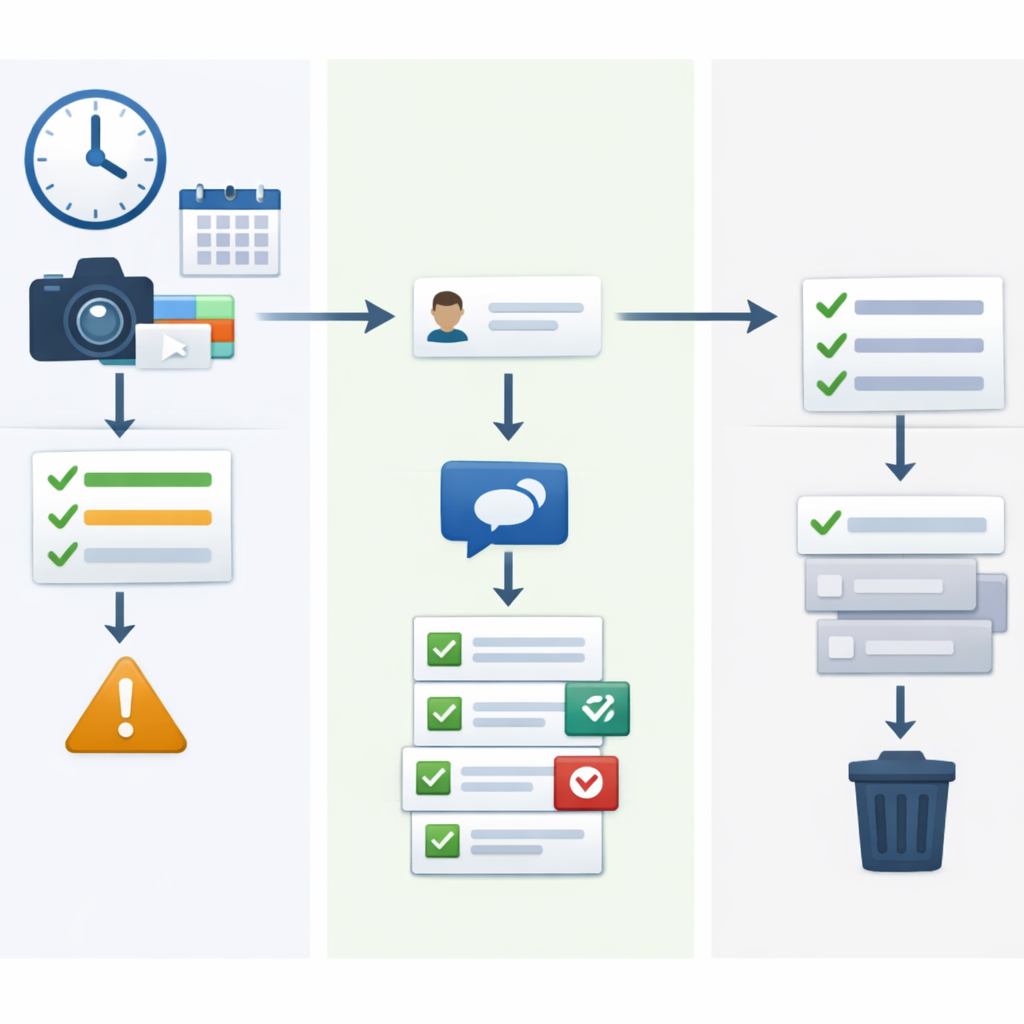
Morning review
- Open the active task list.
- Check today’s due dates, reminders, and alarms.
- Move unclear work to a review status.
- Move stuck work to Blocked.
- Assign owners to tasks that need action.
During the day
- Update task status when the real state changes.
- Add comments for blockers, decisions, and handoffs.
- Add subtasks when a task is too large to execute directly.
- Keep notes, links, and attachments close to the task.
End-of-day cleanup
- Mark completed work as Done.
- Add a short comment to tasks that changed direction.
- Review blocked tasks and decide the next action.
- Prepare important tasks for the next day.
This creates a daily rhythm without forcing the team into a complicated methodology.
Where Task it All fits in the workflow
Task it All is built for users who want a desktop task and project manager that can start with personal organization and scale into team collaboration.
For daily execution, it brings together:
- Personal tasks and subtasks
- Comments, notes, links, and attachments
- Due dates, reminders, alarms, priorities, and status flow
- TEAM scope for shared visibility and assignments
- Notifications for new assignments
- Insight and productivity views for review
- Add-ons such as Process Manager, Universal File Viewer, Easy note, Calculator, and Calendar / Timeline
- Built-in onboarding and in-app guidance
It is also local-first, with protected local data foundations. Local login secrets are protected with PBKDF2-HMAC-SHA256, and local task data uses AES-GCM encryption. Team and cloud features use permission checks, database security policies, encrypted team keys, and audit controls.
Onboarding tip: use Basic steps after the app opens
If your team is new to Task it All, the built-in tutorial can help users understand the core workflow quickly.
After the main window opens, go to:
Be more productive -> Tutorial -> Basic steps
The tutorial guides a new user through creating a real task, using core fields such as status and due date, adding comments, and creating a subtask.
Note: first-use setup before the main window is different. On first use, Task it All creates a local user with username, email, password confirmation, and Recovery Phrase confirmation before the normal main window opens.
Common mistakes to avoid
Mistake 1: Too many statuses
If the team has 15 statuses but only uses three of them, the system becomes harder to trust. Start simple and expand only when needed.
Mistake 2: Comments without decisions
Comments should not only say that something happened. They should help the next person understand what to do.
Mistake 3: Subtasks that are too vague
A subtask should be actionable. If nobody can tell when it is complete, rewrite it.
Mistake 4: No daily review habit
Even a good task system gets messy if nobody reviews it. A short daily routine keeps the system useful.
Mistake 5: Using account deletion to stop paying
If your goal is only to cancel or change a subscription, use Config -> Manage subscription. Account deletion is separate and permanent. The deletion flow starts from Config -> User -> Security & Account -> Delete account.
FAQ
What is a daily execution system for small teams?
A daily execution system is a simple repeatable workflow that helps a team decide what to work on, who owns it, what is blocked, and what should happen next. In Task it All, this can be built with statuses, comments, subtasks, due dates, reminders, and shared team visibility.
How many task statuses should a small team use?
Start with a small set, such as New, Ready, In progress, Blocked, Review, and Done. The best status flow is the one your team can understand and use consistently.
How should teams use comments in Task it All?
Use comments to record decisions, blockers, handoffs, questions, and important changes. Comments are most useful when they preserve context directly inside the task.
When should a task become a subtask?
Use subtasks when the main task is too large, unclear, or dependent on multiple steps. Each subtask should describe a clear action or outcome.
Can Task it All be used by one person before adding a team?
Yes. The Free plan is designed for personal tasks, notes, secure local storage, reminders, comments, attachments, and daily planning before you decide to use team collaboration.
What does TEAM scope add?
TEAM scope adds shared workspaces, assignments, collaboration flows, comments, visibility, realtime coordination, synchronization, and basic operational audit for shared work.
Where can users get help inside Task it All?
Users can open the built-in guide, contextual help, Ask ChatGPT, and troubleshooting sections for questions about tasks, fields, updates, login, synchronization, subscriptions, security, and account management.
Soft CTA: build a clearer daily workflow
If your team is trying to reduce scattered updates and make daily work easier to follow, Task it All gives you a practical place to organize tasks, comments, subtasks, due dates, reminders, and team visibility.
Organize your team tasks with Task it All, or start with personal planning and expand into shared execution when your workflow needs it.