Local-First Documents
How to Read, Search, Merge, and Split PDFs Locally on Windows Without Uploading Files
How to Read, Search, Merge, and Split PDFs Locally on Windows Without Uploading Files
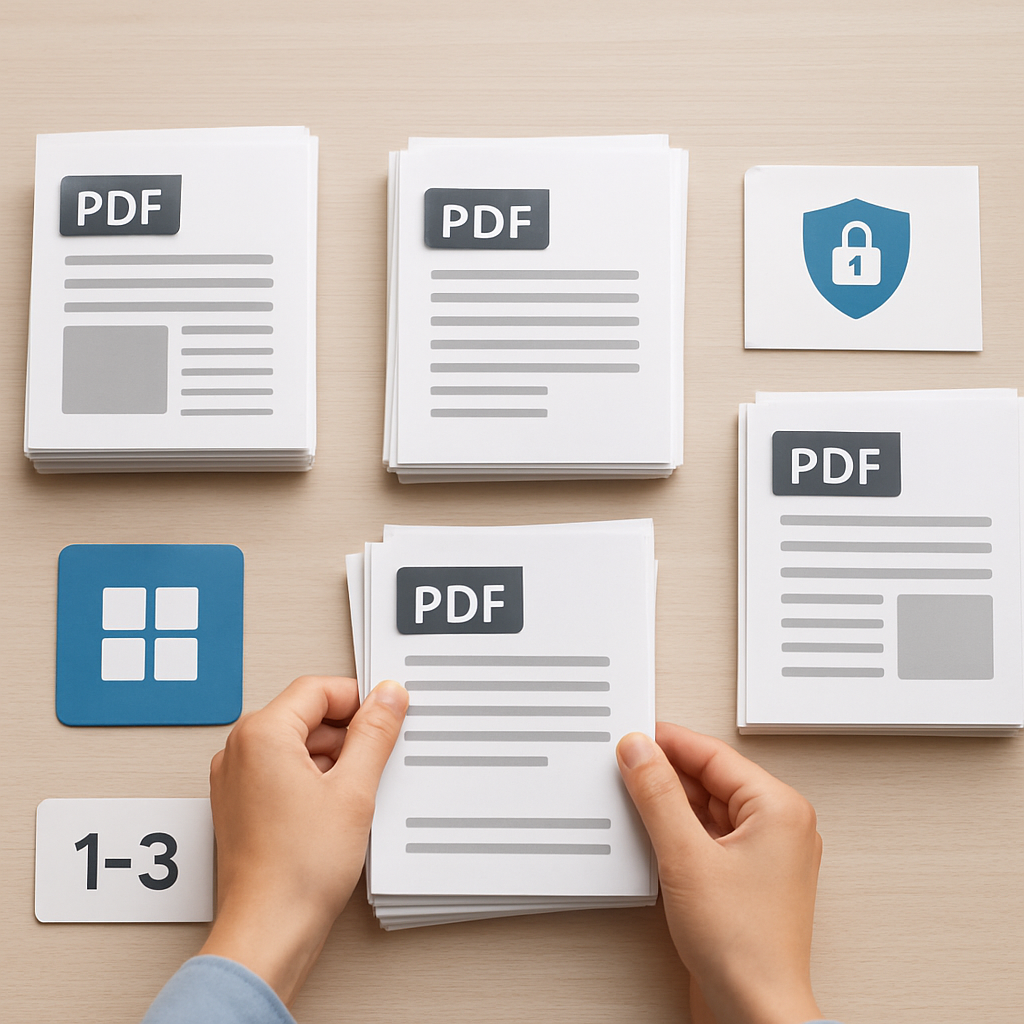
When PDF work has to move fast, the last thing most teams want is to upload sensitive files to a web tool for every small change. A contract packet needs pages extracted. A proposal needs to be merged with an appendix. A finance report needs a quick search across a local document. In all of those cases, a local-first workflow on Windows can keep the process simpler and more focused.
PDF PowerKit is designed for that kind of work: reading, searching, merging, splitting, and preparing PDFs locally on Windows. Instead of making every task a browser workflow, it keeps common PDF actions close to the desktop.
Why local PDF workflows matter
A local PDF workflow is useful when your priority is speed, privacy, and control. For many users, the biggest advantages are practical:
- Files stay on the desktop during routine work
- You can review and search documents without switching tools
- Merge and split tasks are easier to repeat
- Teams can keep sensitive documents out of browser-based workflows by default
This is especially relevant for legal and contract teams, operations teams, finance admins, consultants, small businesses, and educators who deal with documents that are internal, personal, or simply too cumbersome to move between tools.
For a broader overview of this approach, see Why a Local-First PDF Workflow on Windows Helps Teams Work Faster and Keep Documents on Desktop.
What a local-first PDF workflow on Windows looks like
A good local-first workflow usually starts with a simple pattern:
- Open the PDF in a desktop reader
- Search the content locally
- Decide whether the file needs to be merged, split, or extracted
- Save the result back to the desktop or a chosen folder
- Keep moving without unnecessary file transfers
PDF PowerKit supports this kind of flow with a Windows desktop interface built for common PDF tasks. The app includes a local PDF reader, search panel, recent files stored locally, merge and split tools, extraction workflows, and progress handling for longer operations.
Reading PDFs locally with less friction
A document reader is often the first step in a PDF workflow. If reading is slow or awkward, every later step becomes harder.
With PDF PowerKit, the local reader is built for everyday work such as:
- Opening PDFs from the desktop
- Zooming in and out for easier review
- Moving through pages with navigation actions
- Searching text within the document
- Returning to recent files stored locally
That combination makes the reader useful not only for viewing, but also for checking whether a document needs to be split, merged, or prepared for distribution.
Searching PDFs without leaving the desktop
Search is one of the most valuable features in any PDF workflow. It helps you find clauses, names, dates, references, and repeated terms without scrolling manually through long files.
PDF PowerKit includes local text extraction and search capabilities so users can work through documents on Windows without relying on a browser search tool. This is useful for:
- Reviewing contract language
- Finding keywords in long reports
- Checking references in course materials
- Locating sections before splitting or extracting pages
If you want to focus more on privacy in the search process, this related guide may help: How to Keep PDF Workflows Private on Windows Without Leaving Your Desktop.
Merging PDFs in a local workflow
Merging files is a common task for operations, finance, and project teams. You may need to combine a main PDF with supporting documents, append an addendum, or assemble a review packet.
In PDF PowerKit, merge workflows are built for local preparation and organization. The product supports merge tasks with reorder controls, so you can arrange files before combining them.
Useful scenarios include:
- Combining signed pages into one packet
- Merging a proposal and supporting appendix
- Grouping training materials into a single file
- Preparing a final review document for internal circulation
Because the workflow happens locally, teams can keep the process simple without turning a routine merge into a multi-step online upload.
Splitting PDFs by pages, ranges, or batches
Splitting is just as important as merging. Many document workflows depend on breaking a file into smaller parts for review, distribution, or filing.
PDF PowerKit supports splitting by:
- Page ranges
- Every N pages
- Individual pages
That flexibility makes it useful when you need to prepare only part of a document, separate a large packet into sections, or extract a subset for a specific task.
For example, a consultant may split a master report into client-specific sections, while a finance team might separate a monthly file into smaller review packets.
Extracting selected pages for review or distribution
Sometimes you do not need to split an entire file. You only need a few pages.
PDF PowerKit supports extraction workflows for selected pages, which can help when you want to:
- Pull out a signature page
- Share only the relevant section of a report
- Create a short review packet
- Isolate pages for follow-up work
That kind of targeted extraction is especially useful when teams want to reduce clutter and keep document handling more manageable.
A practical note on signing, protection, and compression
Some teams also look for PDF tools that support signing, protection, metadata cleanup, watermarks, or compression.
PDF PowerKit can be discussed in those product areas as part of the broader workflow direction, but it is important to keep expectations realistic:
- Signature workspaces can be part of a document preparation flow
- Protection controls can support document handling decisions
- Metadata workflows can help prepare files for sharing
- Compression results can vary depending on the PDF and settings
In other words, these are useful workflow areas, but they should be evaluated based on the actual build and the document type. No PDF tool should promise perfect outcomes for every file.
Why teams choose a desktop-first approach
A desktop-first PDF app is often easier to adopt when users already work inside Windows all day. They do not have to learn a new browser process just to complete routine document tasks.
That can help teams:
- Keep file handling more direct
- Reduce context switching
- Reuse the same local workflow for multiple PDF tasks
- Prepare documents faster for review or distribution
PDF PowerKit is positioned for that style of work: a native Windows app for local PDF reading and preparation, with a Fluent-style dashboard and a workflow built around desktop use.
When local-first is especially helpful
A local PDF workflow is a good fit when:
- Documents are sensitive or internal
- You work with repeatable PDF tasks every day
- You need quick access to reading, search, merge, and split tools
- You prefer desktop tools over browser uploads
- You want a single Windows app for multiple PDF actions
It is also a strong fit for teams that need a practical document routine instead of a collection of separate online tools.
Related resources
If you want to go deeper into the same workflow theme, these resources are useful:
- Why a Local-First PDF Workflow on Windows Helps Teams Work Faster and Keep Documents on Desktop
- How to Keep PDF Workflows Private on Windows Without Leaving Your Desktop
FAQ
Is PDF PowerKit a cloud PDF tool?
No. PDF PowerKit is positioned as a local-first Windows desktop app for PDF workflows. The default experience is built around desktop use rather than uploading files to a web tool.
Can I use PDF PowerKit to read and search PDFs locally?
Yes. The app includes a local PDF reader and local text search capabilities designed for Windows workflows.
Does PDF PowerKit support merging and splitting PDFs?
Yes. The product includes merge workflows with reorder controls and split workflows by page ranges, every N pages, or individual pages.
Can PDF PowerKit replace every specialized PDF tool?
It is designed to cover common PDF preparation tasks locally. For highly specialized needs, teams should evaluate the specific build and workflow requirements.
Does PDF PowerKit guarantee perfect compression or protection?
No. It is better to treat compression and protection as workflow areas that depend on the file and the settings used. No tool should promise universal or absolute results.
Final thoughts
If your team needs to read, search, merge, split, and prepare PDFs on Windows without turning every task into a browser upload, a local-first workflow can make a real difference. It keeps the work closer to the desktop and makes routine document handling easier to repeat.
To explore the app, Open PDF PowerKit or use it to Prepare PDF workflows locally.