Local-First Documents
How to Prepare Private PDF Workflows on Windows Without Uploading Files
How to Prepare Private PDF Workflows on Windows Without Uploading Files
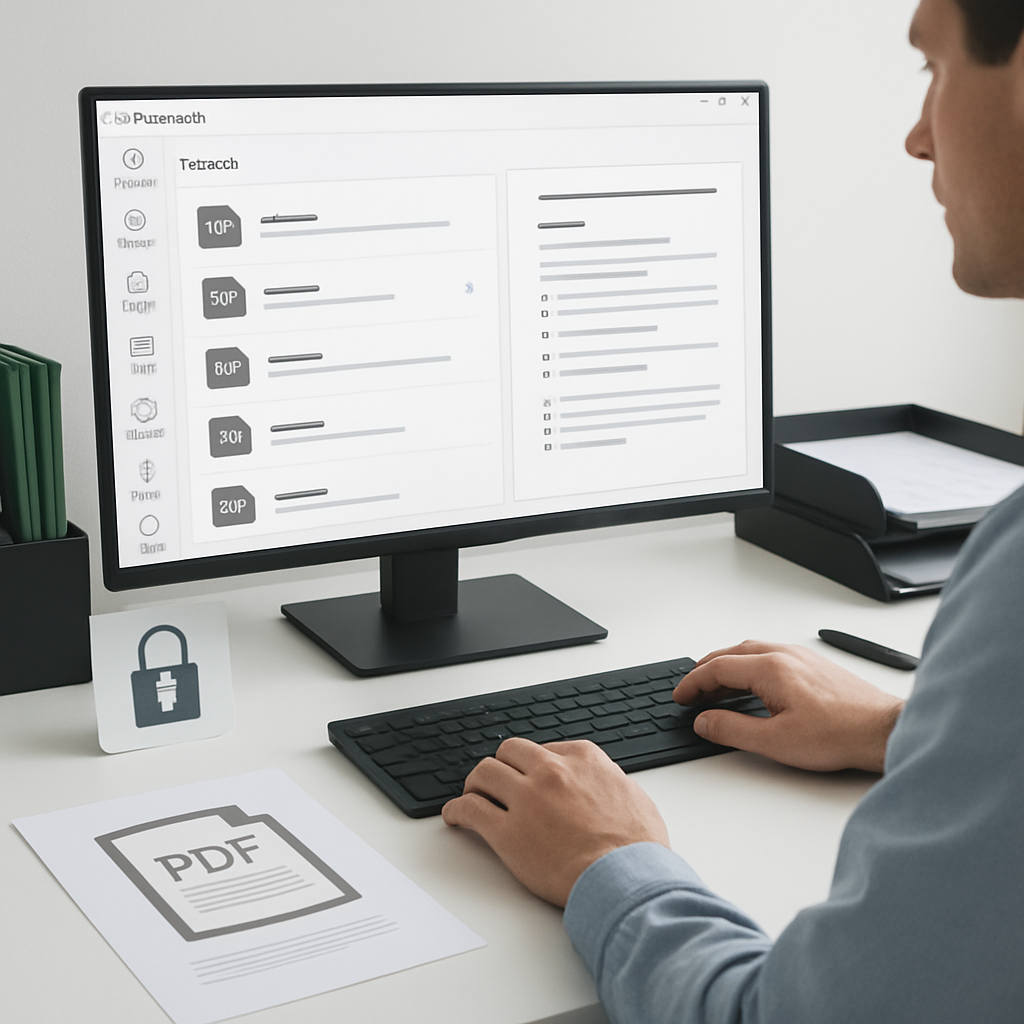
If you handle sensitive PDFs on a Windows desktop, the safest workflow is often the simplest one: keep the file local, complete the task locally, and avoid sending documents to a web tool unless you truly need to. That approach matters for contracts, internal reports, finance packets, customer documents, and other files you may not want to move into a browser-based service for every merge, split, or search.
PDF PowerKit is designed for that local-first approach. It helps you read, search, merge, split, extract pages, and prepare PDFs on Windows without making cloud upload the default step.
What a private PDF workflow means on Windows
A private PDF workflow is not about doing everything manually. It is about reducing unnecessary file movement.
In practice, that usually means:
- opening PDFs in a desktop app instead of a browser tab
- searching text locally when you need to find a clause or section
- merging related files without uploading them to a web service
- splitting a document into smaller parts for review or sharing
- extracting selected pages for a packet, appendix, or checkpoint review
- keeping recent files and workflow steps on the device whenever possible
This is especially useful when your team works with files that are routine but still sensitive. You may not need advanced collaboration every time; you may just need a fast, dependable desktop process.
Common problems with web-based PDF handling
Many online PDF tools are convenient, but they can create friction for repeated document tasks.
Typical issues include:
- repeated uploads for small changes
- extra browser steps for basic operations
- inconsistent review workflows across teams
- concerns about where files are stored during processing
- limited control over local file organization
- switching between multiple sites for reading, splitting, and searching
If you work in operations, legal support, finance, consulting, or education, those little steps add up quickly. A local desktop app can reduce that overhead.
A practical Windows workflow for private PDF tasks
A useful desktop workflow usually starts with a few core actions.
1) Read the PDF locally
Open the file in a desktop reader so you can inspect the content without leaving Windows. A local reader can help you:
- zoom in for detail
- move page by page
- jump through the document
- use a search panel to find terms faster
2) Search before you edit
If you need to find a clause, invoice line, project name, or section heading, search first. Local text search can save time when you are preparing a file for review or splitting a large packet into smaller parts.
3) Merge files only when the structure is ready
Before combining documents, decide the final order. That matters for board packs, reports, proposals, appendices, and review bundles.
A desktop merge workflow is usually easier when you can reorder files before creating the final PDF.
4) Split with a clear purpose
Split a PDF when you need to:
- separate sections for review
- extract a chapter or appendix
- send only the pages relevant to a stakeholder
- break a large packet into manageable parts
5) Extract only the pages you need
When you do not need the whole document, extracting pages locally can help you prepare a focused file faster.
Where PDF PowerKit fits in
PDF PowerKit is a native Windows desktop app built for local PDF workflows. It is intended for users who want a fast desktop experience for reading and document preparation.
The current workflow areas include:
- local PDF reading with zoom and navigation actions
- search panel for finding text inside PDFs
- merge PDFs with reorder controls
- split PDFs by page ranges, every N pages, or individual pages
- extract selected pages
- recent files stored locally
- progress feedback with cancel hooks during operations
- local theme switching
- language options prepared for multiple languages
These capabilities are useful when you need one place to handle several PDF tasks without moving between sites.
A simple example workflow
Here is one way a team member might use a local-first PDF workflow on Windows:
- Open the source PDF in PDF PowerKit.
- Search for the section you need.
- Split the file into the required page range.
- Extract the pages that belong in a smaller packet.
- Merge any supporting files in the correct order.
- Save the result locally for review or distribution.
This is a practical approach for recurring tasks like review packets, reference bundles, internal checklists, or document prep before a meeting.
Who benefits from local-first PDF preparation
A local desktop workflow can be especially helpful for:
- operations teams handling repeatable document prep
- legal and contract teams working with sensitive files
- finance admins organizing reports and statements
- consultants preparing client-ready packets
- small businesses that want simple desktop tools
- educators assembling readings, course materials, or handouts
The goal is not to replace every document system. The goal is to make routine PDF work easier on Windows.
What to know about signing, protection, and compression
PDF workflows often include signing, watermarking, metadata updates, protection settings, and compression. Those are useful product areas for document prep, but results can vary by file type, workflow, and implementation.
A few careful notes:
- signature workflows should be used for document preparation, not as legal advice
- protection controls can help manage access, but they do not guarantee perfect security
- compression results can vary and should not be assumed to reduce every file
- advanced OCR or AI-driven document features may belong to later phases unless explicitly available in your build
If your process involves formal approval or regulated document handling, use your organization’s review rules alongside the software.
Why local-first matters for privacy-sensitive work
For many teams, the main advantage of a desktop PDF app is control.
A local-first workflow can help you:
- keep documents on the device during routine tasks
- reduce unnecessary uploads
- work faster on repeat operations
- avoid switching between multiple web tools
- standardize the way teams prepare files on Windows
If privacy is a priority, local desktop handling is often the most practical starting point.
For a related walkthrough, see How to Keep PDF Workflows Private on Windows Without Leaving Your Desktop.
FAQ
Is PDF PowerKit a web app?
No. PDF PowerKit is described as a Windows desktop app built for local PDF workflows.
Can I merge and split files without uploading them first?
That is the intended local-first workflow: prepare PDF tasks on your desktop instead of relying on a browser upload for every step.
Does the app include OCR or advanced AI features?
Those features should only be described as available if they are part of the current build. If they are planned for later phases, treat them as future capabilities.
Is PDF compression guaranteed to reduce file size?
No. Compression results can vary depending on the source PDF and workflow.
Can this replace legal review for contracts or signatures?
No. The app can support PDF preparation, but it is not a substitute for legal advice or formal review processes.
Internal links and next steps
If you want a broader overview of the workflow approach, read How to Build a Private PDF Workflow on Windows for Reading, Merging, Splitting, and Searching.
You can also explore How to Keep PDF Workflows Private on Windows Without Leaving Your Desktop for a privacy-focused angle.
Final takeaway
A strong Windows PDF workflow does not have to start in a browser. For teams that handle private or repeated document tasks, a local desktop approach can reduce friction and keep work organized.
If you want to prepare PDFs locally, Open PDF PowerKit and keep your next workflow on your Windows desktop.
Suggested CTA: Prepare PDF workflows locally