Replanning Workflows
AI Planning for Solo Professionals: How to Plan Your Day with Focus, Energy Types, and 1-Credit Replanning

AI Planning for Solo Professionals: How to Plan Your Day with Focus, Energy Types, and 1-Credit Replanning
Solo professionals often don’t struggle with having enough tasks. The real problem is turning a loose list of work into a day that actually fits time, energy, and priorities. That is where AI planning can help.
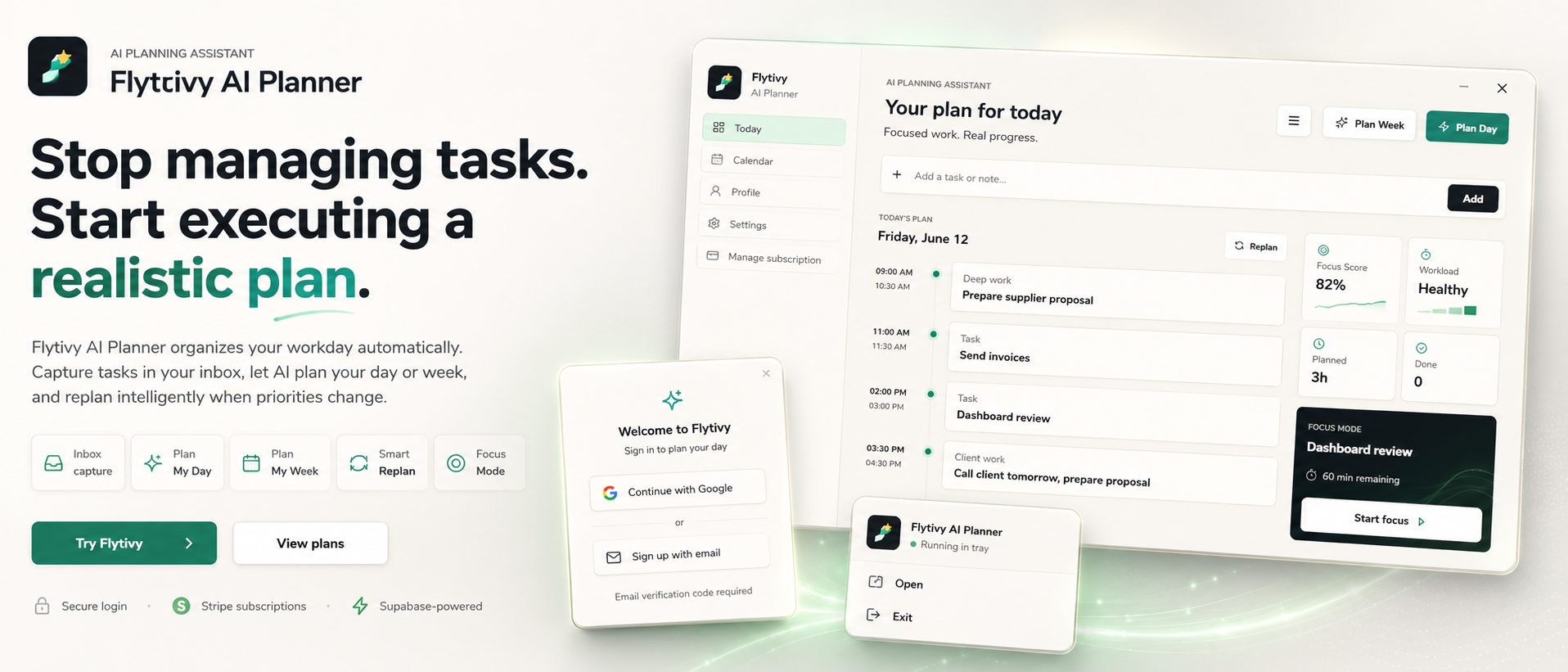
Flytivy AI Planner is designed for automatic work planning, not as another calendar. You capture tasks, deadlines, priorities, estimated durations, and energy type, then Flytivy helps turn that input into a realistic plan for today, this week, or unfinished work that needs a reset.
In this article, you’ll learn how AI planning for solo professionals works, why energy type matters, and how to use 1-credit replanning when the day changes.
Why solo professionals need more than a task list
A task list is useful, but it doesn’t answer the hardest question: what should I do now?
That gap creates familiar problems:
- Tasks stay unscheduled even when they are important
- Days get overloaded with too much work
- Context switching increases because priorities are unclear
- Manual drag-and-drop planning takes time and still leads to poor estimates
- Unfinished work gets pushed forward without a clear next step
AI planning helps by taking the information you already know about your work and turning it into an executable plan. The goal is not to replace your judgment, but to reduce the manual effort of building and rebuilding a schedule.
What AI planning means in Flytivy
In Flytivy, AI planning is the process of converting loose tasks into a realistic plan based on practical constraints.
You can add information such as:
- Task title
- Priority
- Deadline
- Estimated duration
- Energy type
- Meetings or context from your calendar
From there, Flytivy can help create a day plan, week plan, or replan unfinished work when priorities change.
This is different from a generic calendar view. Calendar and Gantt views are available, but the core value is automatic planning and re-planning.
How to plan your day with focus and energy types
A realistic plan is not only about time blocks. It also needs to respect focus and energy.
1. Start with the tasks that are actually available
Capture loose tasks first. Don’t try to organize everything manually before you have the full picture.
Good inputs include:
- Tasks waiting in your head
- Open loops from email or chat
- Items with deadlines
- Work that needs a deep-focus block
- Small follow-ups that can be grouped together
2. Add duration and energy type
Duration helps Flytivy estimate how much can fit into the day. Energy type helps you decide what kind of task belongs in a focused block versus a lighter part of the schedule.
For example, you might label work as:
- Deep focus
- Medium focus
- Light/admin
- Quick follow-up
This makes the plan more realistic because not every task should compete for your highest-energy hours.
3. Let the plan protect focus
When too many tasks are placed into one day, the result is often a plan that looks productive but cannot be executed.
Flytivy uses planning logic around workload and focus so the schedule is calmer and more realistic. Instead of packing the day with everything, it helps decide what belongs now and what should wait.
4. Review the plan before you start working
Once the plan is generated, check whether the order makes sense for your actual day.
You may want to verify:
- The first task is clear and actionable
- High-energy work is placed at the right time
- Meetings are visible in context
- The day does not exceed a reasonable workload
When to use Plan Day, Plan Week, and Replan
Flytivy gives you different planning actions depending on the situation.
Plan Day
Use Plan Day when you want to turn today’s loose tasks into a structured schedule.
It is useful when:
- You start the morning with too many open items
- You want a better order of execution
- You need a plan that fits around meetings and deadlines
Plan Week
Use Plan Week when you want a broader view of how work should be spread across several days.
It is useful when:
- You need to balance important tasks across the week
- You want to avoid overloading a single day
- You are planning around recurring commitments
Replan
Use Replan when the day changes and some tasks remain unfinished.
That is where the 1-credit replanning flow matters. Instead of manually reshuffling items, you can replan the remaining work into a fresh schedule.
This is especially helpful when:
- A meeting ran long
- A priority changed during the day
- You finished less than expected
- A task needs to move to a better time block
How 1-credit replanning supports real-world work
Planning is not a one-time activity. Solo professionals often need to adjust the plan multiple times in a week.
That is why replanning is useful: it helps you adapt without rebuilding everything manually.
In Flytivy, Plan Day, Plan Week, and Replan each cost 1 AI credit. Coach messages cost 0.25 credits.
A practical workflow might look like this:
- Capture tasks
- Generate a day plan
- Work through the first blocks
- Replan what remains if the day changes
- Use Coach to review conflicts, workload, credits, subscription state, or next actions
For users on Free, Flytivy includes 30 AI credits per month for each of the first two associated-account months. From month three, Free receives 0 new monthly AI credits unless the user upgrades.
If you expect to plan often, it makes sense to review whether Pro or Ultimate better fits your workflow.
Using Flytivy Coach as a planning assistant
Flytivy Coach is helpful when you want to review the plan before making changes.
It can help you look at:
- Task conflicts
- Workload balance
- Credit usage
- Subscription state
- Next actions
That makes Coach useful for quick planning check-ins, especially when you want support without manually scanning every task.
How Google Calendar import fits into planning
If your schedule already includes meetings, the planning system needs that context.
Flytivy supports Google Calendar import, which helps bring external commitments into the planning view. That way, task scheduling can happen around real availability instead of assuming the day is empty.
This matters because realistic planning depends on what is already on the calendar.
A simple daily planning workflow for solo professionals
Here is a practical way to use AI planning in your day.
Morning setup
- Capture tasks that came in overnight
- Mark priority and duration
- Identify tasks that need high focus
- Note any fixed meetings
Generate the plan
- Use Plan Day to build the schedule
- Check whether the workload is realistic
- Confirm that important tasks are placed in the right order
Work the plan
- Start with the first executable block
- Keep an eye on energy and attention
- Avoid adding extra tasks just because time appears available
Replan when needed
- If something slips, use Replan
- Move unfinished work into a new schedule
- Keep the next step clear instead of leaving the day open-ended
Who benefits most from AI planning for solo professionals
Flytivy is a strong fit for people who manage their own workflow and need structure without heavy manual scheduling.
It can be especially useful for:
- Founders
- Consultants
- Project leads
- Remote workers
- Busy professionals
- Small teams with individual ownership
If you work alone or mostly independently, the biggest win is often clarity: knowing what comes next and what can realistically fit.
Internal link suggestions
- Explore more about [AI planning](#)
- See how [daily planning](#) can improve task ordering
- Learn about [weekly planning](#) for balanced workloads
- Review [task scheduling](#) workflows for mixed-priority work
FAQ
What is AI planning for solo professionals?
AI planning for solo professionals is the use of planning software to turn loose tasks into a realistic schedule based on time, priority, duration, and energy needs.
Is Flytivy a calendar?
Flytivy includes calendar and Gantt views, but it is not positioned as a generic calendar. Its core value is automatic work planning and replanning.
How does energy type help with planning?
Energy type helps you match the task to the right kind of time block, so demanding work is less likely to be placed in a low-energy part of the day.
What happens when my day changes?
You can use Replan to reorganize unfinished work into a new schedule instead of manually rebuilding the day.
How many AI credits are included in Free?
Free includes 30 AI credits per month for each of the first two associated-account months. From month three, Free receives 0 new monthly AI credits unless the user upgrades.
How much do planning actions cost?
Plan Day, Plan Week, and Replan each cost 1 AI credit. Each Coach message costs 0.25 credits.
Ready to turn loose tasks into a real plan?
If you want a calmer, more executable schedule, start with your tasks, let the plan do the heavy lifting, and replan when the day shifts.
Use Plan your day with Flytivy to get started, or Replan unfinished work when priorities change.